Map Where I Can Pin Multiple Locations (2025 Guide)
How to Create a Map Where You Can Pin Multiple Locations: A Complete Technical Guide
Looking to build an interactive map where you can drop multiple location pins for your business, travel plans, or project visualization? While the concept seems simple, creating a fully functional multi-pin map requires technical expertise. This guide will walk you through the professional development approach.
This method requires knowledge of web development, API management, and basic programming.
Method: Custom JavaScript Implementation with Google Maps API
Step 1: Google Cloud Platform Setup
First, you need to configure the Google Maps Platform with proper authentication.
- 1. Create a Google Cloud Project
- – Visit [Google Cloud Console](https://console.cloud.google.com/)
- – Create a new project or select an existing one
- – Enable billing (the $200 monthly credit covers most basic usage)
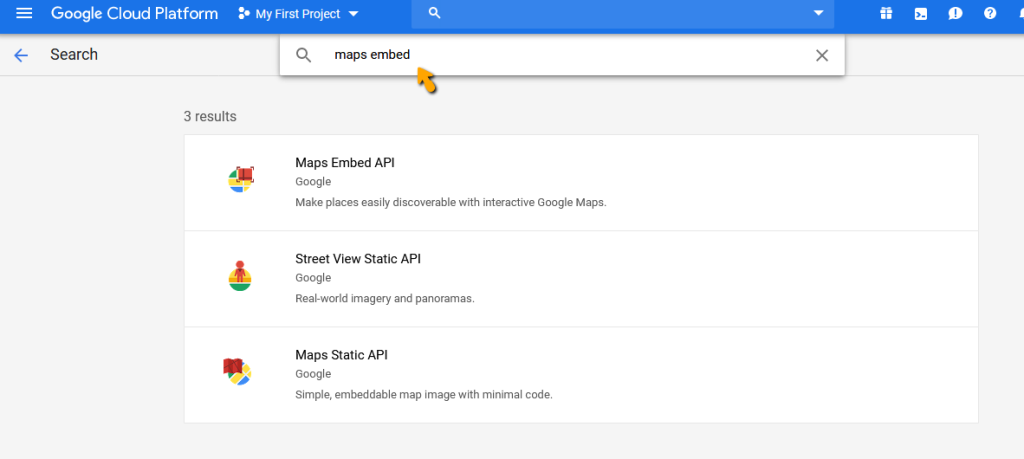
- 2. Enable Required APIs
- Navigate to “APIs & Services > Library” and enable:
- – Maps JavaScript API (core mapping functionality)
- – Geocoding API (address to coordinates conversion)
- 3. Generate and Secure API Key
- – Go to “Credentials”
- – Create new API key
- – Restrict key to your domain and the Maps JavaScript API
Step 2: Building the Interactive Pinning Interface
Create an HTML file with the following complete implementation:
html
<!DOCTYPE html>
<html>
<head>
    <title>Advanced Multi-Location Pinning Map</title>
    <meta name="viewport" content="width=device-width, initial-scale=1.0">
    <script async defer src="https://maps.googleapis.com/maps/api/js?key=YOUR_API_KEY_HERE&libraries=geometry&callback=initMap"></script>
    <style>
        #map-container {
            position: relative;
            width: 100%;
            height: 70vh;
            border: 2px solid #e0e0e0;
            border-radius: 8px;
            overflow: hidden;
        }
        #map {
            height: 100%;
            width: 100%;
        }
        #controls {
            position: absolute;
            top: 10px;
            left: 10px;
            background: white;
            padding: 15px;
            border-radius: 5px;
            box-shadow: 0 2px 6px rgba(0,0,0,0.3);
            z-index: 1000;
        }
        #location-list {
            margin-top: 20px;
            max-height: 200px;
            overflow-y: auto;
        }
        .location-item {
            padding: 8px;
            border-bottom: 1px solid #eee;
            cursor: pointer;
        }
        .location-item:hover {
            background: #f5f5f5;
        }
        .btn {
            padding: 8px 16px;
            margin: 5px;
            border: none;
            border-radius: 4px;
            cursor: pointer;
        }
        .btn-primary {
            background: #4285f4;
            color: white;
        }
        .btn-danger {
            background: #ea4335;
            color: white;
        }
    </style>
</head>
<body>
    <h1>Multi-Location Pinning Map</h1>
    <p>Click anywhere on the map to add pins. Manage your locations using the controls.</p>

    <div id="map-container">
        <div id="controls">
            <button class="btn btn-primary" onclick="clearAllPins()">Clear All Pins</button>
            <button class="btn btn-primary" onclick="exportLocations()">Export Locations</button>
            <div>
                <input type="text" id="search-box" placeholder="Search location..." style="margin: 10px 0; padding: 5px; width: 200px;">
                <button class="btn btn-primary" onclick="searchLocation()">Search</button>
            </div>
        </div>
        <div id="map"></div>
    </div>

    <div id="location-list">
        <h3>Pinned Locations:</h3>
        <div id="locations-container"></div>
    </div>

    <script>
        let map;
        let markers = [];
        let infoWindow;

        function initMap() {
            // Initialize the map
            map = new google.maps.Map(document.getElementById('map'), {
                center: { lat: 39.8283, lng: -98.5795 },
                zoom: 4,
                mapTypeControl: true,
                streetViewControl: true
            });

            infoWindow = new google.maps.InfoWindow();

            // Add click listener for pinning locations
            map.addListener('click', function(event) {
                addMarker(event.latLng);
            });

            // Initialize search box
            initSearchBox();
        }

        function initSearchBox() {
            const input = document.getElementById('search-box');
            const searchBox = new google.maps.places.SearchBox(input);

            map.controls[google.maps.ControlPosition.TOP_LEFT].push(input);

            searchBox.addListener('places_changed', function() {
                const places = searchBox.getPlaces();
                if (places.length === 0) return;

                const bounds = new google.maps.LatLngBounds();
                places.forEach(function(place) {
                    if (!place.geometry) return;

                    addMarker(place.geometry.location, place.name);

                    if (place.geometry.viewport) {
                        bounds.union(place.geometry.viewport);
                    } else {
                        bounds.extend(place.geometry.location);
                    }
                });
                map.fitBounds(bounds);
            });
        }

        function addMarker(location, title = 'Custom Location') {
            const marker = new google.maps.Marker({
                position: location,
                map: map,
                title: title,
                draggable: true,
                animation: google.maps.Animation.DROP
            });

            // Create info window content
            const contentString = `
                <div style="padding: 10px;">
                    <h3 style="margin: 0 0 10px 0;">${title}</h3>
                    <p>Lat: ${location.lat().toFixed(6)}</p>
                    <p>Lng: ${location.lng().toFixed(6)}</p>
                    <button onclick="removeMarker(${markers.length})" style="padding: 5px 10px; margin-top: 5px; background: #ea4335; color: white; border: none; border-radius: 3px; cursor: pointer;">Remove</button>
                </div>
            `;

            // Add click listener to marker
            marker.addListener('click', function() {
                infoWindow.setContent(contentString);
                infoWindow.open(map, marker);
            });

            // Add dragend listener
            marker.addListener('dragend', function() {
                updateLocationList();
            });

            markers.push({
                marker: marker,
                title: title,
                position: marker.getPosition()
            });

            updateLocationList();
        }

        function removeMarker(index) {
            if (markers[index]) {
                markers[index].marker.setMap(null);
                markers.splice(index, 1);
                updateLocationList();
                infoWindow.close();
            }
        }

        function clearAllPins() {
            if (confirm('Are you sure you want to remove all pins?')) {
                markers.forEach(markerObj => {
                    markerObj.marker.setMap(null);
                });
                markers = [];
                updateLocationList();
                infoWindow.close();
            }
        }

        function updateLocationList() {
            const container = document.getElementById('locations-container');
            container.innerHTML = '';

            markers.forEach((markerObj, index) => {
                const position = markerObj.marker.getPosition();
                const item = document.createElement('div');
                item.className = 'location-item';
                item.innerHTML = `
                    <strong>${markerObj.title}</strong><br>
                    Lat: ${position.lat().toFixed(6)}, Lng: ${position.lng().toFixed(6)}
                    <button onclick="removeMarker(${index})" style="float: right; background: #ea4335; color: white; border: none; padding: 2px 8px; border-radius: 3px; cursor: pointer;">×</button>
                `;
                container.appendChild(item);
            });
        }

        function exportLocations() {
            const data = markers.map(markerObj => {
                const pos = markerObj.marker.getPosition();
                return {
                    title: markerObj.title,
                    lat: pos.lat(),
                    lng: pos.lng()
                };
            });

            const dataStr = "data:text/json;charset=utf-8," + encodeURIComponent(JSON.stringify(data, null, 2));
            const downloadAnchor = document.createElement('a');
            downloadAnchor.setAttribute("href", dataStr);
            downloadAnchor.setAttribute("download", "pinned_locations.json");
            document.body.appendChild(downloadAnchor);
            downloadAnchor.click();
            downloadAnchor.remove();
        }
    </script>
</body>
</html>
Code language: HTML, XML (xml)
Implementation Notes:
- – Replace `YOUR_API_KEY_HERE` with your actual Google Maps API key
- – The code includes search functionality using Google Places API
- – Locations can be exported as JSON for data persistence
- – Fully responsive design works on desktop and mobile
Step 3: Advanced Features and Customization
To enhance your map further, consider implementing:
Data Persistence:
javascript
// Save to localStorage
function saveToLocalStorage() {
    const data = markers.map(markerObj => {
        const pos = markerObj.marker.getPosition();
        return {
            title: markerObj.title,
            lat: pos.lat(),
            lng: pos.lng()
        };
    });
    localStorage.setItem('pinnedLocations', JSON.stringify(data));
}

// Load from localStorage
function loadFromLocalStorage() {
    const saved = localStorage.getItem('pinnedLocations');
    if (saved) {
        JSON.parse(saved).forEach(location => {
            addMarker(new google.maps.LatLng(location.lat, location.lng), location.title);
        });
    }
}
Code language: JavaScript (javascript)
Custom Marker Icons:
javascript
const customIcon = {
    url: 'path/to/custom-pin.png',
    scaledSize: new google.maps.Size(30, 40),
    origin: new google.maps.Point(0, 0),
    anchor: new google.maps.Point(15, 40)
};

// Use in addMarker function:
// icon: customIcon
Code language: JavaScript (javascript)
The Development Reality: Why This Approach is Challenging
While the code above provides a functional multi-pin map, it comes with significant challenges:
- – API Management Complexity: Ongoing maintenance of Google Cloud projects, quota monitoring, and billing management
- – Cross-Browser Compatibility: Ensuring consistent performance across all browsers and devices
- – Performance Optimization: Handling large numbers of markers efficiently
- – Mobile Experience: Creating touch-friendly interfaces for mobile users
- – Data Security: Protecting API keys and user data
- – Feature Expansion: Adding clustering, heat maps, or custom overlays requires extensive additional coding
The Professional Alternative: MapsFun.com
What if you could create advanced, fully-featured multi-pin maps without writing a single line of code or managing API infrastructure?
MapsFun.com provides an enterprise-grade mapping solution that eliminates these technical hurdles:
- – Zero-Code Visual Builder: Create complex, interactive maps through an intuitive drag-and-drop interface
- – Built-in Data Management: Import, export, and manage location data with spreadsheet-like simplicity
- – Automatic Optimization: Professional-grade performance and mobile responsiveness out of the box
- – Advanced Features: Built-in clustering, heat maps, custom styling, and collaboration tools
- – No API Management: We handle all the technical infrastructure so you can focus on your content
Stop spending days coding and debugging mapping functionality. **Create professional multi-location maps in minutes with MapsFun.com.