Real Estate by Map (2025 Search Methods)
How to Create a “Real Estate by Map” Search Experience for Your Website
Modern home buyers expect to search for properties visually, using an interactive map. Offering a “real estate by map” feature can significantly enhance user engagement and lead generation. While it’s possible to build this from scratch, the technical process is complex. This guide walks you through a functional method using the Google Maps API, followed by a much more efficient solution.
The manual approach requires a Google Cloud account, secure API key management, and intermediate coding skills.
Method 1: Building a Custom Map Search with Google Maps API
This method provides a high degree of customization but involves multiple technical layers.
Step 1: Foundation – API and Cloud Setup
- 1. Google Cloud Project: Navigate to the [Google Cloud Console](https://console.cloud.google.com/) and create a new project. You must enable billing, but the generous $200 monthly credit usually suffices for a typical real estate website’s traffic.
- 2. Enable Critical APIs: Go to “APIs & Services > Library” and enable the following:
- Maps JavaScript API (renders the map)
- Geocoding API (converts addresses to coordinates)
- Places API (optional, for location search)
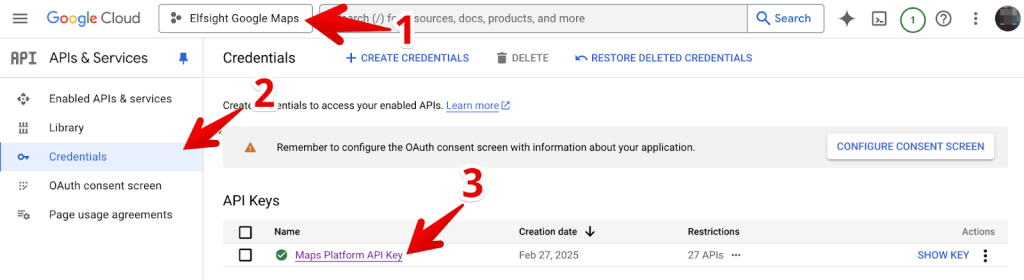
- 3. Generate Credentials: Create an API key in the “Credentials” section. **Restrict this key** to the enabled APIs and add your website domain (e.g., `https://yourbrokeragesite.com/*`) under HTTP referrers to prevent misuse.
Step 2: Develop the Interactive Map Interface
The following code creates a map with filterable property listings. Users can click on markers or listings to see details.
Create a file named `map-search.html`:
html
<!DOCTYPE html>
<html>
<head>
    <title>Map-Based Real Estate Search</title>
    <script async defer src="https://maps.googleapis.com/maps/api/js?key=YOUR_API_KEY_HERE&callback=initMap&libraries=places"></script>
    <style>
        #container {
            display: flex;
            height: 80vh;
            border: 1px solid #ccc;
            border-radius: 8px;
            overflow: hidden;
        }
        #filters {
            width: 200px;
            padding: 15px;
            background: #f9f9f9;
            border-right: 1px solid #ccc;
        }
        #listings {
            width: 300px;
            overflow-y: auto;
            padding: 10px;
        }
        #map {
            flex-grow: 1;
            height: 100%;
        }
        .listing-item {
            padding: 10px;
            border-bottom: 1px solid #eee;
            cursor: pointer;
        }
        .listing-item:hover {
            background-color: #f0f0f0;
        }
        .price {
            font-weight: bold;
            color: #1a73e8;
        }
    </style>
</head>
<body>
    <h1>Find Your Dream Home by Map</h1>
    <div id="container">
        <div id="filters">
            <h3>Filters</h3>
            <label>Max Price:</label>
            <select id="maxPrice">
                <option value="any">Any</option>
                <option value="500000">$500,000</option>
                <option value="750000">$750,000</option>
                <option value="1000000">$1,000,000</option>
            </select>
            <br><br>
            <label>Bedrooms:</label>
            <select id="bedrooms">
                <option value="any">Any</option>
                <option value="1">1+</option>
                <option value="2">2+</option>
                <option value="3">3+</option>
            </select>
            <br><br>
            <button onclick="applyFilters()">Apply Filters</button>
        </div>
        <div id="listings"></div>
        <div id="map"></div>
    </div>

    <script>
        let map;
        let markers = [];
        const allProperties = [
            {
                id: 1,
                title: "Lakeside Family Home",
                price: 675000,
                beds: 4,
                baths: 3,
                sqft: 2800,
                address: "123 Lakeview Drive, Chicago, IL",
                position: { lat: 41.8781, lng: -87.6298 },
                image: "/img/property1.jpg",
                type: "Single Family"
            },
            {
                id: 2,
                title: "Downtown Luxury Condo",
                price: 1200000,
                beds: 2,
                baths: 2,
                sqft: 1800,
                address: "456 Skyline Ave, Chicago, IL",
                position: { lat: 41.8885, lng: -87.6354 },
                image: "/img/property2.jpg",
                type: "Condo"
            },
            {
                id: 3,
                title: "Suburban Ranch",
                price: 450000,
                beds: 3,
                baths: 2,
                sqft: 2200,
                address: "789 Quiet Lane, Naperville, IL",
                position: { lat: 41.7859, lng: -88.1470 },
                image: "/img/property3.jpg",
                type: "Single Family"
            }
        ];

        function initMap() {
            map = new google.maps.Map(document.getElementById('map'), {
                center: { lat: 41.8781, lng: -87.6298 },
                zoom: 10
            });

            // Initialize markers and listings
            updateDisplay(allProperties);

            // Add search box for locations
            const input = document.createElement('input');
            input.id = 'pac-input';
            input.className = 'controls';
            input.type = 'text';
            input.placeholder = 'Search areas...';
            map.controls[google.maps.ControlPosition.TOP_LEFT].push(input);

            const searchBox = new google.maps.places.SearchBox(input);
            searchBox.addListener('places_changed', function() {
                const places = searchBox.getPlaces();
                if (places.length == 0) return;
                const bounds = new google.maps.LatLngBounds();
                places.forEach(place => {
                    if (!place.geometry) return;
                    bounds.extend(place.geometry.location);
                });
                map.fitBounds(bounds);
            });
        }

        function updateDisplay(properties) {
            // Clear previous markers
            markers.forEach(marker => marker.setMap(null));
            markers = [];

            // Update listings panel
            const listingsContainer = document.getElementById('listings');
            listingsContainer.innerHTML = '';

            properties.forEach(property => {
                // Add marker to map
                const marker = new google.maps.Marker({
                    position: property.position,
                    map: map,
                    title: property.title
                });

                const infowindow = new google.maps.InfoWindow({
                    content: `
                        <div style="padding: 10px;">
                            <h3>${property.title}</h3>
                            <p class="price">$${property.price.toLocaleString()}</p>
                            <p>${property.beds} beds, ${property.baths} baths</p>
                        </div>
                    `
                });

                marker.addListener('click', () => {
                    infowindow.open(map, marker);
                });
                markers.push(marker);

                // Add to listings panel
                const listingElement = document.createElement('div');
                listingElement.className = 'listing-item';
                listingElement.innerHTML = `
                    <h4>${property.title}</h4>
                    <p class="price">$${property.price.toLocaleString()}</p>
                    <p>${property.beds} bd | ${property.baths} ba | ${property.sqft} sqft</p>
                `;
                listingElement.addEventListener('click', () => {
                    map.setCenter(property.position);
                    map.setZoom(15);
                    infowindow.open(map, marker);
                });
                listingsContainer.appendChild(listingElement);
            });
        }

        function applyFilters() {
            const maxPrice = document.getElementById('maxPrice').value;
            const minBeds = document.getElementById('bedrooms').value;

            const filtered = allProperties.filter(property => {
                return (maxPrice === 'any' || property.price <= maxPrice) &&
                       (minBeds === 'any' || property.beds >= minBeds);
            });

            updateDisplay(filtered);
        }
    </script>
</body>
</html>
Code language: HTML, XML (xml)
Replace `YOUR_API_KEY_HERE` with your actual, restricted Google Maps API key.
Step 3: Integrate with Your Real Estate Website
This HTML file can be embedded into your site using a custom HTML widget or by integrating the logic into your site’s backend if you’re using a CMS like WordPress with custom fields.
The Operational Overhead of a Custom Build
While the code above creates a functional map search, maintaining it presents significant challenges:
- Data Synchronization: Manually syncing the property data in the code with your MLS or database is impractical and prone to errors.
- Complex Filtering: Adding more advanced filters (by school district, property type, year built) requires extensive additional JavaScript.
- Performance Optimization: Handling a large inventory of properties can lead to slow load times without implementing marker clustering and server-side pagination.
- Cross-Browser Compatibility: Ensuring the search functions perfectly across all browsers and devices requires rigorous testing.
- Ongoing Maintenance: Google Maps API updates, changing design trends, and bug fixes demand continuous developer attention.
The Streamlined Professional Solution: MapsFun.com
Why allocate significant time and resources to build and maintain a complex map search when a turnkey solution exists?
MapsFun.com is built specifically for real estate professionals who need a powerful “search by map” feature without the development burden:
- Live Data Integration: Connect directly to your MLS or easily import listings via CSV, eliminating manual data entry.
- Advanced, No-Code Filtering: Implement complex search filters through a simple visual interface—no coding required.
- Automated Performance: We handle marker clustering, fast loading, and mobile responsiveness automatically.
- Lead Capture Tools: Built-in contact forms and lead tracking to help you convert map visitors into clients.
- Zero-Hassle Updates: Your map search stays modern and functional without any technical maintenance on your part.
Stop building and start selling. Offer a premium “real estate by map” experience on your website today. Visit MapsFun.com to launch your map in minutes, not months.