Real Estate for Sale Map (How to Search by Location)
How to Create a Professional Real Estate for Sale Map for Your Website
In today’s competitive market, home buyers expect to search for properties visually. A dedicated “real estate for sale” map on your website can dramatically increase engagement and lead generation. While building a custom map is technically possible, it involves significant complexity. This guide provides a working method using the Google Maps API, followed by a much more efficient solution.
The manual approach requires a Google Cloud account, secure API key management, and intermediate web development skills.
Method 1: Building a Custom Property Map with Google Maps API
This approach offers full control over the map’s functionality but requires multiple technical steps.
Step 1: Google Cloud Setup & API Configuration
- 1. Create a Google Cloud Project: Visit the [Google Cloud Console](https://console.cloud.google.com/), create a new project, and enable billing (the $200 monthly credit typically covers usage for most real estate websites).
- 2. Enable Required APIs: Navigate to “APIs & Services > Library” and enable:
- Maps JavaScript API (displays the map)
- Geocoding API (converts addresses to coordinates)
- Places API (for location search functionality)
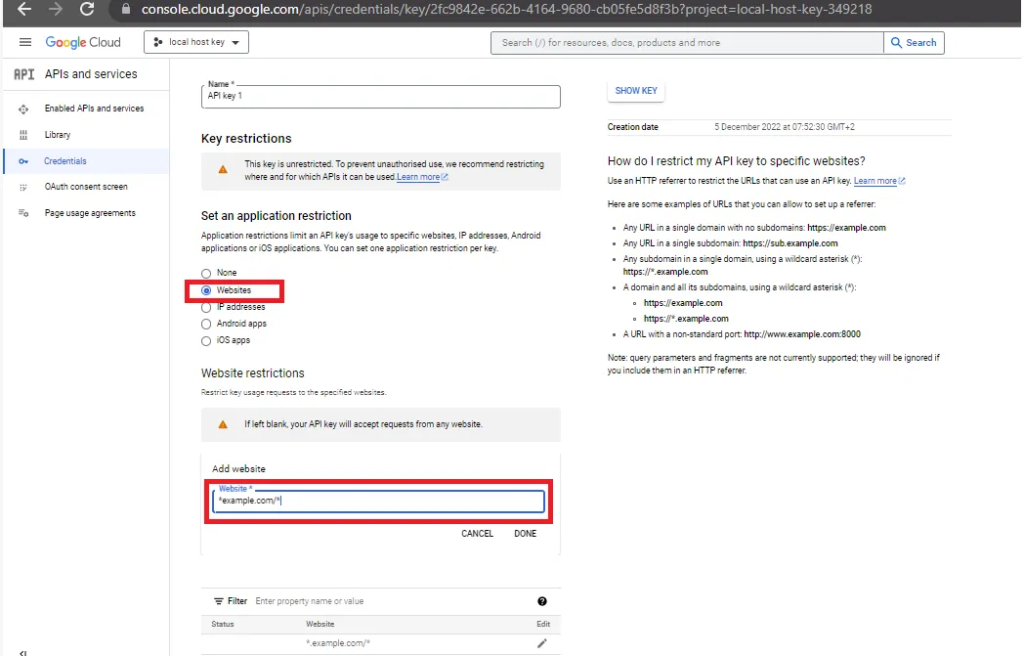
- 3. Generate Secure API Key: Create an API key in “Credentials” and restrict it to the three APIs above. Add your website domain under HTTP referrers (e.g., `https://yourrealestatesite.com/*`) for security.
Proper API key restriction is essential to prevent unauthorized use and potential charges
Step 2: Develop the Interactive Property Map
The following code creates a professional real estate map with filtering capabilities and detailed property information windows.
Create a file named `property-map.html`:
html
<!DOCTYPE html>
<html lang="en">
<head>
    <meta charset="UTF-8">
    <meta name="viewport" content="width=device-width, initial-scale=1.0">
    <title>Premium Real Estate for Sale | Map Search</title>
    <!-- Load Google Maps API -->
    <script async defer src="https://maps.googleapis.com/maps/api/js?key=YOUR_API_KEY_HERE&callback=initMap&libraries=places"></script>
    <style>
        * {
            box-sizing: border-box;
            margin: 0;
            padding: 0;
            font-family: 'Segoe UI', Tahoma, Geneva, Verdana, sans-serif;
        }

        .container {
            display: flex;
            height: 100vh;
        }

        .sidebar {
            width: 350px;
            background: #f8f9fa;
            border-right: 1px solid #e0e0e0;
            overflow-y: auto;
        }

        .search-header {
            padding: 20px;
            background: white;
            border-bottom: 1px solid #e0e0e0;
        }

        .search-header h1 {
            color: #1a365d;
            font-size: 1.5rem;
            margin-bottom: 15px;
        }

        .filter-group {
            margin-bottom: 15px;
        }

        .filter-group label {
            display: block;
            margin-bottom: 5px;
            font-weight: 600;
            color: #4a5568;
        }

        .filter-group select, .filter-group input {
            width: 100%;
            padding: 8px 12px;
            border: 1px solid #cbd5e0;
            border-radius: 6px;
            font-size: 14px;
        }

        .properties-list {
            padding: 15px;
        }

        .property-card {
            background: white;
            border-radius: 8px;
            padding: 15px;
            margin-bottom: 15px;
            box-shadow: 0 2px 4px rgba(0,0,0,0.1);
            cursor: pointer;
            transition: transform 0.2s, box-shadow 0.2s;
        }

        .property-card:hover {
            transform: translateY(-2px);
            box-shadow: 0 4px 8px rgba(0,0,0,0.15);
        }

        .property-image {
            width: 100%;
            height: 120px;
            background: #e2e8f0;
            border-radius: 6px;
            margin-bottom: 10px;
            display: flex;
            align-items: center;
            justify-content: center;
            color: #718096;
        }

        .property-price {
            font-size: 1.25rem;
            font-weight: bold;
            color: #2d3748;
            margin-bottom: 5px;
        }

        .property-address {
            color: #718096;
            font-size: 0.9rem;
            margin-bottom: 8px;
        }

        .property-details {
            display: flex;
            gap: 15px;
            font-size: 0.85rem;
            color: #4a5568;
        }

        #map {
            flex: 1;
            height: 100%;
        }

        .apply-filters {
            width: 100%;
            padding: 10px;
            background: #3182ce;
            color: white;
            border: none;
            border-radius: 6px;
            font-weight: 600;
            cursor: pointer;
            transition: background 0.2s;
        }

        .apply-filters:hover {
            background: #2c5aa0;
        }
    </style>
</head>
<body>
    <div class="container">
        <div class="sidebar">
            <div class="search-header">
                <h1>Find Your Dream Home</h1>
                <div class="filter-group">
                    <label for="price-range">Max Price</label>
                    <select id="price-range">
                        <option value="any">Any Price</option>
                        <option value="300000">$300,000</option>
                        <option value="500000">$500,000</option>
                        <option value="750000">$750,000</option>
                        <option value="1000000">$1,000,000</option>
                        <option value="2000000">$2,000,000+</option>
                    </select>
                </div>
                <div class="filter-group">
                    <label for="bedrooms">Bedrooms</label>
                    <select id="bedrooms">
                        <option value="any">Any</option>
                        <option value="1">1+</option>
                        <option value="2">2+</option>
                        <option value="3">3+</option>
                        <option value="4">4+</option>
                    </select>
                </div>
                <div class="filter-group">
                    <label for="property-type">Property Type</label>
                    <select id="property-type">
                        <option value="any">Any Type</option>
                        <option value="house">Single Family</option>
                        <option value="condo">Condo</option>
                        <option value="townhouse">Townhouse</option>
                    </select>
                </div>
                <button class="apply-filters" onclick="applyFilters()">Search Properties</button>
            </div>
            <div class="properties-list" id="properties-list">
                <!-- Property listings will be generated here -->
            </div>
        </div>
        <div id="map"></div>
    </div>

    <script>
        let map;
        let markers = [];
        const allProperties = [
            {
                id: 1,
                title: "Modern Downtown Condo",
                price: 750000,
                beds: 2,
                baths: 2,
                sqft: 1450,
                address: "123 Downtown Avenue, Miami, FL",
                position: { lat: 25.7617, lng: -80.1918 },
                type: "condo",
                image: "/img/condo-downtown.jpg",
                description: "Luxurious condo with panoramic city views",
                yearBuilt: 2018
            },
            {
                id: 2,
                title: "Waterfront Family Home",
                price: 1250000,
                beds: 4,
                baths: 3,
                sqft: 3200,
                address: "456 Bayfront Drive, Miami, FL",
                position: { lat: 25.7822, lng: -80.1815 },
                type: "house",
                image: "/img/waterfront-home.jpg",
                description: "Stunning waterfront property with private dock",
                yearBuilt: 2015
            },
            {
                id: 3,
                title: "Historic Coral Gables Villa",
                price: 2200000,
                beds: 5,
                baths: 4.5,
                sqft: 4200,
                address: "789 Heritage Lane, Coral Gables, FL",
                position: { lat: 25.7490, lng: -80.2630 },
                type: "house",
                image: "/img/historic-villa.jpg",
                description: "Exquisitely restored historic villa",
                yearBuilt: 1932
            }
        ];

        function initMap() {
            // Initialize the map centered on Miami
            map = new google.maps.Map(document.getElementById('map'), {
                center: { lat: 25.7617, lng: -80.1918 },
                zoom: 11,
                styles: [
                    {
                        "featureType": "poi",
                        "stylers": [{ "visibility": "off" }]
                    }
                ]
            });

            // Initialize property markers and listings
            updateDisplay(allProperties);

            // Add location search box
            const input = document.getElementById('location-search');
            const searchBox = new google.maps.places.SearchBox(input);

            map.addListener('bounds_changed', function() {
                searchBox.setBounds(map.getBounds());
            });

            searchBox.addListener('places_changed', function() {
                const places = searchBox.getPlaces();
                if (places.length === 0) return;

                const bounds = new google.maps.LatLngBounds();
                places.forEach(place => {
                    if (!place.geometry) return;
                    bounds.extend(place.geometry.location);
                });
                map.fitBounds(bounds);
            });
        }

        function updateDisplay(properties) {
            // Clear existing markers
            markers.forEach(marker => marker.setMap(null));
            markers = [];

            // Update properties list
            const listingsContainer = document.getElementById('properties-list');
            listingsContainer.innerHTML = '';

            properties.forEach(property => {
                // Create marker
                const marker = new google.maps.Marker({
                    position: property.position,
                    map: map,
                    title: property.title,
                    icon: {
                        url: getMarkerIcon(property.type),
                        scaledSize: new google.maps.Size(32, 32)
                    }
                });

                // Create info window content
                const infoWindow = new google.maps.InfoWindow({
                    content: `
                        <div style="padding: 15px; max-width: 300px;">
                            <h3 style="margin: 0 0 10px 0; color: #1a365d;">${property.title}</h3>
                            <p style="font-size: 1.25rem; font-weight: bold; color: #2d3748; margin: 0 0 8px 0;">$${property.price.toLocaleString()}</p>
                            <p style="color: #718096; margin: 0 0 10px 0;">${property.address}</p>
                            <div style="display: flex; gap: 15px; margin-bottom: 12px;">
                                <span>${property.beds} bd</span>
                                <span>${property.baths} ba</span>
                                <span>${property.sqft} sqft</span>
                            </div>
                            <p style="color: #4a5568; margin: 0 0 12px 0;">${property.description}</p>
                            <button style="background: #3182ce; color: white; border: none; padding: 8px 16px; border-radius: 4px; cursor: pointer;">Schedule Tour</button>
                        </div>
                    `
                });

                marker.addListener('click', () => {
                    infoWindow.open(map, marker);
                });
                markers.push(marker);

                // Create property card in sidebar
                const propertyCard = document.createElement('div');
                propertyCard.className = 'property-card';
                propertyCard.innerHTML = `
                    <div class="property-image">
                        [Property Image]
                    </div>
                    <div class="property-price">$${property.price.toLocaleString()}</div>
                    <div class="property-address">${property.address}</div>
                    <div class="property-details">
                        <span>${property.beds} bd</span>
                        <span>${property.baths} ba</span>
                        <span>${property.sqft} sqft</span>
                    </div>
                `;

                propertyCard.addEventListener('click', () => {
                    map.setCenter(property.position);
                    map.setZoom(15);
                    infoWindow.open(map, marker);
                });

                listingsContainer.appendChild(propertyCard);
            });
        }

        function getMarkerIcon(propertyType) {
            const icons = {
                'house': 'https://maps.google.com/mapfiles/ms/icons/blue-dot.png',
                'condo': 'https://maps.google.com/mapfiles/ms/icons/green-dot.png',
                'townhouse': 'https://maps.google.com/mapfiles/ms/icons/orange-dot.png'
            };
            return icons[propertyType] || 'https://maps.google.com/mapfiles/ms/icons/red-dot.png';
        }

        function applyFilters() {
            const priceFilter = document.getElementById('price-range').value;
            const bedsFilter = document.getElementById('bedrooms').value;
            const typeFilter = document.getElementById('property-type').value;

            const filtered = allProperties.filter(property => {
                return (priceFilter === 'any' || property.price <= priceFilter) &&
                       (bedsFilter === 'any' || property.beds >= bedsFilter) &&
                       (typeFilter === 'any' || property.type === typeFilter);
            });

            updateDisplay(filtered);
        }

        // Initialize the display when page loads
        document.addEventListener('DOMContentLoaded', function() {
            updateDisplay(allProperties);
        });
    </script>
</body>
</html>
Code language: HTML, XML (xml)
Replace `YOUR_API_KEY_HERE` with your actual, restricted Google Maps API key.
Step 3: Deploy to Your Real Estate Website
For static websites, upload the HTML file directly. For WordPress, use a custom HTML block. For other platforms like Wix or Squarespace, use their embed code functionality.
The Hidden Costs of Custom Map Development
While the code above creates a functional property map, real-world implementation reveals significant challenges:
- Data Management Nightmare: Manually updating property data in code is inefficient and error-prone, especially with changing inventory.
- Performance Issues at Scale: With hundreds of listings, the map can become slow without implementing complex marker clustering.
- Mobile Responsiveness: Ensuring perfect functionality across all devices requires extensive additional CSS and JavaScript.
- Advanced Feature Complexity: Implementing saved searches, favorite properties, or mortgage calculators requires substantial development work.
- Ongoing Maintenance: API changes, browser updates, and security patches demand continuous technical attention.
The Professional Real Estate Solution: MapsFun.com
Why spend months and thousands of dollars building a custom map when you can have a superior solution in minutes?
MapsFun.com is specifically designed for real estate professionals who need powerful property maps without the technical complexity:
- Live Data Integration: Connect directly to your MLS or import listings via CSV for automatic updates.
- No-Code Customization: Create beautiful, branded maps with custom filters and markers through an intuitive visual editor.
- Built-in Lead Generation: Capture leads directly from your map with integrated contact forms and tracking.
- Automatic Optimization: We handle mobile responsiveness, loading speed, and SEO best practices.
- Zero Maintenance: Focus on selling while we handle all technical updates and improvements.
Stop building and start selling. Create a professional real estate for sale map that converts visitors into clients. Launch your map in minutes at MapsFun.com.