How to Create a Map Showing Multiple Locations (2025 Easy Guide)
How to Create a Map Showing Multiple Locations: The Developer’s Guide vs. The Modern Solution
Need to create and display a map with multiple locations on your website or app? Whether you’re showing store locations, event venues, or service areas, there are two paths: the traditional coding approach and a modern no-code alternative. This guide walks you through both.
Method 1: The Traditional Development Approach
This method gives you full control but requires web development skills. We’ll use the Mapbox GL JS library for its modern features and styling capabilities.
Step 1: Project Setup and Requirements
First, you’ll need:
- 1. A Mapbox account (free tier available)
- 2. A web server (even localhost works for testing)
- 3. Basic HTML, CSS, and JavaScript knowledge
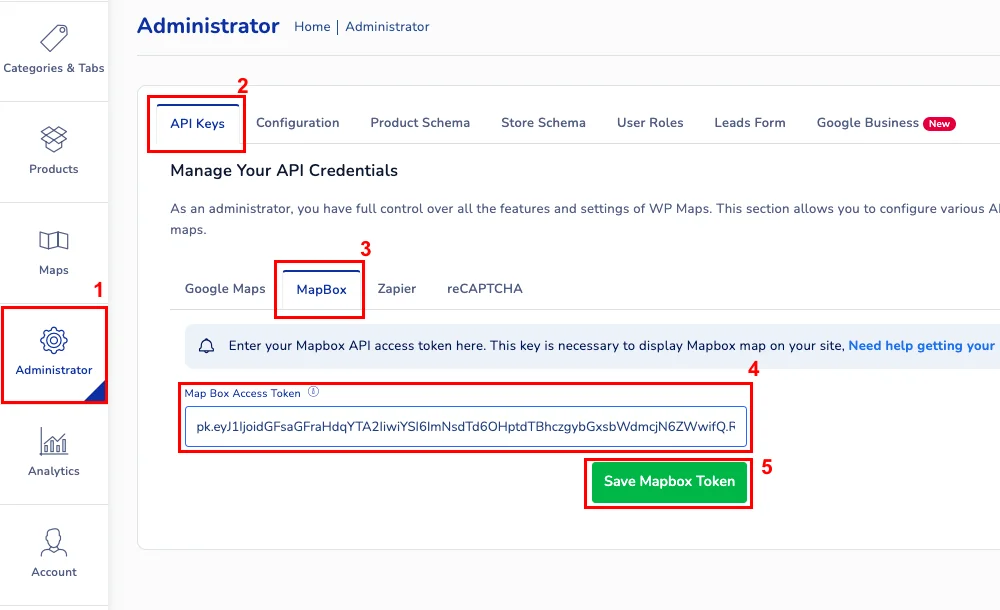
Sign up at mapbox.com and get your public access token from the account dashboard.
Step 2: Basic HTML Structure
Create an `index.html` file with this foundation:
html
<!DOCTYPE html>
<html lang="en">
<head>
    <meta charset="UTF-8">
    <meta name="viewport" content="width=device-width, initial-scale=1.0">
    <title>Multi-Location Map</title>
    <script src='https://api.mapbox.com/mapbox-gl-js/v3.8.0/mapbox-gl.js'></script>
    <link href='https://api.mapbox.com/mapbox-gl-js/v3.8.0/mapbox-gl.css' rel='stylesheet' />
    <style>
        body { margin: 0; padding: 20px; font-family: Arial, sans-serif; }
        #map-container { max-width: 1200px; margin: 0 auto; }
        #map { width: 100%; height: 500px; border-radius: 8px; box-shadow: 0 2px 10px rgba(0,0,0,0.1); }
        .map-title { text-align: center; margin-bottom: 20px; color: #333; }
        .controls { margin: 15px 0; text-align: center; }
        .location-count { background: #f0f0f0; padding: 5px 10px; border-radius: 4px; display: inline-block; }
    </style>
</head>
<body>
    <div id="map-container">
        <h1 class="map-title">Our Locations</h1>
        <div class="controls">
            <div class="location-count">Locations: <span id="count">0</span></div>
        </div>
        <div id="map"></div>
    </div>

    <script>
        // The JavaScript code will go here
    </script>
</body>
</html>
Code language: HTML, XML (xml)
Step 3: Initialize the Map and Add Data
Inside the `<script>` tags, add the following JavaScript code:
`javascript
// Set your Mapbox access token
mapboxgl.accessToken = 'YOUR_MAPBOX_ACCESS_TOKEN_HERE';

// Initialize the map
const map = new mapboxgl.Map({
    container: 'map',
    style: 'mapbox://styles/mapbox/streets-v12',
    center: [-98.5795, 39.8283], // Center of USA
    zoom: 3
});

// Sample location data - in reality, this would come from an API or database
const locations = [
    {
        name: "New York Office",
        address: "123 Manhattan Ave, NY 10001",
        coordinates: [-74.0060, 40.7128],
        type: "office"
    },
    {
        name: "Chicago Warehouse",
        address: "456 Industrial Blvd, IL 60607",
        coordinates: [-87.6298, 41.8781],
        type: "warehouse"
    },
    {
        name: "Los Angeles Store",
        address: "789 Sunset Blvd, CA 90028",
        coordinates: [-118.2437, 34.0522],
        type: "retail"
    },
    // Add 20+ more locations here...
    {
        name: "Miami Showroom",
        address: "321 Ocean Dr, FL 33139",
        coordinates: [-80.1918, 25.7617],
        type: "showroom"
    }
];

// Wait for map to load
map.on('load', () => {
    // Add your locations as a GeoJSON source
    map.addSource('locations', {
        type: 'geojson',
        data: {
            type: 'FeatureCollection',
            features: locations.map(loc => ({
                type: 'Feature',
                geometry: {
                    type: 'Point',
                    coordinates: loc.coordinates
                },
                properties: {
                    title: loc.name,
                    address: loc.address,
                    type: loc.type
                }
            }))
        },
        cluster: true, // Enable clustering
        clusterMaxZoom: 14,
        clusterRadius: 50
    });

    // Add clustered points layer
    map.addLayer({
        id: 'clusters',
        type: 'circle',
        source: 'locations',
        filter: ['has', 'point_count'],
        paint: {
            'circle-color': [
                'step',
                ['get', 'point_count'],
                '#51bbd6',
                10,
                '#f1f075',
                30,
                '#f28cb1'
            ],
            'circle-radius': [
                'step',
                ['get', 'point_count'],
                15,
                10,
                20,
                30,
                25
            ]
        }
    });

    // Add individual location markers
    map.addLayer({
        id: 'unclustered-point',
        type: 'circle',
        source: 'locations',
        filter: ['!', ['has', 'point_count']],
        paint: {
            'circle-color': '#11b4da',
            'circle-radius': 8,
            'circle-stroke-width': 2,
            'circle-stroke-color': '#fff'
        }
    });

    // Update location counter
    document.getElementById('count').textContent = locations.length;
});
Code language: PHP (php)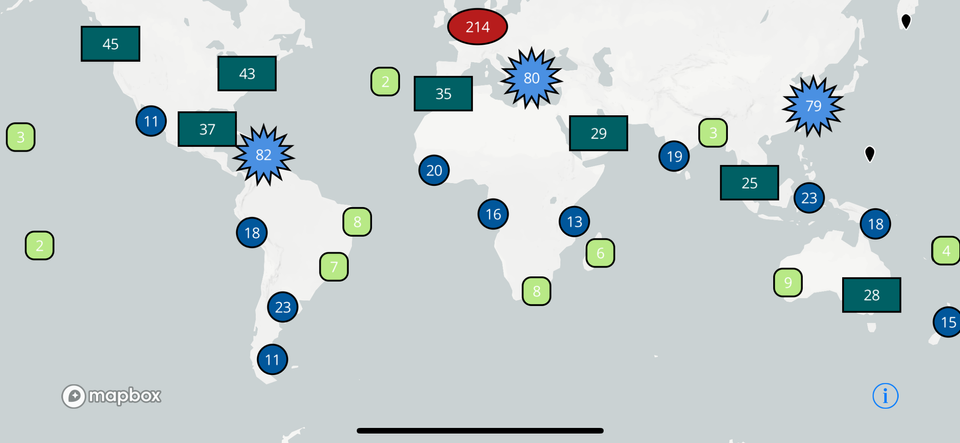
Step 4: Add Interactivity (Popups and Filtering)
To make your map useful, add these interactive features:
javascript
// Add popup on click
map.on('click', 'unclustered-point', (e) => {
    const coordinates = e.features[0].geometry.coordinates.slice();
    const { title, address, type } = e.features[0].properties;

    new mapboxgl.Popup()
        .setLngLat(coordinates)
        .setHTML(`
            <div class="popup-content">
                <h3>${title}</h3>
                <p>${address}</p>
                <p><strong>Type:</strong> ${type}</p>
            </div>
        `)
        .addTo(map);
});

// Add filter functionality (simplified example)
function filterByType(type) {
    const filter = type === 'all'
        ? ['!', ['has', 'point_count']]
        : ['all', ['!', ['has', 'point_count']], ['==', ['get', 'type'], type]];

    map.setFilter('unclustered-point', filter);
}

// Change cursor on hover
map.on('mouseenter', 'clusters', () => {
    map.getCanvas().style.cursor = 'pointer';
});
map.on('mouseleave', 'clusters', () => {
    map.getCanvas().style.cursor = '';
});
Code language: JavaScript (javascript)
The Development Challenges You’ll Face
While the code above works, consider what’s missing for a **production-ready solution**:
- 1. Geocoding Implementation: Your locations array uses coordinates. To use addresses, you need to add geocoding logic (another API service).
- 2. Data Management: Every location change requires editing code and redeploying. No admin interface for non-technical users.
- 3. Advanced Features Gap: Missing features that users expect:
- – Search by location name or address
- – Radius search (“show locations within 50 miles”)
- – Category filtering with checkboxes
- – List view alongside the map
- 4. Performance Optimization: The map bogs down with 100+ locations. You need server-side clustering and pagination.
- 5. Mobile Responsiveness: The popups and controls need extensive CSS tweaks for mobile devices.
- 6. Maintenance Burden: Updates to Mapbox GL JS may break your code. You’re responsible for all bug fixes.
The Time Investment Reality
To create a fully featured map showing multiple locations, you’re looking at:
- – 40+ hours of initial development
- – Ongoing maintenance and updates
- – Monthly API costs for geocoding and map loads
- – Support time when things break
For most businesses, this represents an inefficient use of technical resources.
Method 2: The Modern No-Code Solution
What if you could create a feature-rich, professional map showing multiple locations in minutes instead of weeks, with no coding required?
MapsFun.com is a specialized platform designed exactly for this purpose. It handles all the complex parts so you can focus on your content.
What a modern mapping solution should provide:
- 1. Simple Data Import: Upload a CSV or connect to Google Sheets. No manual coordinate entry needed—the system geocodes addresses automatically.
- 2. Built-In Professional Features:
- – Smart Clustering: Automatically implemented, no code required
- – Advanced Filtering: Add category filters, search boxes, and radius search with clicks
- – List + Map View: Display locations in a searchable list alongside the map
- – Custom Branding: Match your colors, choose map styles, add your logo
- 3. Real-Time Updates: Edit locations through a simple dashboard—changes appear instantly on your live map.
- 4. Performance Optimized: Handles thousands of locations with server-side clustering and fast loading.
- 5. Mobile-First Design: Perfectly responsive on all devices with touch-optimized controls.
Stop building what already exists. Creating a map showing multiple locations shouldn’t require weeks of development work. With MapsFun.com, you can go from a spreadsheet to a fully-featured, professional interactive map in under 10 minutes—with better features than most custom-built solutions. No coding, no maintenance, just a beautiful, functional map that works perfectly from day one.