How to Create Map with Multiple Locations on Google (Step-by-Step)
How to Create a Map with Multiple Locations on Google: The Official Way vs. The Smart Way
Want to create a Google map with multiple locations for your website or project? Google provides tools for this, but they’re designed for different purposes and come with significant limitations. This guide walks you through the official method and reveals why it’s often inadequate for business use.
Method 1: Using Google My Maps (The “Official” Free Tool)
Google My Maps is a free tool within Google Maps for creating custom maps. Here’s how to use it to plot multiple locations.
Step 1: Access Google My Maps
1. Go to [Google My Maps](https://www.google.com/maps/d/).
2. Sign in with your Google account.
3. Click “Create a New Map” in the top left.
Step 2: Add Multiple Locations via Import
1. Click the “Import” button under the untitled layer.
2. Upload a CSV, Excel, or KML file containing your addresses. This is the key to adding multiple locations at once.
Your CSV file should look like this:
csv
Name,Address
Store Central,123 Main St, New York, NY
Warehouse North,456 Industrial Blvd, Chicago, IL
Office West,789 Business Ave, San Francisco, CACode language: PHP (php)
3. Google will ask you to choose which column contains the location data. Select your “Address” column.
4. Choose a column to use as the marker title (e.g., “Name”).
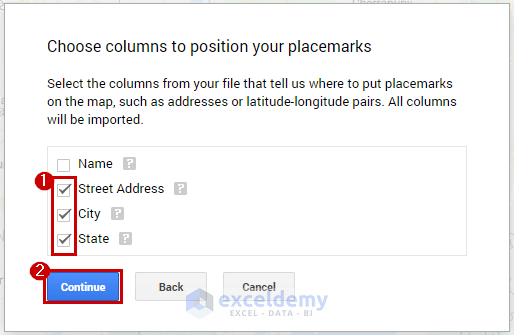
Step 3: Customize Your Markers
1. Change marker icons: Click on the layer name, then the paint bucket icon. You can set uniform styling or style by data column.
2. Add details: Click any marker, then the paint bucket icon on its popup to add descriptions, photos, or custom fields.
Step 4: Attempt to Embed on Your Website
This is where the limitations become apparent.
1. Click the Share button and set visibility to “Public on the web.”
2. Click the three-dot menu (⋮) next to your map title, then select “Embed on my site.”
3. You’ll get an iframe code like this:
html
<iframe
  src="https://www.google.com/maps/d/embed?mid=1X9vNzLxTxQl4bN6q7p8Z5YzABCDeFgJ&ehbc=2E312F"
  width="640"
  height="480">
</iframe>
Code language: HTML, XML (xml)
4. Paste this code into your website’s HTML editor.
The Critical Problems with Google My Maps
While you’ve created a map with multiple locations on Google, the result is not professional for business use:
- 1. Forced Google Branding: The embedded map shows a large “Google My Maps” header, a layers panel, and attribution that you cannot remove.
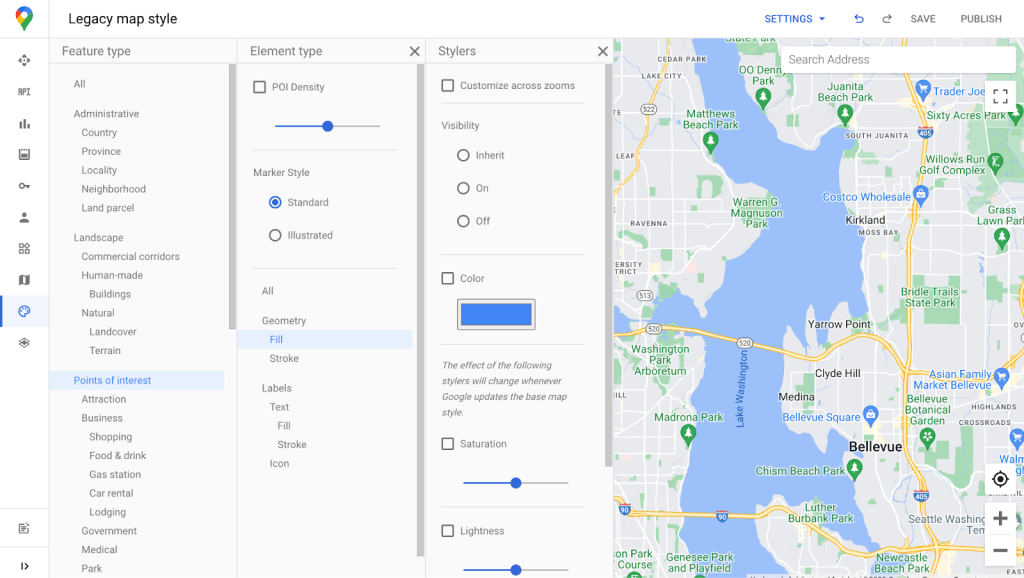
- 2. No Mobile Optimization: The embedded iframe doesn’t respond well to different screen sizes. Controls are often too small to tap on mobile devices.
- 3. Limited Customization: You cannot:
- – Change the base map style (only standard Google Maps)
- – Add custom search filters for users
- – Create a list view alongside the map
- – Remove the layer toggle panel
- – Match colors to your website branding
- 4. Clunky User Experience: Visitors see interface elements meant for map editors, not end-users.
- 5. No Live Data Connection: If you need to update locations, you must manually edit in My Maps, and the embedded version may cache the old view.
Method 2: The Google Maps Platform (More Control, More Complexity)
For a cleaner embed, developers use the Google Maps JavaScript API. Here’s a snippet showing how complex even a basic version becomes:
javascript
// After setting up a Google Cloud project, billing, and API key...

function initMap() {
    const map = new google.maps.Map(document.getElementById("map"), {
        zoom: 4,
        center: { lat: 37.0902, lng: -95.7129 }, // USA center
        // Cannot remove Google logo or terms link
    });

    // You must manually code or fetch coordinates for each location
    const locations = [
        { lat: 40.7128, lng: -74.0060, title: "New York" },
        { lat: 34.0522, lng: -118.2437, title: "Los Angeles" },
        { lat: 41.8781, lng: -87.6298, title: "Chicago" },
    ];

    // Add markers one by one
    locations.forEach(location => {
        new google.maps.Marker({
            position: location,
            map: map,
            title: location.title
        });
    });
}

// Don't forget to load the API with your key
<script async defer src="https://maps.googleapis.com/maps/api/js?key=YOUR_API_KEY&callback=initMap"></script>
Code language: PHP (php)
This approach requires:
- * Google Cloud account with billing enabled
- * API key management and security restrictions
- * Manual geocoding of addresses to coordinates
- * Additional code for clustering, styling, and controls
- * Constant monitoring of usage costs
The Google Paradox: Their Tools Aren’t Made for Public-Facing Business Maps
Google creates excellent mapping technology, but their tools for creating multi-location maps are either:
- 1. Too basic and unprofessional (My Maps), or
- 2. Too technical and expensive (Maps Platform)
A Better Solution: Start with Google, Finish with a Professional Tool
What if you could use Google’s excellent maps as a base but get a professional, clean, feature-rich embed without coding or complex setups?
MapsFun.com solves exactly this problem. It uses Google Maps (or other providers) as the foundation but gives you complete control over the presentation.
How MapsFun improves upon native Google tools:
- 1. Same Simple Start: Upload your CSV file just like My Maps, or add locations manually.
- 2. Professional Embedding: Get a clean iframe or JavaScript embed without Google My Maps branding, layer panels, or cluttered controls.
- 3. Advanced Features Google Doesn’t Offer:
- Custom Filters: Let users filter by location type, region, or custom categories
- Search & List View: Combine map with searchable list
- Brand Customization: Match colors, choose map styles, use custom markers
- Mobile-First Design: Perfect responsiveness on all devices
- 4. No Technical Overhead: No API keys, no billing setup, no coding required. Update your map anytime through a simple dashboard.
Stop compromising with tools not designed for your needs. You can create a Google map with multiple locations in minutes using MapsFun.com and get a result that looks professional, works perfectly on all devices, and provides a better experience for your visitors—without any of Google My Maps’ limitations or the complexity of the Maps Platform