How to Plot Several Locations on a Map (2025 Guide)
How to Plot Several Locations on a Map: The Ultimate Technical Guide
Need to visualize multiple points on a map for your business, research, or travel blog? While plotting a single location is simple, adding several points programmatically requires technical skill. This guide will show you the most robust method using a local data file and the Google Maps API.
Method: Plotting from a Local JSON File with Custom Clustering
This advanced method gives you full control over your data and adds professional features like marker clustering (grouping nearby points). It’s the standard for data-heavy applications.
Step 1: Structure Your Location Data
Create a local data file. Using JSON is ideal as it’s easily readable by JavaScript. Save this file as `locations.json` in your project folder.
json
{
  "locations": [
    {
      "name": "Central Park",
      "address": "New York, NY 10022",
      "position": { "lat": 40.7829, "lng": -73.9654 },
      "type": "park",
      "description": "Iconic urban park in Manhattan."
    },
    {
      "name": "Statue of Liberty",
      "address": "New York, NY 10004",
      "position": { "lat": 40.6892, "lng": -74.0445 },
      "type": "landmark",
      "description": "Famous symbol of freedom."
    },
    {
      "name": "Brooklyn Bridge",
      "address": "New York, NY 10038",
      "position": { "lat": 40.7061, "lng": -73.9969 },
      "type": "landmark",
      "description": "Historic hybrid cable-stayed bridge."
    },
    {
      "name": "Metropolitan Museum",
      "address": "1000 5th Ave, New York",
      "position": { "lat": 40.7794, "lng": -73.9632 },
      "type": "museum",
      "description": "Largest art museum in the Americas."
    }
  ]
}
Code language: JSON / JSON with Comments (json)
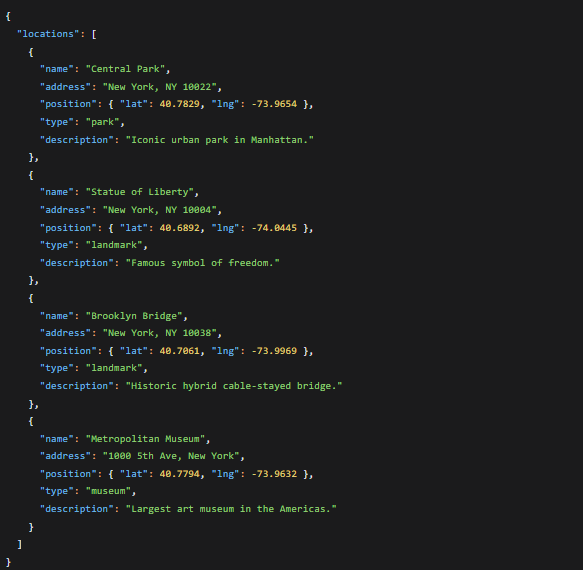
A JSON file with structured location data including coordinates, categories, and descriptions.
Step 2: Set Up Your Project with Marker Clustering
Marker clustering is essential when plotting many locations to avoid visual clutter. We’ll use the official Google Maps Marker Clusterer library.
- 1. Create your project folder with these files:
- – `index.html`
- – `locations.json`
- – A folder for images (like `img/` for custom markers)
- 2. Get the required libraries by adding these CDN links to your HTML.
Step 3: Build the Advanced Map with Custom Icons
Create your `index.html` file with the following complete, production-ready code:
html
<!DOCTYPE html>
<html lang="en">
<head>
    <meta charset="UTF-8">
    <title>Plot Multiple Locations with Clustering</title>
    <style>
        #map {
            height: 600px;
            width: 100%;
            border-radius: 8px;
            box-shadow: 0 4px 12px rgba(0,0,0,0.1);
        }
        .map-container {
            max-width: 1200px;
            margin: 2rem auto;
            padding: 0 1rem;
        }
        .info-window {
            font-family: Arial, sans-serif;
            padding: 0.5rem;
        }
        .info-title {
            font-weight: bold;
            margin-bottom: 0.5rem;
            color: #1a73e8;
        }
    </style>
    <!-- Load Google Maps API with your key -->
    <script src="https://maps.googleapis.com/maps/api/js?key=YOUR_GOOGLE_MAPS_API_KEY&callback=initMap" async defer></script>
    <!-- Load Marker Clusterer Library -->
    <script src="https://unpkg.com/@googlemaps/markerclusterer/dist/index.min.js"></script>
</head>
<body>
    <div class="map-container">
        <h1>New York City Landmarks Map</h1>
        <p>Interactive map with custom markers and intelligent clustering.</p>
        <div id="map"></div>
        <div id="legend">
            <p><strong>Legend:</strong> 🏛️ Museum | 🗽 Landmark | 🌳 Park</p>
        </div>
    </div>

    <script>
        let map;
        let markers = [];
        const markerCluster;

        // Custom icon configuration
        const icons = {
            museum: {
                url: 'https://maps.google.com/mapfiles/ms/icons/blue-dot.png',
                scaledSize: new google.maps.Size(40, 40)
            },
            landmark: {
                url: 'https://maps.google.com/mapfiles/ms/icons/red-dot.png',
                scaledSize: new google.maps.Size(40, 40)
            },
            park: {
                url: 'https://maps.google.com/mapfiles/ms/icons/green-dot.png',
                scaledSize: new google.maps.Size(40, 40)
            }
        };

        async function initMap() {
            // Initialize map centered on NYC
            map = new google.maps.Map(document.getElementById("map"), {
                zoom: 11,
                center: { lat: 40.7128, lng: -74.0060 },
                mapTypeControl: true,
                streetViewControl: false,
                fullscreenControl: true
            });

            // Load and plot locations from JSON file
            await plotLocations();
        }

        async function plotLocations() {
            try {
                // Fetch the local JSON data
                const response = await fetch('locations.json');
                const data = await response.json();

                // Create markers for each location
                data.locations.forEach(location => {
                    const marker = new google.maps.Marker({
                        position: location.position,
                        map: map,
                        title: location.name,
                        icon: icons[location.type] || icons.landmark,
                        animation: google.maps.Animation.DROP
                    });

                    // Create custom info window content
                    const infoContent = `
                        <div class="info-window">
                            <div class="info-title">${location.name}</div>
                            <div>${location.address}</div>
                            <hr style="margin: 8px 0;">
                            <div>${location.description}</div>
                            <div><small>Type: ${location.type}</small></div>
                        </div>
                    `;

                    const infoWindow = new google.maps.InfoWindow({
                        content: infoContent
                    });

                    // Add click listener to show info window
                    marker.addListener('click', () => {
                        // Close any previously opened info window
                        markers.forEach(m => {
                            if (m.infoWindow) m.infoWindow.close();
                        });

                        infoWindow.open(map, marker);
                        marker.infoWindow = infoWindow;
                    });

                    markers.push(marker);
                });

                // Apply marker clustering
                markerCluster = new markerClusterer.MarkerClusterer({
                    map,
                    markers,
                    renderer: {
                        render: ({ count, position }) => {
                            // Custom cluster icon
                            return new google.maps.Marker({
                                position,
                                icon: {
                                    path: google.maps.SymbolPath.CIRCLE,
                                    scale: 15 + Math.sqrt(count) * 3,
                                    fillColor: "#1a73e8",
                                    fillOpacity: 0.8,
                                    strokeColor: "white",
                                    strokeWeight: 3
                                },
                                label: {
                                    text: String(count),
                                    color: "white",
                                    fontSize: "12px",
                                    fontWeight: "bold"
                                }
                            });
                        }
                    }
                });

            } catch (error) {
                console.error('Error loading locations:', error);
                document.getElementById('map').innerHTML =
                    '<p style="color: red; padding: 2rem;">Error loading map data. Please check your JSON file and API key.</p>';
            }
        }
    </script>
</body>
</html>
Code language: HTML, XML (xml)
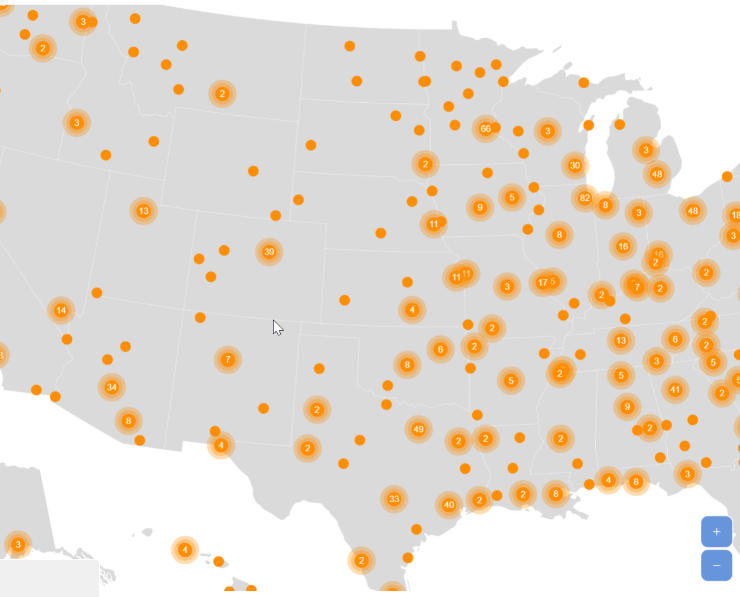
A professional map showing multiple locations with custom-colored markers and cluster circles for grouped points.
Step 4: Customize and Deploy
- 1. Replace `YOUR_GOOGLE_MAPS_API_KEY` with your actual API key (requires Google Cloud setup with billing enabled).
- 2. Add custom icons to your `img/` folder and update the icon URLs in the `icons` object.
- 3. Add more locations to your `locations.json` file—the map will automatically plot them all.
- 4. Upload all files to your web server.
The Reality of This “Complete” Solution
While this method produces a professional result, it comes with significant overhead:
- – Multiple Dependencies: Requires managing the Maps API, Marker Clusterer library, and your data file
- – API Key Management: You must secure and restrict your API key to prevent misuse and unexpected charges
- – Data Synchronization: Any location change requires editing JSON and redeploying files
- – Development Complexity: Debugging fetch errors, cluster rendering issues, and mobile responsiveness takes time
- – No Built-in Editor: To change a pin color or correct an address, you must edit code and redeploy
Plot Perfect Maps in Minutes, Not Days with MapsFun.com
What if you could achieve all of this—custom markers, automatic clustering, beautiful info windows—without writing a single line of code or managing API keys?
MapsFun.com provides everything this technical solution offers, but through an intuitive visual interface:
- 1. Upload & Plot Instantly: Drag-drop your CSV/Excel file or import from Google Sheets. No JSON formatting needed.
- 2. Smart Auto-Clustering: Get clean, automatic clustering without configuring any libraries.
- 3. Visual Customization: Change pin colors, icons, and map styles with clicks, not code.
- 4. Live Editing: Correct addresses or add new locations directly on the map—changes appear immediately.
- 5. Secure & Managed: No API key setup, no billing surprises, no deployment headaches.
Stop spending days building what you can create in 5 minutes. Plot all your locations on a beautiful, professional map today. Visit MapsFun.com to get started for free.