How to Map Several Locations at Once (Complete Guide)
How to Map Several Locations at Once: A Developer’s Guide vs. The Simple Solution
Do you need to plot dozens, hundreds, or even thousands of addresses on a map all at once? Manually adding pins one-by-one is impossible at scale. This guide will walk you through the programmatic way to batch plot locations using Google Sheets and code, followed by the effortless alternative.
Method: Batch Plotting with Google Sheets & Google Maps Platform
This is the “power user” method. It involves using Google Sheets as a database and writing code to automatically translate addresses into map markers.
Step 1: Prepare Your Data in Google Sheets
Create a new Google Sheet. In the first row, set up your column headers. You’ll need at least an Address column. Adding Title and Description is recommended for richer pins.
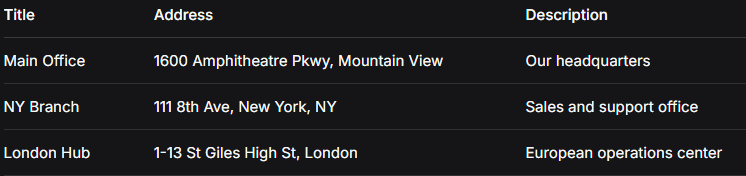
Step 2: Generate Geocode Data with Apps Script
Since the Maps API needs coordinates (latitude/longitude), we must “geocode” our addresses. We’ll use a Google Apps Script directly in the sheet.
- 1. In your Google Sheet, click Extensions > Apps Script.
- 2. Delete the default code and paste the script below.
- 3. Replace `’YOUR_API_KEY’` with a Google Cloud API key that has the **Geocoding API enabled** (this requires a Google Cloud project with billing set up—see the complexity begins?).
javascript
function geocodeAddresses() {
  var sheet = SpreadsheetApp.getActiveSheet();
  var data = sheet.getDataRange().getValues();
  var apiKey = 'YOUR_API_KEY'; // REPLACE THIS

  // Start from row 2 to skip headers
  for (var i = 1; i < data.length; i++) {
    var address = data[i][1]; // Assumes Address is in column B (index 1)

    if (address) {
      var response = UrlFetchApp.fetch('https://maps.googleapis.com/maps/api/geocode/json?address=' + encodeURIComponent(address) + '&key=' + apiKey);
      var result = JSON.parse(response.getContentText());

      if (result.status === 'OK' && result.results[0]) {
        var lat = result.results[0].geometry.location.lat;
        var lng = result.results[0].geometry.location.lng;

        // Write Lat and Lng to new columns (assumes columns D & E are empty)
        sheet.getRange(i + 1, 4).setValue(lat); // Column D
        sheet.getRange(i + 1, 5).setValue(lng); // Column E
        Utilities.sleep(200); // Delay to respect API rate limits
      }
    }
  }
}
Code language: JavaScript (javascript)- 4. Save the project (File > Save), name it “Geocoder”, and run the function geocodeAddresses. You’ll need to authorize the script.
- 5. If successful, your sheet will now have latitude and longitude for each address.
Step 3: Build the Interactive Map with Code
Now, we use the geocoded data to generate the map. This HTML/JavaScript template reads data from a published version of your Google Sheet.
- 1. Publish your Sheet: Go to File > Share > Publish to web for the sheet containing the lat/lng columns. Choose CSV format and copy the generated link.
- 2. Create the map file: Create an `index.html` file and use the code below. You must insert TWO KEYS: your Maps JavaScript API Key and your published Sheet CSV URL.
html
<!DOCTYPE html>
<html>
<head>
    <title>Batch Location Map</title>
    <script src="https://maps.googleapis.com/maps/api/js?key=YOUR_MAPS_API_KEY"></script>
    <script src="https://cdnjs.cloudflare.com/ajax/libs/PapaParse/5.3.0/papaparse.min.js"></script>
    <style> #map { height: 500px; width: 100%; } </style>
</head>
<body>
    <h1>Our Global Locations</h1>
    <div id="map"></div>

    <script>
        const map = new google.maps.Map(document.getElementById('map'), {
            zoom: 2,
            center: { lat: 20, lng: 0 }
        });

        // REPLACE THIS URL with your published Google Sheet CSV URL
        const sheetCsvUrl = 'YOUR_PUBLISHED_SHEET_CSV_LINK';

        // Fetch and parse the CSV data
        Papa.parse(sheetCsvUrl, {
            download: true,
            header: true, // Uses first row as column names
            complete: function(results) {
                const locations = results.data;
                locations.forEach(location => {
                    if (location.lat && location.lng) {
                        new google.maps.Marker({
                            position: { lat: parseFloat(location.lat), lng: parseFloat(location.lng) },
                            map: map,
                            title: location.Title || 'No title'
                        });
                    }
                });
            }
        });
    </script>
</body>
</html>
Code language: HTML, XML (xml)
Why This Process is a Headache for Most People
While powerful, this method is fraught with complexity and hidden challenges:
- – Technical Overhead: Requires setting up a Google Cloud Project, enabling APIs, and managing secret keys.
- – Billing Risk: Misconfigured API keys can lead to unexpected charges.
- – Code Maintenance: Any error in the script breaks the map. Adding custom icons or popups requires more advanced coding.
- – Fragile Workflow: If your sheet changes, you must republish and update links.
Map Several Locations in Seconds with MapsFun.com
What if you could skip all of that? MapsFun.com is built specifically to solve the “batch mapping” problem without code.
- 1. Direct Spreadsheet Upload: Simply upload your Excel or CSV file. No need to geocode manually we do it instantly and accurately.
- 2. Live Editor: Instantly see your map. Customize pin colors, icons, and popup designs with a click.
- 3. Zero Configuration: No API keys, no cloud projects, no billing setup.
- 4. Get the Map Immediately: Copy a simple embed code or get a direct link to share. Your map is live and managed from one simple dashboard.
Stop wasting time on complex scripts and API management. Create a beautiful, interactive map from your list of locations in under a minute. Try the effortless way at MapsFun.com.