How to Pin Multiple Locations on Google Maps (2025 Quick Guide)
How to Pin Multiple Locations on Google Maps: Complete Technical Guide
Need to display multiple business locations, event venues, or service areas on your website? While Google Maps provides the tools to create custom maps with multiple pins, the process involves significant technical complexity. Here’s your comprehensive guide to implementing this functionality.
Method 1: Manual Implementation Using Google Maps API
Step 1: Google Cloud Project Configuration
Before writing any code, you need to set up access to Google’s mapping services:
- 1. Create Google Cloud Project
- – Visit [Google Cloud Console](https://console.cloud.google.com/)
- – Create new project or select existing one
- – Enable billing (credit card required, includes $200 monthly credit)
- 2. Enable Required APIs
- Navigate to “APIs & Services > Library” and enable:
- – Maps JavaScript API (core mapping functionality)
- – Geocoding API (address conversion)
- – Places API (location search and details)
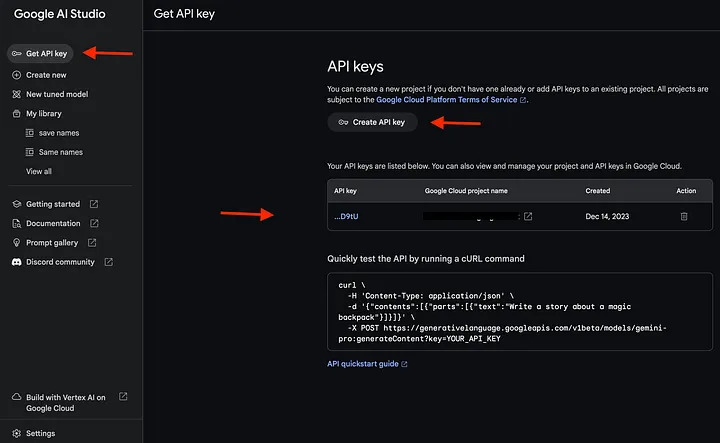
- 3. Generate Secure API Key
- – Go to “Credentials” section
- – Create new API key
- – Restrict by HTTP referrers (your domain)
- – Apply API restrictions to Maps JavaScript and Geocoding APIs
Proper API key restriction prevents unauthorized usage and unexpected charges
Step 2: Complete HTML/JavaScript Implementation
Create a file called `multi-pin-map.html` with this complete working code:
html
<!DOCTYPE html>
<html>
<head>
    <title>Multiple Location Pins - Google Maps</title>
    <meta name="viewport" content="width=device-width, initial-scale=1.0">
    <style>
        .map-container {
            max-width: 1200px;
            margin: 0 auto;
            font-family: 'Arial', sans-serif;
        }
        #map {
            height: 600px;
            width: 100%;
            border-radius: 8px;
            border: 1px solid #ddd;
            margin: 20px 0;
        }
        .controls-panel {
            background: #f8f9fa;
            padding: 20px;
            border-radius: 8px;
            margin: 20px 0;
        }
        .location-pin {
            background: white;
            border-left: 4px solid #4285f4;
            padding: 15px;
            margin: 10px 0;
            border-radius: 4px;
            box-shadow: 0 2px 4px rgba(0,0,0,0.1);
        }
        .pin-icon {
            width: 25px;
            height: 35px;
            background: #ea4335;
            border-radius: 50% 50% 50% 0;
            transform: rotate(-45deg);
            display: inline-block;
            margin-right: 10px;
        }
        .search-box {
            padding: 12px;
            width: 350px;
            border: 1px solid #ddd;
            border-radius: 4px;
            font-size: 16px;
        }
        .action-button {
            padding: 12px 24px;
            background: #4285f4;
            color: white;
            border: none;
            border-radius: 4px;
            cursor: pointer;
            font-size: 16px;
            margin-left: 10px;
        }
        .action-button:hover {
            background: #3367d6;
        }
    </style>
</head>
<body>
    <div class="map-container">
        <h1>Pin Multiple Locations on Google Maps</h1>

        <div class="controls-panel">
            <h3>Add Location Pins</h3>
            <div>
                <input type="text" id="location-search" class="search-box"
                       placeholder="Search for an address or place...">
                <button onclick="searchAndAddLocation()" class="action-button">Add Pin</button>
                <button onclick="clearAllPins()" class="action-button" style="background: #ea4335;">Clear All Pins</button>
            </div>
            <div style="margin-top: 15px;">
                <label>
                    <input type="checkbox" id="auto-cluster" checked>
                    Enable marker clustering (for better performance)
                </label>
            </div>
        </div>

        <div id="map"></div>

        <div id="pins-list">
            <h3>Current Location Pins (<span id="pin-count">0</span>)</h3>
            <div id="pins-container"></div>
        </div>
    </div>

    <!-- Load Google Maps API with Places library -->
    <script src="https://maps.googleapis.com/maps/api/js?key=YOUR_API_KEY_HERE&libraries=places&callback=initMap" async defer></script>

    <script>
        let map;
        let markers = [];
        let geocoder;
        let infoWindow;
        let locations = [];
        let autocomplete;

        function initMap() {
            // Initialize the map with custom options
            map = new google.maps.Map(document.getElementById('map'), {
                center: { lat: 39.8283, lng: -98.5795 }, // Center of US
                zoom: 4,
                styles: [
                    {
                        "featureType": "poi",
                        "elementType": "labels.text",
                        "stylers": [{ "visibility": "off" }]
                    },
                    {
                        "featureType": "transit",
                        "stylers": [{ "visibility": "off" }]
                    }
                ]
            });

            geocoder = new google.maps.Geocoder();
            infoWindow = new google.maps.InfoWindow();

            // Initialize autocomplete for search box
            const searchInput = document.getElementById('location-search');
            autocomplete = new google.maps.places.Autocomplete(searchInput);
            autocomplete.bindTo('bounds', map);

            // Add sample location pins
            const sampleLocations = [
                {
                    name: "New York Headquarters",
                    position: { lat: 40.7128, lng: -74.0060 },
                    address: "123 Broadway, New York, NY 10001",
                    type: "headquarters",
                    phone: "(555) 123-4567"
                },
                {
                    name: "Chicago Retail Store",
                    position: { lat: 41.8781, lng: -87.6298 },
                    address: "456 Michigan Ave, Chicago, IL 60601",
                    type: "retail",
                    phone: "(555) 234-5678"
                },
                {
                    name: "Los Angeles Warehouse",
                    position: { lat: 34.0522, lng: -118.2437 },
                    address: "789 Sunset Blvd, Los Angeles, CA 90046",
                    type: "warehouse",
                    phone: "(555) 345-6789"
                },
                {
                    name: "Miami Showroom",
                    position: { lat: 25.7617, lng: -80.1918 },
                    address: "321 Ocean Drive, Miami, FL 33139",
                    type: "showroom",
                    phone: "(555) 456-7890"
                }
            ];

            // Plot sample locations
            sampleLocations.forEach(location => {
                addLocationPin(location);
            });

            // Update pins list
            updatePinsList();
        }

        function addLocationPin(locationData) {
            // Create custom marker icon based on location type
            const iconUrl = getCustomIcon(locationData.type);

            const marker = new google.maps.Marker({
                position: locationData.position,
                map: map,
                title: locationData.name,
                icon: {
                    url: iconUrl,
                    scaledSize: new google.maps.Size(30, 40),
                    anchor: new google.maps.Point(15, 40)
                },
                animation: google.maps.Animation.DROP
            });

            // Create detailed info window content
            const infoContent = `
                <div style="padding: 15px; min-width: 250px;">
                    <h3 style="margin: 0 0 10px 0; color: #1a73e8;">${locationData.name}</h3>
                    <div style="margin: 8px 0;">
                        <strong>Address:</strong><br>
                        <span style="color: #5f6368;">${locationData.address}</span>
                    </div>
                    <div style="margin: 8px 0;">
                        <strong>Phone:</strong><br>
                        <span style="color: #5f6368;">${locationData.phone}</span>
                    </div>
                    <div style="margin: 8px 0;">
                        <strong>Type:</strong>
                        <span style="color: #5f6368; text-transform: capitalize;">${locationData.type}</span>
                    </div>
                    <button onclick="getDirections(${locationData.position.lat}, ${locationData.position.lng})"
                            style="margin-top: 12px; padding: 8px 16px; background: #34a853; color: white; border: none; border-radius: 4px; cursor: pointer; width: 100%;">
                        📍 Get Directions
                    </button>
                </div>
            `;

            // Add click listener to marker
            marker.addListener('click', () => {
                infoWindow.setContent(infoContent);
                infoWindow.open(map, marker);

                // Add bounce animation
                marker.setAnimation(google.maps.Animation.BOUNCE);
                setTimeout(() => {
                    marker.setAnimation(null);
                }, 1400);
            });

            markers.push(marker);
            locations.push(locationData);

            adjustMapBounds();
        }

        function getCustomIcon(type) {
            const colorMap = {
                'headquarters': 'ff0000',    // Red
                'retail': '4285f4',          // Blue
                'warehouse': 'fbbc05',       // Yellow
                'showroom': '34a853',        // Green
                'default': 'ea4335'          // Orange
            };

            const color = colorMap[type] || colorMap['default'];
            return `https://maps.google.com/mapfiles/ms/micons/red.png`;
        }

        function searchAndAddLocation() {
            const searchInput = document.getElementById('location-search');
            const place = autocomplete.getPlace();

            if (!place.geometry) {
                alert('Please select a valid location from the suggestions');
                return;
            }

            const newLocation = {
                name: place.name || `Location ${locations.length + 1}`,
                position: place.geometry.location,
                address: place.formatted_address,
                type: 'retail',
                phone: '(555) 000-0000'
            };

            addLocationPin(newLocation);
            updatePinsList();
            searchInput.value = '';
        }

        function clearAllPins() {
            if (!confirm('Are you sure you want to remove all location pins?')) {
                return;
            }

            markers.forEach(marker => marker.setMap(null));
            markers = [];
            locations = [];
            updatePinsList();
        }

        function updatePinsList() {
            const container = document.getElementById('pins-container');
            const countElement = document.getElementById('pin-count');

            countElement.textContent = locations.length;
            container.innerHTML = '';

            locations.forEach((location, index) => {
                const pinElement = document.createElement('div');
                pinElement.className = 'location-pin';
                pinElement.innerHTML = `
                    <div style="display: flex; align-items: center; margin-bottom: 8px;">
                        <div class="pin-icon"></div>
                        <h4 style="margin: 0;">${location.name}</h4>
                    </div>
                    <p style="margin: 5px 0; color: #666;">${location.address}</p>
                    <p style="margin: 5px 0; color: #666;">Phone: ${location.phone}</p>
                    <div style="margin-top: 10px;">
                        <button onclick="focusOnLocation(${location.position.lat}, ${location.position.lng})"
                                style="padding: 6px 12px; background: #4285f4; color: white; border: none; border-radius: 3px; cursor: pointer; margin-right: 5px;">
                            View on Map
                        </button>
                        <button onclick="removePin(${index})"
                                style="padding: 6px 12px; background: #ea4335; color: white; border: none; border-radius: 3px; cursor: pointer;">
                            Remove Pin
                        </button>
                    </div>
                `;
                container.appendChild(pinElement);
            });
        }

        function focusOnLocation(lat, lng) {
            map.setCenter({ lat, lng });
            map.setZoom(15);
        }

        function removePin(index) {
            if (index >= 0 && index < markers.length) {
                markers[index].setMap(null);
                markers.splice(index, 1);
                locations.splice(index, 1);
                updatePinsList();
                adjustMapBounds();
            }
        }

        function getDirections(lat, lng) {
            const url = `https://www.google.com/maps/dir/?api=1&destination=${lat},${lng}`;
            window.open(url, '_blank');
        }

        function adjustMapBounds() {
            if (markers.length === 0) return;

            const bounds = new google.maps.LatLngBounds();
            markers.forEach(marker => {
                bounds.extend(marker.getPosition());
            });
            map.fitBounds(bounds);

            // Prevent over-zooming for single markers
            if (markers.length === 1) {
                map.setZoom(15);
            }
        }

        // Handle API authentication errors
        window.gm_authFailure = function() {
            alert('Error: Google Maps API failed to load. Please check your API key configuration and billing setup.');
        };
    </script>
</body>
</html>
Code language: HTML, XML (xml)
Replace `YOUR_API_KEY_HERE` with your actual Google Maps API key.
Step 3: Implementation and Deployment
When implementing this solution, you’ll need to address:
- – API quota management and usage monitoring
- – Cross-browser compatibility testing
- – Mobile responsiveness optimization
- – SSL certificate requirements for modern browsers
- – Error handling for geocoding failures
- – Performance optimization for large numbers of pins
The Challenges of Manual Implementation
While this coded approach provides complete control, it comes with significant challenges:
- – Development Time: 20-30 hours for robust implementation
- – API Management: Constant monitoring of usage quotas and costs
- – Browser Compatibility: Extensive testing across different platforms
- – Mobile Optimization: Complex touch event handling and responsive design
- – Security Risks: Potential API key exposure and unauthorized usage
- – Maintenance Overhead: Regular updates for API changes and browser updates
- – Performance Issues: Marker clustering and optimization for 50+ locations
Pin Locations Instantly with MapsFun.com
Why spend weeks developing and maintaining complex mapping solutions when you can achieve professional results in minutes?
MapsFun.com eliminates all the technical complexity while delivering superior mapping functionality:
- 📌 One-Click Pin Creation – Add locations visually or import from spreadsheet
- 🎯 Smart Address Recognition – Automatic geocoding with high accuracy
- 🚀 Instant Deployment – No coding, API keys, or technical setup required
- 📱 Automatically Responsive – Perfect on all devices and browsers
- 🎨 Professional Templates – Beautiful designs optimized for conversion
- 🛡️ Secure & Reliable – Enterprise-grade infrastructure with no usage limits
Stop wrestling with complex APIs and fragile code. Create beautiful, interactive multi-pin maps in minutes at MapsFun.com – the modern solution for business mapping needs.