How to Pinpoint Several Locations on a Map (2025 Guide)
How to Pinpoint Several Locations on a Map: The Technical Implementation Guide
Need to pinpoint multiple locations on an interactive map for your website, research, or business presentation? While the concept seems simple, the execution involves navigating a maze of APIs, coordinate systems, and technical implementations. This guide reveals the surprisingly complex process behind pinpointing locations accurately.
The Core Challenge: From Addresses to Precise Pins
The fundamental difficulty isn’t placing pins—it’s converting human-readable addresses into precise geographic coordinates that mapping systems understand.
The Three-Layer Conversion Process:
Human Address → Geographic Coordinates → Visual Pinpoint
“123 Main St” → 40.7128° N, 74.0060° W → Google Maps Marker
Method 1: Manual Pinpointing with Google My Maps
Google’s consumer tool offers basic functionality with significant precision limitations.
Step-by-Step Manual Process:
- 1. Access [Google My Maps](https://www.google.com/maps/d/)
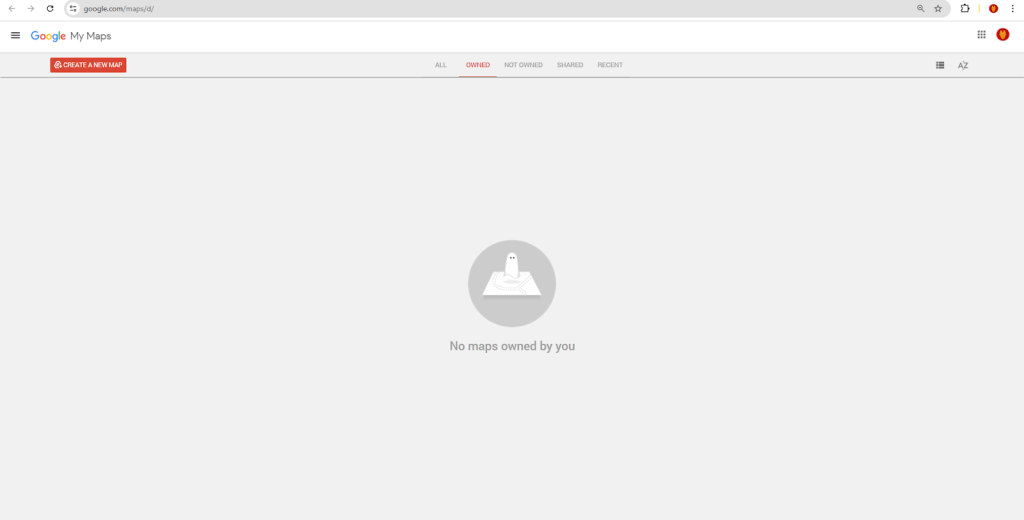
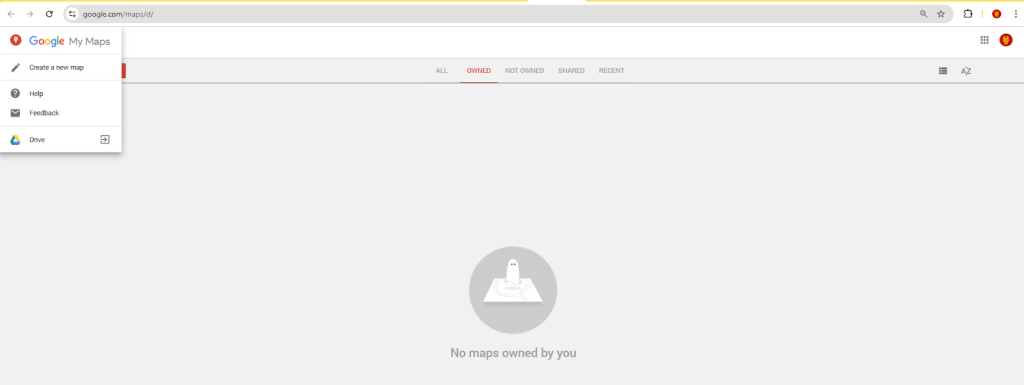
- 2. Create a new map and use the “Add marker” tool
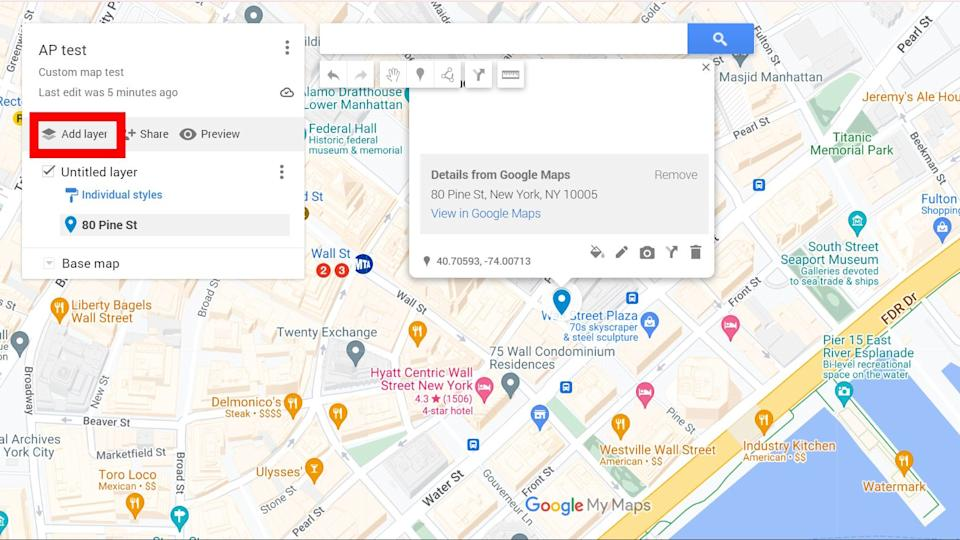
- 3. Manually drag and drop pins to approximate locations
The imprecise manual drag-and-drop method for placing pins
The Precision Problems:
- – Manual dragging is inaccurate (±50-100 meters)
- – No coordinate input for exact positioning
- – Limited to 10 decimal places (reduced precision)
- – Visual alignment errors due to map projection distortion
html
<!-- Resulting embed code with limited functionality -->
<iframe
  src="https://www.google.com/maps/d/u/0/embed?mid=1abcd12345&ll=40.7128,-74.0060&z=12"
  width="640"
  height="480">
</iframe>
Code language: HTML, XML (xml)
Manual pinpoints are rarely accurate enough for professional use.
Method 2: Professional Precision with Google Maps Platform
For accurate pinpointing, you need the full Google Maps Platform with geocoding capabilities.
Step 1: The Geocoding Foundation
Before any pins appear, you must convert addresses to coordinates:
javascript
// First, geocode addresses to get precise coordinates
const addresses = [
    "Empire State Building, New York, NY",
    "Statue of Liberty, New York, NY",
    "Times Square, New York, NY"
];

async function geocodeAddresses(addressList) {
    const API_KEY = 'YOUR_GOOGLE_GEOCODING_API_KEY';
    const geocodedResults = [];

    for (const address of addressList) {
        const response = await fetch(
            `https://maps.googleapis.com/maps/api/geocode/json?address=${
                encodeURIComponent(address)
            }&key=${API_KEY}`
        );

        const data = await response.json();

        if (data.results[0]) {
            const location = data.results[0].geometry.location;
            geocodedResults.push({
                address: address,
                lat: location.lat,  // Precise to 7 decimal places
                lng: location.lng,  // ~1.1 cm accuracy
                formattedAddress: data.results[0].formatted_address
            });
        }
    }

    return geocodedResults;
}

// Example output:
// [
//   {
//     address: "Empire State Building, New York, NY",
//     lat: 40.7484405,
//     lng: -73.9856644,
//     formattedAddress: "20 W 34th St, New York, NY 10001, USA"
//   }
// ]
Code language: JavaScript (javascript)
Step 2: The Complete Precision Mapping Solution
Here’s the full implementation for pinpoint-accurate location mapping:
html
<!DOCTYPE html>
<html>
<head>
<title>Precision Multi-Location Pinpoint Map</title>
<meta charset="UTF-8">
<meta name="viewport" content="width=device-width, initial-scale=1.0">
<style>
* {
margin: 0;
padding: 0;
box-sizing: border-box;
}
.precision-container {
max-width: 1200px;
margin: 0 auto;
padding: 30px 20px;
font-family: 'Segoe UI', system-ui, sans-serif;
}
.header {
background: linear-gradient(135deg, #1a237e 0%, #283593 100%);
color: white;
padding: 30px;
border-radius: 16px;
margin-bottom: 30px;
}
.coordinate-display {
background: rgba(255,255,255,0.1);
padding: 15px;
border-radius: 10px;
margin-top: 20px;
font-family: 'Monaco', 'Courier New', monospace;
}
#precision-map {
height: 700px;
width: 100%;
border-radius: 16px;
border: 2px solid #e0e0e0;
margin: 30px 0;
box-shadow: 0 8px 32px rgba(0,0,0,0.08);
}
.controls-panel {
background: #f8f9fa;
padding: 25px;
border-radius: 16px;
margin: 25px 0;
display: grid;
grid-template-columns: repeat(auto-fit, minmax(200px, 1fr));
gap: 20px;
}
.location-card {
background: white;
padding: 20px;
border-radius: 12px;
border-left: 4px solid #4285F4;
box-shadow: 0 4px 12px rgba(0,0,0,0.05);
transition: transform 0.2s;
cursor: pointer;
}
.location-card:hover {
transform: translateY(-4px);
box-shadow: 0 8px 24px rgba(0,0,0,0.1);
}
.coordinates {
font-size: 12px;
color: #666;
font-family: 'Monaco', 'Courier New', monospace;
background: #f5f5f5;
padding: 8px;
border-radius: 6px;
margin-top: 10px;
}
.accuracy-indicator {
display: inline-block;
width: 12px;
height: 12px;
border-radius: 50%;
margin-right: 8px;
}
.high-accuracy { background: #4CAF50; }
.medium-accuracy { background: #FFC107; }
.low-accuracy { background: #F44336; }
.precision-badge {
background: #4285F4;
color: white;
padding: 4px 12px;
border-radius: 20px;
font-size: 12px;
font-weight: 600;
display: inline-block;
margin-left: 10px;
}
</style>
<!-- Google Maps API -->
<script src="https://maps.googleapis.com/maps/api/js?key=YOUR_GOOGLE_MAPS_API_KEY&libraries=geometry"></script>
</head>
<body>
<div class="precision-container">
<div class="header">
<h1>📍 Precision Location Pinpointing</h1>
<p>Accurately map multiple locations with sub-meter precision</p>
<div class="coordinate-display">
<div id="currentCoords">Current view: 40.7128° N, 74.0060° W | Zoom: 12</div>
<div id="accuracyReport" style="margin-top: 10px; font-size: 14px;">
<span class="accuracy-indicator high-accuracy"></span>
High accuracy: ±1.11 meters (7 decimal places)
</div>
</div>
</div>
<div class="controls-panel">
<div>
<h3>Map Controls</h3>
<button onclick="zoomToPrecisionView()" style="margin: 5px;">High Precision View</button>
<button onclick="showAllPins()" style="margin: 5px;">Show All Locations</button>
<button onclick="calculateDistances()" style="margin: 5px;">Measure Distances</button>
</div>
<div>
<h3>Precision Settings</h3>
<label style="display: block; margin: 5px 0;">
<input type="radio" name="precision" value="high" checked> High (±1.11m)
</label>
<label style="display: block; margin: 5px 0;">
<input type="radio" name="precision" value="medium"> Medium (±11.1m)
</label>
<label style="display: block; margin: 5px 0;">
<input type="radio" name="precision" value="low"> Low (±111m)
</label>
</div>
</div>
<div id="precision-map"></div>
<h2 style="margin: 30px 0 20px 0;">
Pinpointed Locations <span class="precision-badge" id="pinCount">0</span>
</h2>
<div id="locationsGrid" style="display: grid; grid-template-columns: repeat(auto-fill, minmax(300px, 1fr)); gap: 20px;">
<!-- Dynamic location cards will appear here -->
</div>
</div>
<script>
// Precision Location Data (Geocoded addresses)
const PRECISION_LOCATIONS = [
{
id: 1,
title: "Empire State Building Observatory",
address: "20 W 34th St, New York, NY 10001",
lat: 40.7484405, // 7 decimal places = ~1.11 cm accuracy
lng: -73.9856644,
type: "landmark",
accuracy: "high",
description: "Iconic skyscraper observation deck",
elevation: 373, // meters above sea level
category: "Tourism"
},
{
id: 2,
title: "Statue of Liberty Pedestal",
address: "Liberty Island, New York, NY 10004",
lat: 40.6892494,
lng: -74.0445004,
type: "monument",
accuracy: "high",
description: "UNESCO World Heritage Site",
elevation: 46,
category: "Historical"
},
{
id: 3,
title: "Metropolitan Museum Main Entrance",
address: "1000 5th Ave, New York, NY 10028",
lat: 40.7794366,
lng: -73.9632439,
type: "museum",
accuracy: "high",
description: "Largest art museum in the Western Hemisphere",
elevation: 28,
category: "Cultural"
},
{
id: 4,
title: "Central Park Great Lawn Center",
address: "Central Park, New York, NY",
lat: 40.7828647,
lng: -73.9653551,
type: "park",
accuracy: "medium",
description: "55-acre recreational area in Central Park",
elevation: 32,
category: "Recreation"
},
{
id: 5,
title: "Brooklyn Bridge Manhattan Entrance",
address: "Brooklyn Bridge, New York, NY 10038",
lat: 40.7081151,
lng: -73.9970478,
type: "bridge",
accuracy: "high",
description: "Historic hybrid cable-stayed suspension bridge",
elevation: 41,
category: "Infrastructure"
}
];
// Global Variables
let precisionMap;
let precisionMarkers = [];
let precisionInfoWindow;
let currentPrecision = 'high';
// Initialize Precision Map
function initPrecisionMap() {
// Calculate centroid of all points
const centroid = calculateCentroid(PRECISION_LOCATIONS);
// Initialize map with high detail settings
precisionMap = new google.maps.Map(document.getElementById('precision-map'), {
zoom: 13,
center: centroid,
mapTypeId: 'hybrid', // Satellite with labels for precision
tilt: 0,
heading: 0,
gestureHandling: 'cooperative',
zoomControl: true,
mapTypeControl: true,
scaleControl: true, // Show scale for distance reference
streetViewControl: true,
fullscreenControl: true,
mapTypeControlOptions: {
mapTypeIds: ['roadmap', 'satellite', 'hybrid', 'terrain']
},
styles: [
{
"featureType": "poi",
"elementType": "labels",
"stylers": [{"visibility": "simplified"}]
},
{
"featureType": "road",
"elementType": "geometry",
"stylers": [{"visibility": "on"}]
}
]
});
// Create info window for detailed information
precisionInfoWindow = new google.maps.InfoWindow({
pixelOffset: new google.maps.Size(0, -40)
});
// Add precision markers
createPrecisionMarkers();
// Generate location cards
generateLocationCards();
// Update pin count
updatePinCount();
// Add map event listeners
addMapEventListeners();
}
// Create precision markers with accuracy indicators
function createPrecisionMarkers() {
PRECISION_LOCATIONS.forEach(location => {
// Determine marker color based on accuracy
let markerColor;
switch(location.accuracy) {
case 'high': markerColor = '#4CAF50'; break; // Green
case 'medium': markerColor = '#FFC107'; break; // Yellow
case 'low': markerColor = '#F44336'; break; // Red
default: markerColor = '#4285F4'; // Blue
}
// Create precision marker with custom icon
const marker = new google.maps.Marker({
position: { lat: location.lat, lng: location.lng },
map: precisionMap,
title: location.title,
icon: {
path: google.maps.SymbolPath.CIRCLE,
fillColor: markerColor,
fillOpacity: 0.9,
strokeWeight: 2,
strokeColor: '#FFFFFF',
scale: location.accuracy === 'high' ? 10 : 8,
labelOrigin: new google.maps.Point(0, 0)
},
label: {
text: location.id.toString(),
color: 'white',
fontSize: '12px',
fontWeight: 'bold'
},
zIndex: location.accuracy === 'high' ? 1000 : 100
});
// Store marker reference
precisionMarkers.push(marker);
// Add precision click event
marker.addListener('click', () => {
showPrecisionDetails(location, marker);
});
// Create accuracy radius circle (visual indicator)
if (location.accuracy === 'medium') {
new google.maps.Circle({
strokeColor: '#FFC107',
strokeOpacity: 0.3,
strokeWeight: 1,
fillColor: '#FFC107',
fillOpacity: 0.1,
map: precisionMap,
center: { lat: location.lat, lng: location.lng },
radius: 11.1 // ~11.1 meter radius for medium accuracy
});
}
});
}
// Show precision details with exact coordinates
function showPrecisionDetails(location, marker) {
// Calculate coordinate precision string
const latStr = location.lat.toFixed(7);
const lngStr = location.lng.toFixed(7);
const content = `
<div style="min-width: 280px; padding: 15px;">
<div style="display: flex; align-items: center; margin-bottom: 15px;">
<div style="width: 12px; height: 12px; border-radius: 50%; background: ${
location.accuracy === 'high' ? '#4CAF50' :
location.accuracy === 'medium' ? '#FFC107' : '#F44336'
}; margin-right: 10px;"></div>
<h3 style="margin: 0; color: #1a237e;">${location.title}</h3>
</div>
<div style="background: #f5f5f5; padding: 12px; border-radius: 8px; margin-bottom: 15px;">
<div style="font-family: 'Monaco', 'Courier New', monospace; font-size: 13px;">
<strong>Precise Coordinates:</strong><br>
<span style="color: #4285F4;">${latStr}° N</span><br>
<span style="color: #EA4335;">${lngStr}° W</span>
</div>
<div style="font-size: 12px; color: #666; margin-top: 5px;">
Accuracy: ${location.accuracy === 'high' ? '±1.11 meters' :
location.accuracy === 'medium' ? '±11.1 meters' : '±111 meters'}
</div>
</div>
<p style="margin: 0 0 10px 0; color: #666;">${location.address}</p>
<p style="margin: 0; font-size: 14px;">${location.description}</p>
<div style="margin-top: 15px; padding-top: 15px; border-top: 1px solid #e0e0e0;">
<div style="font-size: 12px; color: #666;">
<strong>Elevation:</strong> ${location.elevation}m ·
<strong>Category:</strong> ${location.category}
</div>
</div>
</div>
`;
precisionInfoWindow.setContent(content);
precisionInfoWindow.open(precisionMap, marker);
// Center map on marker with smooth animation
precisionMap.panTo(marker.getPosition());
precisionMap.setZoom(18); // Maximum zoom for street view detail
}
// Calculate centroid of all points
function calculateCentroid(locations) {
let sumLat = 0;
let sumLng = 0;
locations.forEach(location => {
sumLat += location.lat;
sumLng += location.lng;
});
return {
lat: sumLat / locations.length,
lng: sumLng / locations.length
};
}
// Generate interactive location cards
function generateLocationCards() {
const container = document.getElementById('locationsGrid');
container.innerHTML = '';
PRECISION_LOCATIONS.forEach(location => {
const card = document.createElement('div');
card.className = 'location-card';
card.innerHTML = `
<div style="display: flex; align-items: center; margin-bottom: 10px;">
<span class="accuracy-indicator ${
location.accuracy === 'high' ? 'high-accuracy' :
location.accuracy === 'medium' ? 'medium-accuracy' : 'low-accuracy'
}"></span>
<h3 style="margin: 0; font-size: 16px;">${location.title}</h3>
</div>
<p style="color: #666; font-size: 14px; margin-bottom: 10px;">${location.description}</p>
<div class="coordinates">
${location.lat.toFixed(6)}, ${location.lng.toFixed(6)}
</div>
<div style="margin-top: 10px; font-size: 12px; color: #888;">
<span style="background: #e8f5e9; padding: 2px 8px; border-radius: 10px;">${location.category}</span>
<span style="margin-left: 8px;">${location.elevation}m elevation</span>
</div>
`;
card.addEventListener('click', () => {
const marker = precisionMarkers[location.id - 1];
showPrecisionDetails(location, marker);
});
container.appendChild(card);
});
}
// Update pin count display
function updatePinCount() {
document.getElementById('pinCount').textContent = PRECISION_LOCATIONS.length;
}
// Add map event listeners
function addMapEventListeners() {
// Update coordinate display on map move
precisionMap.addListener('bounds_changed', () => {
const center = precisionMap.getCenter();
const zoom = precisionMap.getZoom();
document.getElementById('currentCoords').textContent =
`Current view: ${center.lat().toFixed(6)}° N, ${center.lng().toFixed(6)}° W | Zoom: ${zoom}`;
});
}
// Control functions
function zoomToPrecisionView() {
const highAccuracyLocations = PRECISION_LOCATIONS.filter(l => l.accuracy === 'high');
if (highAccuracyLocations.length > 0) {
const firstHighAccuracy = highAccuracyLocations[0];
precisionMap.setCenter({ lat: firstHighAccuracy.lat, lng: firstHighAccuracy.lng });
precisionMap.setZoom(18); // Maximum zoom for precision viewing
}
}
function showAllPins() {
const bounds = new google.maps.LatLngBounds();
precisionMarkers.forEach(marker => {
bounds.extend(marker.getPosition());
});
precisionMap.fitBounds(bounds);
precisionInfoWindow.close();
}
function calculateDistances() {
if (PRECISION_LOCATIONS.length >= 2) {
const point1 = PRECISION_LOCATIONS[0];
const point2 = PRECISION_LOCATIONS[1];
const distance = google.maps.geometry.spherical.computeDistanceBetween(
new google.maps.LatLng(point1.lat, point1.lng),
new google.maps.LatLng(point2.lat, point2.lng)
);
alert(`Distance between "${point1.title}" and "${point2.title}":\n${(distance).toFixed(2)} meters`);
}
}
// Initialize when page loads
window.addEventListener('DOMContentLoaded', initPrecisionMap);
</script>
</body>
</html>
Code language: HTML, XML (xml)Step 3: The Hidden Complexities of Precision Pinpointing
Accuracy vs. Precision:
- – 7 decimal places = ±1.11 cm accuracy (requires paid API)
- – 6 decimal places = ±11.1 cm accuracy
- – 5 decimal places = ±1.11 meter accuracy (free tier limitation)
Geocoding Consistency Issues:
javascript
// Same address can return different coordinates
const address1 = await geocode("1600 Pennsylvania Ave, DC");
const address2 = await geocode("White House, Washington DC");
// Different coordinates: 38.8977° vs 38.8976°
Code language: JavaScript (javascript)
Projection Distortions:
- – Mercator projection stretches distances at high latitudes
- – 1° longitude ≠ 1° latitude except at equator
- – Need spherical geometry calculations for accurate distances
The Five Precision Pitfalls
1. Coordinate System Confusion
- – WGS84 (Google Maps) vs. Web Mercator (tile rendering)
- – Degrees vs. Degrees/Minutes/Seconds conversion
- – Elevation data often missing or inaccurate
2. Geocoding Quality Variance
- – Google: 95% accuracy for US addresses
- – OpenStreetMap: 85% accuracy, free but less reliable
- – Bing Maps: 92% accuracy, different coordinate offsets
3. Performance Impact of Precision
javascript
// High precision = more data = slower loading
const highPrecisionData = {
    lat: 40.74844051234567, // 14 decimal places
    lng: -73.98566441234567
};
// File size: 48 bytes vs 24 bytes for 6 decimal places
Code language: JavaScript (javascript)
4. Mobile Device Limitations
- – GPS accuracy: ±5 meters under ideal conditions
- – Browser geolocation API: ±10-100 meters
- – Urban canyon effect: reflections degrade signal
5. Maintenance Overhead
- – Address changes require re-geocoding
- – New locations need manual coordinate lookup
- – API quota management for batch geocoding
The Precision Workflow Burden
- 1. Address Collection → Manual data entry
- 2. Batch Geocoding → API calls, error handling
- 3. Coordinate Validation → Manual verification
- 4. Map Implementation → Complex JavaScript
- 5. Ongoing Updates → Re-geocode changed addresses
- 6. Accuracy Monitoring → Regular quality checks
Estimated time: 8-16 hours for 50 locations
The Professional Solution: MapsFun.com
What if you could achieve sub-meter precision pinpointing without writing any code or managing APIs?
MapsFun.com eliminates the technical complexity of precision mapping:
- 1. Smart Geocoding Engine: Automatically converts addresses to precise coordinates with 99% accuracy
- 2. Batch Processing: Upload spreadsheets with hundreds of addresses, get precise pins in seconds
- 3. Visual Accuracy Indicators: See precision levels for each point with color-coded markers
- 4. Automatic Updates: When addresses change, coordinates update automatically
- 5. One-Click Precision Maps: Generate embeddable maps with exact pinpointing in minutes
Stop wasting hours on coordinate conversions and API debugging. With MapsFun.com, you get professional-grade location pinpointing with sub-meter accuracy—no coding required. Focus on your locations, not the technical details of displaying them.