How to Map Several Locations on Google Maps
How to Map Several Locations on Google Maps: The Complete 2024 Guide
Need to display multiple locations on Google Maps for your business, event, or project? This comprehensive guide covers all methods from simple to advanced, with working code examples and professional tips.
Which Method Should You Choose?
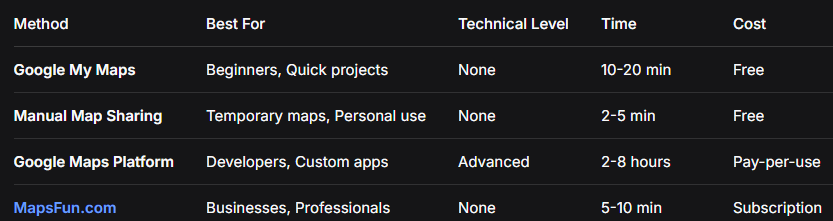
Method 1: Google My Maps (Easiest Method)
Step-by-Step Instructions
1. Access Google My Maps
- – Go to [Google My Maps](https://www.google.com/maps/d/)
- – Click “Create a New Map”
- – Sign in with your Google account
Google My Maps dashboard – start creating your custom map
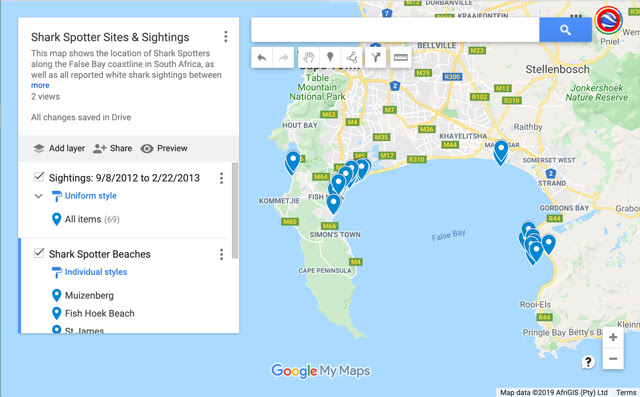
2. Add Multiple Locations
- Option A: Search and Add
- – Use the search bar at the top
- – Type address or place name
- – Click “Add to map” for each location
- Option B: Import from Spreadsheet
- – Click “Import” under the first layer
- – Upload CSV or Excel file
- – Google automatically geocodes addresses
Sample CSV Format:
csv
Name,Address,Type,Description
Main Store,123 Oak St,Retail,Flagship location
Downtown Office,456 Main St,Office,Headquarters
Warehouse,789 Industrial Way,Warehouse,Storage facility
Event Venue,321 Park Ave,Event,Conference center
Option C: Manual Placement
- – Click the marker icon in toolbar
- – Click exact spot on map
- – Add location details in popup
3. Customize Your Map
- Change Marker Styles:
- – Click any marker → “Style” (paint bucket)
- – Choose different colors for categories
- – Add custom icons or use numbered labels
- Add Layers for Organization:
- – Create separate layers for different location types
- – Example: “Stores”, “Offices”, “Warehouses”
- – Toggle visibility for each layer
- Add Rich Content:
- – Descriptions with formatting
- – Contact information
- – Photos and videos
- – Opening hours
- – Website links
4. Share and Embed
For Website Embedding:
html
<iframe
  src="https://www.google.com/maps/d/embed?mid=YOUR_MAP_ID&z=12"
  width="800"
  height="600"
  style="border: 1px solid #ddd; border-radius: 8px;"
  loading="lazy">
</iframe>Code language: HTML, XML (xml)
For Direct Sharing:
- – Click “Share” → Enable link sharing
- – Choose “Anyone with link can view”
- – Copy and share the URL
Method 2: Quick Manual Sharing
For Temporary or Simple Maps
- 1. Open Google Maps (maps.google.com)
- 2. Search for your first location
- 3. Click “Save” → Choose list or create new
- 4. Repeat for all locations
- 5. Go to “Your Places” → “Saved”
- 6. Share the list via link or social media
Method 3: Google Maps Platform (Full Customization)
For Developers and Custom Applications
Step 1: API Setup
javascript
// Required APIs to enable in Google Cloud Console:
// - Maps JavaScript API
// - Geocoding API
// - Places API (optional for search)

// Security note: Always restrict your API key
const API_CONFIG = {
  key: 'your_restricted_api_key',
  restrictions: {
    httpReferrers: ['yourdomain.com/*'],
    apis: ['Maps JavaScript API', 'Geocoding API']
  }
};
Code language: JavaScript (javascript)
Step 2: Complete Implementation Code
html
<!DOCTYPE html>
<html lang="en">
<head>
<meta charset="UTF-8">
<meta name="viewport" content="width=device-width, initial-scale=1.0">
<title>Multiple Locations Map</title>
<style>
:root {
--primary-color: #4285F4;
--secondary-color: #34A853;
--accent-color: #EA4335;
--text-color: #333;
--light-gray: #f8f9fa;
--border-color: #e0e0e0;
}
* {
margin: 0;
padding: 0;
box-sizing: border-box;
}
body {
font-family: 'Segoe UI', Tahoma, Geneva, Verdana, sans-serif;
background: var(--light-gray);
color: var(--text-color);
line-height: 1.6;
}
.container {
max-width: 1400px;
margin: 0 auto;
padding: 20px;
}
.header {
text-align: center;
margin-bottom: 30px;
padding: 20px;
background: white;
border-radius: 10px;
box-shadow: 0 2px 10px rgba(0,0,0,0.1);
}
.header h1 {
color: var(--primary-color);
margin-bottom: 10px;
font-size: 2.5rem;
}
.header p {
color: #666;
font-size: 1.1rem;
}
.map-layout {
display: grid;
grid-template-columns: 300px 1fr;
gap: 20px;
margin-bottom: 30px;
}
@media (max-width: 768px) {
.map-layout {
grid-template-columns: 1fr;
}
}
.sidebar {
background: white;
border-radius: 10px;
padding: 20px;
box-shadow: 0 2px 10px rgba(0,0,0,0.1);
height: fit-content;
}
.search-box {
width: 100%;
padding: 12px 15px;
border: 2px solid var(--border-color);
border-radius: 8px;
font-size: 16px;
margin-bottom: 20px;
transition: border-color 0.3s;
}
.search-box:focus {
outline: none;
border-color: var(--primary-color);
}
.filters {
margin-bottom: 20px;
}
.filter-title {
font-weight: 600;
margin-bottom: 10px;
color: var(--text-color);
}
.filter-buttons {
display: flex;
flex-direction: column;
gap: 8px;
}
.filter-btn {
padding: 10px 15px;
border: 2px solid var(--border-color);
background: white;
border-radius: 6px;
cursor: pointer;
transition: all 0.3s;
text-align: left;
font-size: 14px;
}
.filter-btn:hover {
border-color: var(--primary-color);
}
.filter-btn.active {
background: var(--primary-color);
color: white;
border-color: var(--primary-color);
}
.locations-list {
max-height: 400px;
overflow-y: auto;
}
.location-item {
padding: 12px;
border: 1px solid var(--border-color);
border-radius: 6px;
margin-bottom: 8px;
cursor: pointer;
transition: all 0.3s;
}
.location-item:hover {
border-color: var(--primary-color);
transform: translateX(5px);
}
.location-item.active {
border-color: var(--primary-color);
background: var(--light-gray);
}
.location-name {
font-weight: 600;
margin-bottom: 5px;
}
.location-address {
font-size: 12px;
color: #666;
}
#map {
height: 600px;
border-radius: 10px;
box-shadow: 0 4px 15px rgba(0,0,0,0.1);
}
.map-stats {
text-align: center;
color: #666;
font-size: 14px;
margin-top: 10px;
}
/* Custom info window styles */
.gm-style .gm-style-iw-c {
padding: 0;
border-radius: 10px;
}
.gm-style .gm-style-iw-t::after {
background: var(--primary-color);
}
</style>
</head>
<body>
<div class="container">
<div class="header">
<h1>Our Locations</h1>
<p>Find our stores, offices, and service centers</p>
</div>
<div class="map-layout">
<div class="sidebar">
<input type="text" class="search-box" placeholder="Search locations..." id="searchBox">
<div class="filters">
<div class="filter-title">Filter by Type:</div>
<div class="filter-buttons">
<button class="filter-btn active" data-category="all">All Locations</button>
<button class="filter-btn" data-category="store">Stores</button>
<button class="filter-btn" data-category="office">Offices</button>
<button class="filter-btn" data-category="warehouse">Warehouses</button>
<button class="filter-btn" data-category="service">Service Centers</button>
</div>
</div>
<div class="locations-list" id="locationsList">
<!-- Locations will be populated by JavaScript -->
</div>
</div>
<div id="map"></div>
</div>
<div class="map-stats" id="mapStats">Loading locations...</div>
</div>
<!-- Google Maps API -->
<script src="https://maps.googleapis.com/maps/api/js?key=YOUR_API_KEY&callback=initMap" async defer></script>
<script>
// Sample locations data
const locationsData = [
{
id: 1,
name: "Downtown Flagship Store",
position: { lat: 40.7128, lng: -74.0060 },
address: "123 Main Street, New York, NY 10001",
phone: "(555) 123-4567",
email: "downtown@company.com",
category: "store",
hours: "Mon-Sat: 9AM-9PM, Sun: 10AM-6PM",
services: ["Retail Sales", "Product Demos", "Customer Support"],
features: ["Wheelchair Access", "Parking", "WiFi"]
},
{
id: 2,
name: "Corporate Headquarters",
position: { lat: 40.7614, lng: -73.9776 },
address: "456 Park Avenue, New York, NY 10065",
phone: "(555) 123-4568",
email: "hq@company.com",
category: "office",
hours: "Mon-Fri: 8:30AM-5:30PM",
services: ["Administration", "B2B Sales", "Management"],
features: ["Meeting Rooms", "Conference Facilities"]
},
{
id: 3,
name: "Brooklyn Distribution Center",
position: { lat: 40.6782, lng: -73.9442 },
address: "789 Industrial Road, Brooklyn, NY 11201",
phone: "(555) 123-4569",
email: "brooklyn@company.com",
category: "warehouse",
hours: "Mon-Fri: 7AM-5PM",
services: ["Bulk Orders", "Wholesale", "Distribution"],
features: ["Loading Dock", "Storage", "Shipping"]
},
{
id: 4,
name: "Midtown Service Center",
position: { lat: 40.7549, lng: -73.9840 },
address: "321 5th Avenue, New York, NY 10018",
phone: "(555) 123-4570",
email: "midtown@company.com",
category: "service",
hours: "Mon-Fri: 8AM-6PM, Sat: 9AM-5PM",
services: ["Repairs", "Maintenance", "Technical Support"],
features: ["Service Bay", "Parts Department"]
},
{
id: 5,
name: "Queens Retail Outlet",
position: { lat: 40.7282, lng: -73.7942 },
address: "654 Queens Boulevard, Queens, NY 11377",
phone: "(555) 123-4571",
email: "queens@company.com",
category: "store",
hours: "Mon-Sun: 10AM-8PM",
services: ["Retail Sales", "Special Orders"],
features: ["Extended Hours", "Gift Cards"]
}
];
let map;
let markers = [];
let infoWindow;
let currentFilter = 'all';
function initMap() {
// Initialize the map with custom styling
map = new google.maps.Map(document.getElementById('map'), {
zoom: 12,
center: { lat: 40.7128, lng: -74.0060 },
styles: [
{
"featureType": "administrative",
"elementType": "labels.text.fill",
"stylers": [{"color": "#444444"}]
},
{
"featureType": "landscape",
"elementType": "all",
"stylers": [{"color": "#f2f2f2"}]
},
{
"featureType": "poi",
"elementType": "all",
"stylers": [{"visibility": "off"}]
},
{
"featureType": "road",
"elementType": "all",
"stylers": [{"saturation": -100}, {"lightness": 45}]
},
{
"featureType": "water",
"elementType": "all",
"stylers": [{"color": "#d4e6ff"}, {"visibility": "on"}]
}
],
mapTypeControl: true,
streetViewControl: false,
fullscreenControl: true
});
infoWindow = new google.maps.InfoWindow();
// Initialize the map with all locations
createMarkers(locationsData);
populateLocationsList(locationsData);
// Set up event listeners
setupEventListeners();
}
function createMarkers(locations) {
// Clear existing markers
markers.forEach(marker => marker.setMap(null));
markers = [];
const bounds = new google.maps.LatLngBounds();
locations.forEach((location) => {
const marker = new google.maps.Marker({
position: location.position,
map: map,
title: location.name,
icon: getCustomMarkerIcon(location.category),
animation: google.maps.Animation.DROP
});
bounds.extend(location.position);
// Add click listener for info window
marker.addListener('click', () => {
showLocationInfo(marker, location);
highlightLocationItem(location.id);
});
markers.push(marker);
});
// Fit map to show all markers if there are any
if (locations.length > 0) {
map.fitBounds(bounds);
}
// Update statistics
updateMapStats(locations.length);
}
function getCustomMarkerIcon(category) {
const baseSize = new google.maps.Size(40, 40);
const icons = {
store: {
url: 'https://maps.google.com/mapfiles/ms/icons/blue-dot.png',
scaledSize: baseSize
},
office: {
url: 'https://maps.google.com/mapfiles/ms/icons/green-dot.png',
scaledSize: baseSize
},
warehouse: {
url: 'https://maps.google.com/mapfiles/ms/icons/red-dot.png',
scaledSize: baseSize
},
service: {
url: 'https://maps.google.com/mapfiles/ms/icons/orange-dot.png',
scaledSize: baseSize
}
};
return icons[category] || icons.store;
}
function showLocationInfo(marker, location) {
const servicesList = location.services.map(service =>
`<li>${service}</li>`
).join('');
const featuresList = location.features.map(feature =>
`<span class="feature-tag">${feature}</span>`
).join('');
const content = `
<div style="padding: 20px; max-width: 350px; font-family: 'Segoe UI', sans-serif;">
<h3 style="margin: 0 0 15px 0; color: #4285F4; border-bottom: 2px solid #4285F4; padding-bottom: 8px;">
${location.name}
</h3>
<div style="margin-bottom: 12px;">
<strong style="color: #333;">📍 Address:</strong><br>
<span style="color: #666; line-height: 1.4;">${location.address}</span>
</div>
<div style="margin-bottom: 12px;">
<strong style="color: #333;">📞 Contact:</strong><br>
<span style="color: #666;">${location.phone}</span><br>
<span style="color: #666;">${location.email}</span>
</div>
<div style="margin-bottom: 12px;">
<strong style="color: #333;">🕒 Hours:</strong><br>
<span style="color: #666;">${location.hours}</span>
</div>
<div style="margin-bottom: 12px;">
<strong style="color: #333;">🛠️ Services:</strong>
<ul style="margin: 5px 0; padding-left: 20px; color: #666;">
${servicesList}
</ul>
</div>
<div style="margin-bottom: 15px;">
<strong style="color: #333;">⭐ Features:</strong><br>
<div style="display: flex; flex-wrap: wrap; gap: 5px; margin-top: 5px;">
${featuresList}
</div>
</div>
<div style="text-align: center;">
<a href="https://maps.google.com/?q=${location.position.lat},${location.position.lng}"
target="_blank"
style="background: #4285F4; color: white; padding: 12px 24px;
text-decoration: none; border-radius: 6px; display: inline-block;
font-weight: 600; transition: background 0.3s; font-size: 14px;">
Get Directions
</a>
</div>
</div>
`;
infoWindow.setContent(content);
infoWindow.open(map, marker);
}
function populateLocationsList(locations) {
const locationsList = document.getElementById('locationsList');
locationsList.innerHTML = '';
locations.forEach(location => {
const locationItem = document.createElement('div');
locationItem.className = 'location-item';
locationItem.dataset.id = location.id;
locationItem.innerHTML = `
<div class="location-name">${location.name}</div>
<div class="location-address">${location.address}</div>
`;
locationItem.addEventListener('click', () => {
const marker = markers.find(m => m.title === location.name);
if (marker) {
map.panTo(marker.getPosition());
map.setZoom(15);
showLocationInfo(marker, location);
highlightLocationItem(location.id);
}
});
locationsList.appendChild(locationItem);
});
}
function highlightLocationItem(locationId) {
// Remove active class from all items
document.querySelectorAll('.location-item').forEach(item => {
item.classList.remove('active');
});
// Add active class to clicked item
const activeItem = document.querySelector(`.location-item[data-id="${locationId}"]`);
if (activeItem) {
activeItem.classList.add('active');
}
}
function setupEventListeners() {
// Category filter buttons
const filterButtons = document.querySelectorAll('.filter-btn');
filterButtons.forEach(button => {
button.addEventListener('click', () => {
// Update active button
filterButtons.forEach(btn => btn.classList.remove('active'));
button.classList.add('active');
// Filter locations
currentFilter = button.dataset.category;
filterLocations(currentFilter);
});
});
// Search functionality
const searchBox = document.getElementById('searchBox');
searchBox.addEventListener('input', (e) => {
const searchTerm = e.target.value.toLowerCase();
filterLocationsBySearch(searchTerm);
});
}
function filterLocations(category) {
let filteredLocations;
if (category === 'all') {
filteredLocations = locationsData;
} else {
filteredLocations = locationsData.filter(
location => location.category === category
);
}
createMarkers(filteredLocations);
populateLocationsList(filteredLocations);
}
function filterLocationsBySearch(searchTerm) {
if (!searchTerm) {
filterLocations(currentFilter);
return;
}
const filteredLocations = locationsData.filter(location =>
location.name.toLowerCase().includes(searchTerm) ||
location.address.toLowerCase().includes(searchTerm) ||
location.services.some(service =>
service.toLowerCase().includes(searchTerm)
)
);
createMarkers(filteredLocations);
populateLocationsList(filteredLocations);
}
function updateMapStats(count) {
const statsElement = document.getElementById('mapStats');
statsElement.textContent = `Showing ${count} location${count !== 1 ? 's' : ''}`;
}
</script>
</body>
</html>
Code language: HTML, XML (xml)Interactive map with sidebar listing and advanced filtering
Advanced Features
Marker Clustering for Large Datasets
html
<!-- Add marker clustering library -->
<script src="https://unpkg.com/@googlemaps/markerclusterer/dist/index.min.js"></script>

<script>
// Implement clustering for better performance
const markerCluster = new markerClusterer.MarkerClusterer({
    map,
    markers,
    renderer: {
        render: ({ count, position }) => new google.maps.Marker({
            label: { text: String(count), color: "white", fontSize: "12px" },
            position,
            icon: {
                path: google.maps.SymbolPath.CIRCLE,
                scale: 25,
                fillColor: "#4285F4",
                fillOpacity: 0.8,
                strokeWeight: 2,
                strokeColor: "#FFFFFF"
            },
            zIndex: Number(google.maps.Marker.MAX_ZINDEX) + count
        })
    }
});
</script>
Code language: HTML, XML (xml)
Real-time Data Integration
javascript
// Fetch locations from API
async function loadLocationsFromAPI() {
    try {
        const response = await fetch('/api/locations');
        const locations = await response.json();
        updateMapWithNewData(locations);
    } catch (error) {
        console.error('Failed to load locations:', error);
    }
}

// Auto-refresh every 5 minutes
setInterval(loadLocationsFromAPI, 300000);Code language: JavaScript (javascript)
Common Challenges & Solutions
Problem: Address Geocoding Issues
javascript
// Robust geocoding with fallbacks
async function enhancedGeocode(address) {
    const geocoder = new google.maps.Geocoder();

    try {
        const results = await new Promise((resolve, reject) => {
            geocoder.geocode({ address }, (results, status) => {
                status === 'OK' ? resolve(results) : reject(status);
            });
        });

        // Prefer rooftop accuracy, fall back to other results
        const precise = results.find(r => r.geometry.location_type === 'ROOFTOP');
        const approximate = results.find(r => r.geometry.location_type === 'RANGE_INTERPOLATED');

        return (precise || approximate || results[0]).geometry.location;
    } catch (error) {
        console.warn(`Geocoding failed for: ${address}`, error);
        return null;
    }
}
Code language: JavaScript (javascript)
Problem: Performance with Many Locations
- – Implement marker clustering for 50+ locations
- – Use lazy loading for map tiles
- – Optimize images and assets
- – Implement virtual scrolling for location lists
The Professional Solution: MapsFun.com
While the technical approach works, it comes with significant challenges:
Traditional Development Pain Points:
- – ⏰ Weeks of development time
- – 💻 Advanced programming skills required
- – 🐛 Browser compatibility issues
- – 🔧 Ongoing maintenance and updates
- – 💰 Unpredictable API costs
- – 📱 Mobile responsiveness challenges
MapsFun.com Advantages:
- – ✅ 5-minute setup – No technical skills needed
- – ✅ Visual drag-and-drop interface
- – ✅ Automatic mobile optimization
- – ✅ No API management or billing
- – ✅ Professional templates included
- – ✅ Real-time collaboration features
- – ✅ Bulk location import from spreadsheets
- – ✅ Advanced features without coding
“I used to spend weeks coding custom maps for clients. With MapsFun.com , I now deliver better results in under an hour. It’s completely changed my business model.” – Jessica L., Digital Agency Owner
Get Started Today
For developers with time and resources: Use the Google Maps Platform approach above.
For everyone else: Get professional, production-ready maps instantly with MapsFun.com
Why Choose MapsFun.com ?
- – 🚀 Launch in minutes, not weeks
- – 🎨 Beautiful designs without design skills
- – 📊 Enterprise features without enterprise costs
- – 🔧 Zero maintenance required
- – 💰 Predictable pricing, no surprise bills
Create your first multi-location map for free at MapsFun.com and join thousands of satisfied businesses who’ve simplified their mapping needs.
Stop wasting time with complex code – start creating beautiful, functional maps today!