How to Create Google Maps with Multiple Locations
How to Map Multiple Locations on Google Maps: The Ultimate 2025 Guide
Displaying multiple locations on Google Maps is essential for businesses with multiple stores, event planners, real estate agencies, and service providers. This comprehensive guide covers all methods from simple to advanced.
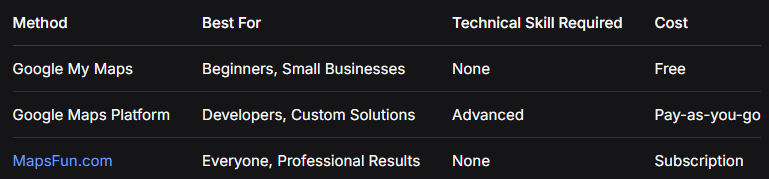
Quick Comparison: Which Method Should You Choose?
Method 1: Google My Maps (Free & Easy)
Step-by-Step Guide
1. Create Your Map
- – Go to [Google My Maps](https://www.google.com/maps/d/)
- – Click “Create a New Map”
- – Sign in with your Google account
Click “Create a New Map” to get started
2. Add Locations
- – Method A: Search in the search bar
- – Method B: Click the marker icon → click on map
- – Method C: Import CSV file with addresses
csv
Name,Address,Latitude,Longitude,Category
Store 1,123 Main St,40.7128,-74.0060,Retail
Store 2,456 Oak Ave,34.0522,-118.2437,Retail
Office,789 Business Blvd,41.8781,-87.6298,OfficeCode language: CSS (css)
3. Customize Markers
- – Click any marker → “Style” (paint bucket icon)
- – Choose different colors for categories
- – Add custom icons (up to 500 for free accounts)
4. Add Details to Each Location
- – Click any marker → “Edit”
- – Add description, photos, contact info
- – Include opening hours, services, etc.
5. Share and Embed
- – Click “Share” → Enable link sharing
- – Click “Preview” → Three dots → “Embed on my site”
- – Copy the iframe code
html
<iframe
  src="https://www.google.com/maps/d/embed?mid=YOUR_MAP_ID&ehbc=2E312F"
  width="640"
  height="480">
</iframe>
Code language: HTML, XML (xml)
Method 2: Google Maps Platform (Full Customization)
Step 1: Set Up Google Cloud Project
- 1. Create project at [Google Cloud Console](https://console.cloud.google.com/)
- 2. Enable billing (free $200 monthly credit)
- 3. Enable these APIs:
- – Maps JavaScript API
- – Geocoding API
- – Places API
Step 2: Get API Key
javascript
// Important: Restrict your API key for security
// Go to APIs & Services → Credentials
// Restrict to: Maps JavaScript API, Geocoding API
// Add HTTP referrer restrictions: yourdomain.com/*Code language: JSON / JSON with Comments (json)
Step 3: Implement the Map
<!DOCTYPE html>
<html>
<head>
    <title>Business Locations Map</title>
    <style>
        #map {
            height: 600px;
            width: 100%;
            border-radius: 10px;
            box-shadow: 0 4px 6px rgba(0,0,0,0.1);
        }
        .map-container {
            max-width: 1200px;
            margin: 0 auto;
            padding: 20px;
        }
        .controls {
            background: #f8f9fa;
            padding: 15px;
            border-radius: 8px;
            margin-bottom: 20px;
        }
        .location-filter {
            display: flex;
            gap: 10px;
            flex-wrap: wrap;
        }
        .filter-btn {
            padding: 8px 16px;
            border: 1px solid #ddd;
            background: white;
            border-radius: 20px;
            cursor: pointer;
        }
        .filter-btn.active {
            background: #4285F4;
            color: white;
            border-color: #4285F4;
        }
    </style>
</head>
<body>
    <div class="map-container">
        <h1>Our Locations</h1>

        <div class="controls">
            <div class="location-filter">
                <button class="filter-btn active" data-category="all">All Locations</button>
                <button class="filter-btn" data-category="retail">Retail Stores</button>
                <button class="filter-btn" data-category="service">Service Centers</button>
                <button class="filter-btn" data-category="warehouse">Warehouses</button>
            </div>
        </div>

        <div id="map"></div>
    </div>

    <script src="https://maps.googleapis.com/maps/api/js?key=YOUR_API_KEY&callback=initMap" async defer></script>
    <script>
        let map;
        let markers = [];
        let infoWindow;

        // Sample locations data
        const locations = [
            {
                id: 1,
                name: "Downtown Retail Store",
                position: { lat: 40.7128, lng: -74.0060 },
                address: "123 Main Street, New York, NY 10001",
                phone: "(555) 123-4567",
                category: "retail",
                hours: "Mon-Sat: 9AM-9PM, Sun: 10AM-6PM"
            },
            {
                id: 2,
                name: "Midtown Service Center",
                position: { lat: 40.7549, lng: -73.9840 },
                address: "456 5th Avenue, New York, NY 10018",
                phone: "(555) 123-4568",
                category: "service",
                hours: "Mon-Fri: 8AM-6PM, Sat: 9AM-5PM"
            },
            {
                id: 3,
                name: "Brooklyn Warehouse",
                position: { lat: 40.6782, lng: -73.9442 },
                address: "789 Industrial Road, Brooklyn, NY 11201",
                phone: "(555) 123-4569",
                category: "warehouse",
                hours: "Mon-Fri: 7AM-5PM"
            },
            {
                id: 4,
                name: "Queens Retail Outlet",
                position: { lat: 40.7282, lng: -73.7942 },
                address: "321 Queens Boulevard, Queens, NY 11377",
                phone: "(555) 123-4570",
                category: "retail",
                hours: "Mon-Sun: 10AM-8PM"
            }
        ];

        function initMap() {
            // Initialize map
            map = new google.maps.Map(document.getElementById('map'), {
                zoom: 11,
                center: { lat: 40.7128, lng: -74.0060 },
                styles: [
                    {
                        "featureType": "poi.business",
                        "stylers": [{ "visibility": "on" }]
                    }
                ]
            });

            infoWindow = new google.maps.InfoWindow();

            // Create markers
            createMarkers(locations);

            // Add filter functionality
            setupFilterButtons();
        }

        function createMarkers(locationsArray) {
            // Clear existing markers
            markers.forEach(marker => marker.setMap(null));
            markers = [];

            const bounds = new google.maps.LatLngBounds();

            locationsArray.forEach(location => {
                const marker = new google.maps.Marker({
                    position: location.position,
                    map: map,
                    title: location.name,
                    icon: getMarkerIcon(location.category),
                    animation: google.maps.Animation.DROP
                });

                bounds.extend(location.position);

                // Add click listener
                marker.addListener('click', () => {
                    showInfoWindow(marker, location);
                });

                markers.push(marker);
            });

            // Fit map to show all markers
            if (locationsArray.length > 0) {
                map.fitBounds(bounds);
            }
        }

        function getMarkerIcon(category) {
            const icons = {
                retail: {
                    url: 'https://maps.google.com/mapfiles/ms/icons/blue-dot.png',
                    scaledSize: new google.maps.Size(32, 32)
                },
                service: {
                    url: 'https://maps.google.com/mapfiles/ms/icons/green-dot.png',
                    scaledSize: new google.maps.Size(32, 32)
                },
                warehouse: {
                    url: 'https://maps.google.com/mapfiles/ms/icons/red-dot.png',
                    scaledSize: new google.maps.Size(32, 32)
                }
            };
            return icons[category] || icons.retail;
        }

        function showInfoWindow(marker, location) {
            const content = `
                <div class="location-info" style="padding: 15px; max-width: 300px;">
                    <h3 style="margin: 0 0 10px 0; color: #1a73e8;">${location.name}</h3>
                    <p style="margin: 5px 0;"><strong>📍 Address:</strong><br>${location.address}</p>
                    <p style="margin: 5px 0;"><strong>📞 Phone:</strong> ${location.phone}</p>
                    <p style="margin: 5px 0;"><strong>🕒 Hours:</strong><br>${location.hours}</p>
                    <div style="margin-top: 15px;">
                        <a href="https://maps.google.com/?q=${location.position.lat},${location.position.lng}"
                           target="_blank"
                           style="background: #1a73e8; color: white; padding: 8px 16px; text-decoration: none; border-radius: 4px; display: inline-block;">
                            Get Directions
                        </a>
                    </div>
                </div>
            `;

            infoWindow.setContent(content);
            infoWindow.open(map, marker);
        }

        function setupFilterButtons() {
            const filterButtons = document.querySelectorAll('.filter-btn');

            filterButtons.forEach(button => {
                button.addEventListener('click', () => {
                    // Update active button
                    filterButtons.forEach(btn => btn.classList.remove('active'));
                    button.classList.add('active');

                    // Filter locations
                    const category = button.dataset.category;
                    let filteredLocations;

                    if (category === 'all') {
                        filteredLocations = locations;
                    } else {
                        filteredLocations = locations.filter(loc => loc.category === category);
                    }

                    createMarkers(filteredLocations);
                });
            });
        }
    </script>
</body>
</html>
Code language: HTML, XML (xml)
Professional multi-location map with filtering capabilities
Advanced Features
Marker Clustering for Large Datasets
<!-- Add clustering library -->

<script src="https://unpkg.com/@googlemaps/markerclusterer/dist/index.min.js"></script>

<script>

// Implement clustering

const markerCluster = new markerClusterer.MarkerClusterer({

    map,

    markers,

    renderer: {

        render: ({ count, position }) => new google.maps.Marker({

            label: { text: String(count), color: "white", fontSize: "12px" },

            position,

            icon: {

                path: google.maps.SymbolPath.CIRCLE,

                scale: 20,

                fillColor: "#4285F4",

                fillOpacity: 0.8,

                strokeWeight: 2,

                strokeColor: "#FFFFFF"

            }

        })

    }

});

</script>Code language: HTML, XML (xml)
Import Locations from Google Sheets
javascript
// Load locations from published Google Sheet
async function loadLocationsFromSheet(sheetId) {
    const response = await fetch(`https://docs.google.com/spreadsheets/d/${sheetId}/gviz/tq?tqx=out:json`);
    const data = await response.text();
    const json = JSON.parse(data.substr(47).slice(0, -2));

    const locations = json.table.rows.map(row => ({
        name: row.c[0].v,
        lat: parseFloat(row.c[1].v),
        lng: parseFloat(row.c[2].v),
        category: row.c[3].v
    }));

    return locations;
}
Code language: JavaScript (javascript)
Common Challenges & Solutions
Problem 1: Address Geocoding
javascript
// Convert addresses to coordinates
async function geocodeAddresses(addresses) {
    const geocoder = new google.maps.Geocoder();
    const locations = [];

    for (const address of addresses) {
        try {
            const result = await new Promise((resolve, reject) => {
                geocoder.geocode({ address }, (results, status) => {
                    status === 'OK' ? resolve(results[0]) : reject(status);
                });
            });

            locations.push({
                name: address,
                position: result.geometry.location,
                address: result.formatted_address
            });
        } catch (error) {
            console.error(`Failed to geocode: ${address}`, error);
        }
    }

    return locations;
}
Code language: JavaScript (javascript)
Problem 2: Performance with Many Locations
- – Use marker clustering for 50+ locations
- – Implement lazy loading
- – Batch geocoding requests
- – Use server-side rendering for initial load
The Professional Solution: MapsFun.com
While the methods above work, they come with significant challenges:
- ❌ Technical Complexity – Requires coding knowledge
- ❌ API Management – Billing, quotas, security concerns
- ❌ Time-Consuming – Days of development and testing
- ❌ Maintenance – Ongoing updates and bug fixes
- ❌ Limited Features – Basic functionality without advanced coding
MapsFun.com solves all these problems:
- ✅ Zero Coding – Drag-and-drop interface
- ✅ No API Setup – We handle all technical backend
- ✅ 5-Minute Setup – From zero to live map in minutes
- ✅ Automatic Updates – Real-time changes without coding
- ✅ Advanced Features – Clustering, filtering, custom styles built-in
- ✅ Professional Templates – Beautiful, brand-consistent designs
” I used to spend days coding custom maps for clients. Now with MapsFun.com , I create better maps in minutes without writing a single line of code.” – Sarah K., Digital Agency Owner
Ready to create your multi-location map?
Choose the technical approach if you have developer resources and time.
Or get professional results in minutes with MapsFun.com – the all-in-one solution for stunning, interactive multi-location maps.
Visit MapsFun.com today and create your first map for free!