Google Maps – Multiple Locations: Navigating the Official Methods & Their Limits
For millions, “Google Maps” is synonymous with online mapping. It’s the natural first stop for anyone wanting to “map multiple locations on Google Maps.” While the platform is unparalleled for navigation and local search, its native tools for creating and managing custom multi-location maps present a mixed bag of accessibility and limitation.
This article provides a clear-eyed summary of the official Google methods, detailing what they can and cannot do, and where users typically hit a wall.
Google Maps is a powerful engine, but creating a shareable, customized multi-point map requires navigating its specific features.
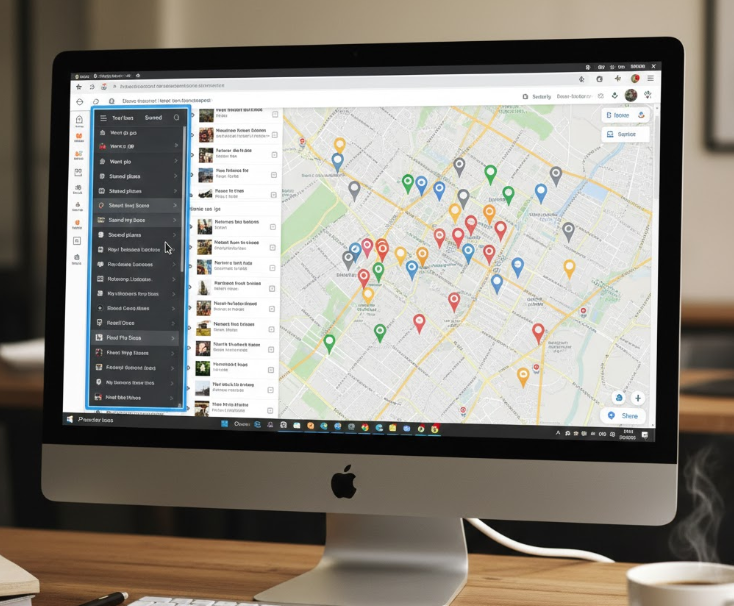
Method 1: Google My Maps (The Built-In Creator)
This is Google’s dedicated, though somewhat hidden, tool for creating custom maps. It’s accessed via the Google Maps menu under “Saved” → “Maps” → “Create Map.”
The Process:
- 1. Create a new map and give it a title.
- 2. Use the search bar to find a location or manually drop a pin.
- 3. Add the location to the map, titling it and adding a description in the pop-up.
- 4. Repeat steps 2-3 for every single location.
- 5. Use the share settings to make the map public and obtain an embed code for your website.
The Good: It’s free, integrated with your Google account, and provides a basic visual output. It works for a handful of points.
The Limitations:
- Painfully Manual: Each point requires individual, repetitive action. There is **no batch import** feature for addresses.
- Clunky for Large Numbers: Managing more than 20-30 locations becomes chaotic in the layer panel.
- Basic Customization: Pin styles are limited to a handful of colors and generic icons. Advanced styling is not possible.
- Privacy Trade-off: To embed the map, you must set it to “Public on the web,” which may not be suitable for all data.
Method 2: The Google Maps Platform (The Professional API)
For developers, this is the true power behind Google Maps. It allows for the programmatic creation of fully custom maps embedded in websites or apps.
The Process:
- 1. Set up a project in the Google Cloud Console.
- 2. Enable Billing and the Maps JavaScript API.
- 3. Obtain and restrict an API Key.
- 4. Write HTML/JavaScript code to initialize a map and define an array of location coordinates to plot as markers.
The Good: Ultimate control, customization, and integration potential. Can handle complex data and interactions.
The Limitations:
- Not User-Friendly: Requires significant programming knowledge.
- Cost Management: While offering a free tier, usage beyond that incurs costs, requiring active monitoring.
- Technical Debt: Involves ongoing maintenance of code and API key security.
- Overkill for Simple Needs: It’s a sledgehammer to crack a nut if you just need to show 10 store locations on a website.
The Core Gap in the Google Ecosystem
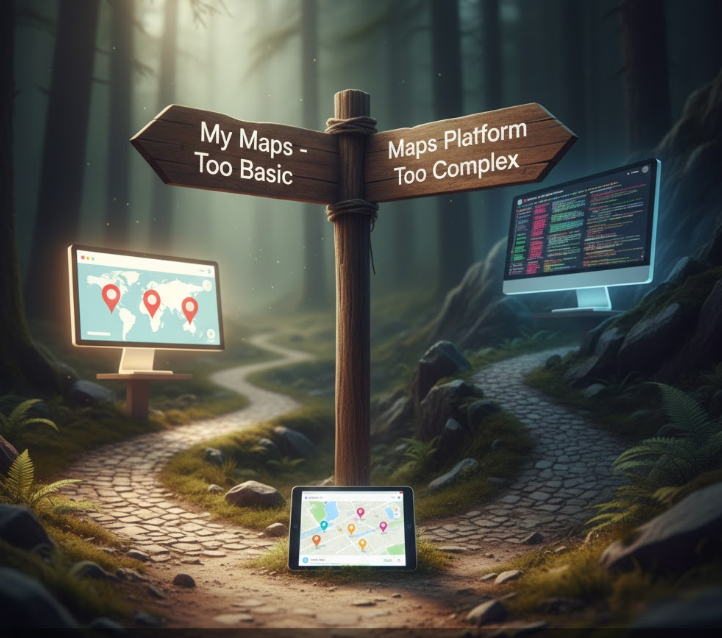
Google’s offerings create a stark choice with no middle ground:
- 1. A simple, free tool (My Maps) that is too manual and limited for serious use.
- 2. A powerful, professional platform (Maps Platform) that is too complex and costly for non-developers.
This leaves a massive unmet need: a tool that is as easy to use as My Maps but as powerful and customizable as a coded solution—without requiring a credit card for the API or a degree in computer science.
The Google ecosystem forces a difficult choice between simplicity and capability.
Common User Frustrations with “Google Maps Multiple Locations”
- “I have a list of 100 addresses; I can’t add them one by one.” (My Maps lacks batch import).
- “The embedded map looks bland and doesn’t match my website.” (My Maps offers minimal styling).
- “I don’t want to learn to code or get a Google Cloud bill.” (The Maps Platform barrier is too high).
- “I need to update my map often, and it’s a hassle.” (Both methods require manual rework).
These frustrations are why people search beyond the phrase “google maps several locations” for a better solution.
MapsFun.com: The Ideal Companion to Google Maps Technology
MapsFun.com does not replace Google Maps; it builds upon its reliability while solving the critical usability gaps in Google’s own tools. Think of it as the friendly, powerful editor for your location data that Google My Maps should have been.
How MapsFun Solves the Google Maps Shortcomings:
- Solves the Manual Entry Problem: Batch import your addresses via CSV or spreadsheet. Plot 100 locations as easily as 1.
- Solves the Customization Problem: Access a wide range of modern map styles, custom pin colors, and your own icons. Create a map that perfectly aligns with your brand.
- Solves the Complexity Problem: A 100% no-code, visual editor. If you can use a basic website builder, you can create a professional map on MapsFun.
- Solves the Update Problem: Edit your data in the dashboard or re-upload a spreadsheet. Your embedded map updates automatically—no need to generate a new embed code.
- Solves the Privacy/Shareability Problem: Get a clean, secure embed code or shareable link without being forced to make your data public on the web. Control who sees it.
The Verdict: Use Google Maps for navigation and local search. Use MapsFun.com when you need to create, customize, and share a curated, multi-location map for your website, project, or clients. It provides the missing link between your data and a polished, functional map.
Stop struggling with the limitations of native Google tools. Leverage the best of mapping technology with a platform designed for creators, not just coders.
Bridge the gap between your list and a stunning map. Try the easier way at MapsFun.com.