How to Show Multiple Locations on Google Maps
Google Maps Multiple Locations: The Ultimate Developer’s Guide to Plotting & Routing
Want to display not just multiple pins, but also create routes between them or calculate distances? The Google Maps Platform is powerful, but implementing multi-location features requires significant technical expertise. This guide walks you through creating an advanced map with multiple markers and route optimization.
Method: Advanced Multi-Location Map with Directions API Integration
This solution plots multiple locations and creates an optimized route between them—perfect for delivery routes, sales territories, or trip planning.
Step 1: Set Up Prerequisites (The Complex Part)
- 1. Google Cloud Project: Create a project at [console.cloud.google.com](https://console.cloud.google.com)
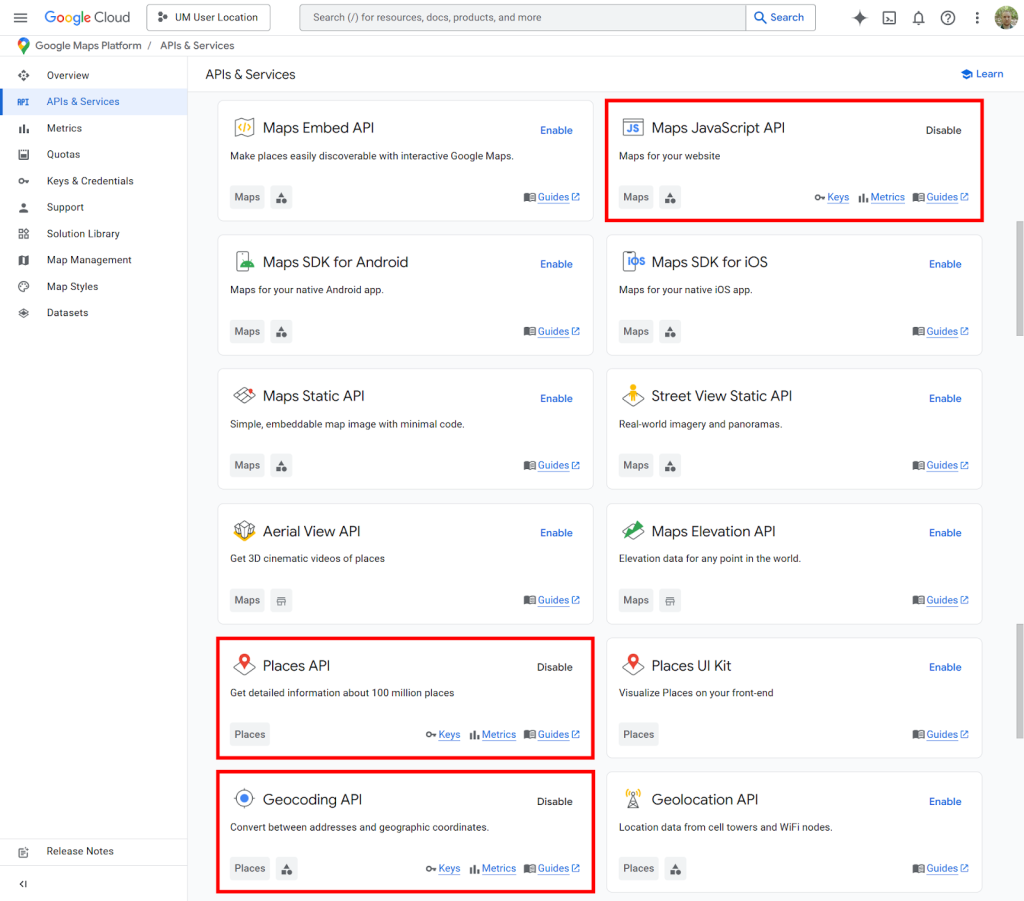
- 2. Enable APIs & Billing: You must enable billing and three separate APIs:
- – Maps JavaScript API (for displaying the map)
- – Directions API (for routing between points) – This has significant costs at scale
- – Geocoding API (to convert addresses to coordinates)
- 3. Create & Restrict API Keys: Generate a key and restrict it to the three APIs above and your website domain.
Google Cloud Console showing the three required APIs that must be enabled individually.
Step 2: Build the Multi-Stop Route Planner Interface
This HTML creates a map where users can add multiple locations and calculate the best route between them.
html
<!DOCTYPE html>
<html>
<head>
    <title>Google Maps Multiple Locations with Routing</title>
    <style>
        #map { height: 500px; width: 100%; margin-top: 20px; }
        #controls {
            background: #f8f9fa;
            padding: 15px;
            border-radius: 8px;
            margin-bottom: 20px;
        }
        .location-input {
            padding: 10px;
            width: 300px;
            margin: 5px;
            border: 1px solid #ddd;
            border-radius: 4px;
        }
        .button {
            padding: 10px 20px;
            background: #1a73e8;
            color: white;
            border: none;
            border-radius: 4px;
            cursor: pointer;
            margin: 5px;
        }
        .button:hover { background: #0d62d9; }
        #waypoints-list {
            margin: 15px 0;
            padding: 10px;
            background: white;
            border-radius: 4px;
            max-height: 200px;
            overflow-y: auto;
        }
        .waypoint-item {
            padding: 8px;
            border-bottom: 1px solid #eee;
            display: flex;
            justify-content: space-between;
        }
    </style>
</head>
<body>
    <div id="controls">
        <h2>Multi-Stop Route Planner</h2>

        <div>
            <input type="text" id="start-input" class="location-input" placeholder="Start address (e.g., New York, NY)">
            <input type="text" id="end-input" class="location-input" placeholder="End address (e.g., Boston, MA)">
        </div>

        <div>
            <input type="text" id="waypoint-input" class="location-input" placeholder="Add stop (e.g., Hartford, CT)">
            <button class="button" onclick="addWaypoint()">Add Stop</button>
        </div>

        <div id="waypoints-list">
            <p>No stops added yet. Add intermediate locations above.</p>
        </div>

        <button class="button" onclick="calculateRoute()">Calculate Optimal Route</button>
        <button class="button" onclick="clearRoute()" style="background: #dc3545;">Clear Map</button>

        <div id="route-info" style="margin-top: 15px; padding: 10px; background: #e7f3ff; display: none;">
            <strong>Route Summary:</strong>
            <div id="distance"></div>
            <div id="duration"></div>
        </div>
    </div>

    <div id="map"></div>

    <!-- Load Google Maps with YOUR API Key -->
    <script src="https://maps.googleapis.com/maps/api/js?key=YOUR_API_KEY&libraries=places&callback=initMap" async defer></script>

    <script>
        let map;
        let directionsService;
        let directionsRenderer;
        let waypoints = [];
        let autocompleteStart, autocompleteEnd, autocompleteWaypoint;

        function initMap() {
            // Initialize map
            map = new google.maps.Map(document.getElementById("map"), {
                zoom: 7,
                center: { lat: 41.8781, lng: -87.6298 } // Chicago
            });

            // Initialize directions services
            directionsService = new google.maps.DirectionsService();
            directionsRenderer = new google.maps.DirectionsRenderer();
            directionsRenderer.setMap(map);

            // Initialize autocomplete for inputs
            autocompleteStart = new google.maps.places.Autocomplete(
                document.getElementById('start-input')
            );
            autocompleteEnd = new google.maps.places.Autocomplete(
                document.getElementById('end-input')
            );
            autocompleteWaypoint = new google.maps.places.Autocomplete(
                document.getElementById('waypoint-input')
            );
        }

        function addWaypoint() {
            const input = document.getElementById('waypoint-input');
            const location = input.value.trim();

            if (location) {
                waypoints.push({
                    location: location,
                    stopover: true
                });

                updateWaypointsList();
                input.value = '';
            }
        }

        function updateWaypointsList() {
            const container = document.getElementById('waypoints-list');
            container.innerHTML = '';

            if (waypoints.length === 0) {
                container.innerHTML = '<p>No stops added yet. Add intermediate locations above.</p>';
                return;
            }

            waypoints.forEach((waypoint, index) => {
                const div = document.createElement('div');
                div.className = 'waypoint-item';
                div.innerHTML = `
                    <span>${index + 1}. ${waypoint.location}</span>
                    <button onclick="removeWaypoint(${index})" style="color: red; border: none; background: none; cursor: pointer;">×</button>
                `;
                container.appendChild(div);
            });
        }

        function removeWaypoint(index) {
            waypoints.splice(index, 1);
            updateWaypointsList();
        }

        function calculateRoute() {
            const start = document.getElementById('start-input').value;
            const end = document.getElementById('end-input').value;

            if (!start || !end) {
                alert('Please enter both start and end locations.');
                return;
            }

            const request = {
                origin: start,
                destination: end,
                waypoints: waypoints,
                optimizeWaypoints: true, // Let Google optimize the order
                travelMode: 'DRIVING'
            };

            directionsService.route(request, function(result, status) {
                if (status === 'OK') {
                    directionsRenderer.setDirections(result);

                    // Display route information
                    const route = result.routes[0];
                    let totalDistance = 0;
                    let totalDuration = 0;

                    route.legs.forEach(leg => {
                        totalDistance += leg.distance.value;
                        totalDuration += leg.duration.value;
                    });

                    document.getElementById('distance').innerHTML =
                        `Total distance: ${(totalDistance / 1609.34).toFixed(1)} miles`;
                    document.getElementById('duration').innerHTML =
                        `Total time: ${Math.round(totalDuration / 60)} minutes`;

                    document.getElementById('route-info').style.display = 'block';
                } else {
                    alert('Could not calculate route: ' + status);
                }
            });
        }

        function clearRoute() {
            directionsRenderer.setDirections({routes: []});
            waypoints = [];
            updateWaypointsList();
            document.getElementById('route-info').style.display = 'none';
            document.getElementById('start-input').value = '';
            document.getElementById('end-input').value = '';
            document.getElementById('waypoint-input').value = '';
        }
    </script>
</body>
</html>
Code language: HTML, XML (xml)
A professional route planner interface showing multiple stops, optimized route line, and distance calculations.
Step 3: Understanding the Costs & Limitations
This implementation has several critical drawbacks:
- 1. API Cost Complexity: The Directions API costs approximately $5 per 1,000 requests after free tier. With multiple waypoints, costs add up quickly.
- 2. Waypoint Limits: Google Maps API limits routes to 25 waypoints maximum per request.
- 3. Geocoding Charges: Each address lookup incurs additional Geocoding API costs.
- 4. Technical Debt: Maintaining this code requires constant updates to Google’s API changes.
The Simpler Alternative: Multiple Locations Without the Headache
What if you need to show multiple locations with clean pins, custom styling, and sharing capabilities—without managing APIs, writing code, or worrying about costs?
MapsFun.com provides all the multi-location functionality of Google Maps Platform but with none of the complexity:
- 1. No API Setup: Get started instantly—no Google Cloud projects or billing accounts needed
- 2. Unlimited Pins: Add hundreds of locations without worrying about waypoint limits or request quotas
- 3. Visual Route Planning: Create and optimize routes between points with a drag-and-drop interface
- 4. Cost Predictability: Transparent pricing with no surprise charges for API overages
- 5. Built for Business: Add custom branding, categories, and interactive info windows in minutes
Why spend days building and hundreds of dollars maintaining a custom solution when you can have a better multi-location map in 5 minutes? MapsFun.com handles the technical complexity so you can focus on your business.