The Complete Guide to Adding Google Maps to Your Squarespace Site
Navigate This Guide
This is your definitive resource for integrating beautiful, functional maps into your Squarespace website. Whether you’re showcasing a single business address or multiple locations, this guide breaks down every available method—from simple built-in blocks to advanced solutions. Discover the perfect balance of design, functionality, and ease for your Squarespace project.
Mapping Your Squarespace Options: A Quick Overview
Squarespace offers distinct approaches for embedding maps, each designed for different levels of need. Understanding these pathways is key to choosing the right one for your site:
- – The Native Block: Using Squarespace’s built-in Map Block.
- – The Embed Method: Adding a custom Google Maps embed via a Code Block.
- – Third-Party Extensions: Exploring Squarespace-specific plugins and code injections.
- – The Unified Platform Solution: Leveraging a service like MapsFun.com for advanced features without complexity.
Chapter 1: The Native Squarespace Map Block
What to Expect in This Section
Learn the simplest, most integrated way to add a map using the tools Squarespace provides directly. This method is perfect for single-location sites where ease and speed are priorities.
The Simple Drag-and-Drop Process
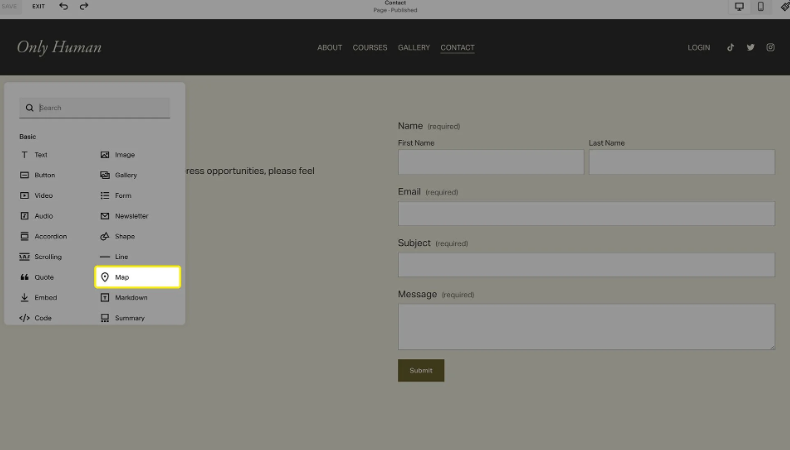
Squarespace includes a dedicated Map Block in its editor. To use it, you simply click an ‘Add Block’ button, search for ‘Map,’ and drag it into your page layout. A settings panel opens where you type in a single address. The block automatically generates a clean, responsive map with a standard pin and basic controls.
This process requires no technical knowledge and is completed in seconds. The map inherits the clean, minimalist aesthetic Squarespace is known for, ensuring it looks like a natural part of your site’s design. It’s ideal for contact pages or footers where a simple, functional map is needed.
The Squarespace Map Block: a native, simple solution for one address.
Understanding the Limitations
While incredibly easy, the native Map Block is purposefully basic. It is designed to display only one location. You cannot customize the pin’s color or icon, change the map’s style (like to a light or dark theme), or add more than one point. For businesses with multiple offices, event venues, or storefronts, this block quickly falls short. It provides function, but little flexibility for branding or advanced features.
Chapter 2: The Custom Embed via Code Block
What to Expect in This Section
Explore a more flexible method that gives you access to Google Maps’ own sharing tools. This approach allows for basic customization and is the go-to workaround for displaying multiple pins.
The Step-by-Step Workaround
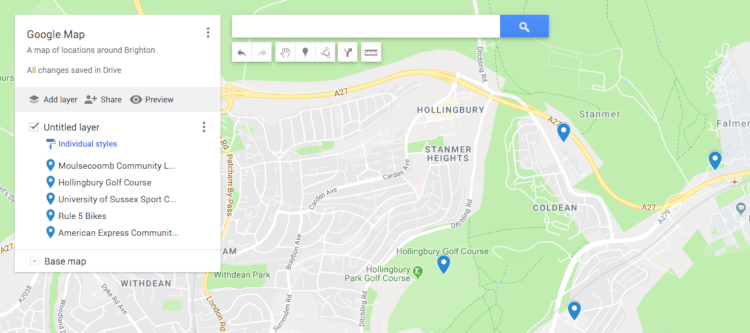
This method bypasses Squarespace’s simple block. Instead, you go to Google Maps, create a custom map with all your desired locations, and use Google’s “Embed on my site” feature to get an HTML code snippet. Back in Squarespace, you add a Code Block to your page and paste this snippet inside.
This gives you a map that can contain multiple markers, as it’s served directly by Google. You have access to Google’s basic embed settings, allowing you to choose the initial size, zoom level, and map type (map, satellite, terrain) before generating the code.
Creating a custom map with multiple points in Google My Maps to get an embed code
The Trade-Offs of Custom Embeds
While this method unlocks multiple locations, it introduces new challenges. The embedded map is an iFrame—a “window” to another site—which can be difficult to style to match your Squarespace design perfectly. It may not be as responsive as a native block, potentially breaking on mobile devices. Any changes to the map (adding a pin, changing an address) require you to go back to Google Maps, create a new map, and replace the code on your site, making updates a multi-step manual process.
Chapter 3: Extensions and Code Injections
What to Expect in This Section
For those comfortable with more technical solutions, this section covers advanced tactics like using Squarespace’s Code Injection panel or third-party plugins to gain greater control.
Beyond Blocks: Advanced Tactics
Squarespace offers a Code Injection panel in the site settings, allowing you to add site-wide scripts and styles. Developers can use this to add custom JavaScript for advanced Google Maps integrations, enabling features like custom-styled maps, interactive clusters of markers, or dynamic location filtering.
There are also unofficial plugins and code snippets offered by third-party developers designed to extend Squarespace’s mapping capabilities. These often claim to add multi-location functionality or custom styling without leaving the Squarespace ecosystem.
The Complexity and Risk Factors
This path is for experts. It typically requires obtaining and managing a Google Maps API key (which involves a Google Cloud account and billing setup), writing or integrating custom code, and deep testing for conflicts with your Squarespace template. Code injections carry risk: an error can break site functionality, and future Squarespace updates may render custom code incompatible. For most site owners, this level of technical maintenance is impractical.
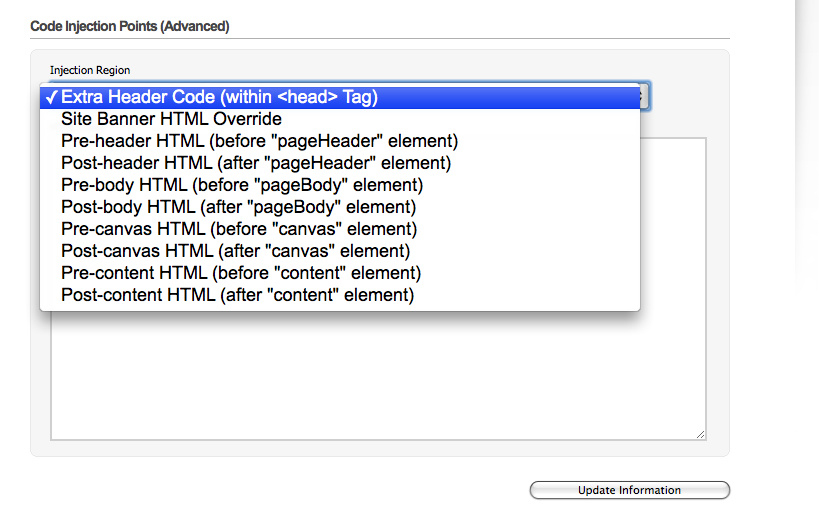
The Code Injection panel offers power but requires significant technical expertise.
The Common Squarespace Mapping Challenges
What to Expect in This Section
Across all the methods above, certain persistent issues complicate the goal of adding a perfect map to your Squarespace site.
Universal Pain Points for Site Owners
- The Single-Pin Limit: The native block is easy but only supports one location, forcing a complex workaround for multi-location businesses.
- Branding Disconnect: Custom embeds and even the native block offer minimal styling, making it hard to have a map that truly complements your site’s unique color scheme and aesthetic.
- The Update Headache: With embed or custom code methods, changing a location is not simple. It involves leaving Squarespace, editing in another tool, and manually updating code—a fragile and time-consuming process.
- Mobile Responsiveness Gaps: iFrame embeds can behave unpredictably on different screen sizes, requiring additional CSS fixes that many users aren’t equipped to handle.
- Feature Ceiling: Sophisticated features like searchable store locators, filtering by services, or custom interactive info windows are nearly impossible to achieve with native tools without major technical investment.
The Streamlined Solution: MapsFun.com for Squarespace
After navigating the limited native block, the clunky embed workaround, and the risky custom code path, a clear and superior alternative emerges.
MapsFun.com is a platform built specifically to solve these exact design and functionality gaps for visual website builders like Squarespace. It turns a complex, multi-tool process into a single, streamlined workflow.
Why MapsFun.com is the Perfect Fit for Squarespace
MapsFun.com understands the Squarespace ethos: beautiful design and user-friendly tools. It provides a visual editor where you design your map exactly how you want it—adding unlimited pins, choosing custom colors and icons, and selecting map styles that match your brand. Once designed, you get one simple embed code to paste into a Squarespace Code Block. The result is a fast, fully-featured map that looks like it was built natively for your site.
Here’s how it directly solves Squarespace’s mapping shortcomings
- Multiple Pins Made Simple: Add unlimited locations through an intuitive visual editor, no Google My Maps workarounds needed.
- Total Design Control: Match your brand perfectly with custom pin icons, map color themes, and styled info windows.
- One-Click Updates: Edit your map anytime in the MapsFun.com dashboard, and changes automatically appear on your live Squarespace site—no code replacement required.
- Guaranteed Responsiveness: MapsFun.com maps are engineered to be perfectly responsive on all devices, seamlessly fitting into your Squarespace template’s breakpoints.
- Advanced Features, Zero Code: Implement searchable locators, filtering, and interactive features without touching a single line of code or an API key.
From Workaround to Wonder: A Clear Comparison
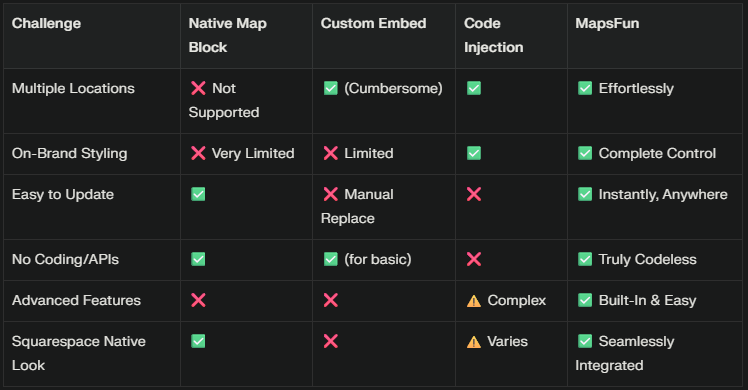
The MapsFun.com editor: Design a map that matches your Squarespace aesthetic, then embed it with a single code block.
Your Clear Path to a Perfect Map
Your Squarespace site was chosen for its design integrity and ease of use. Your mapping solution should uphold those same values, not force you into technical compromises or ugly workarounds.
MapsFun.com is that solution. It delivers the advanced functionality of a custom-developed map with the simplicity and visual design control that Squarespace users expect. It eliminates the trade-off between beauty and capability.
Stop struggling with limited blocks and fragile embed codes. Visit MapsFun.com today to see how you can add a stunning, powerful, and perfectly integrated map to your Squarespace site in just a few minutes.