The Complete Guide to Adding Google Maps to Your Shopify Store
What Awaits You in This Guide
This comprehensive resource covers every approach to integrating interactive maps into your Shopify store. From basic contact page embeds to sophisticated multi-location store locators, you’ll discover proven methods to enhance your customer experience with location intelligence. Whether you’re a new merchant or an established brand, this guide provides clear pathways to effective map implementation.
Understanding Shopify’s Mapping Landscape
Shopify presents unique challenges and opportunities for map integration due to its hosted nature and template system. Available approaches include:
- – Theme Editor Integration (Simple, built-in solutions)
- – App Store Solutions (Feature-rich, specialized apps)
- – Custom Code Implementation (Developer-focused, full control)
- – Third-Party Platforms (Universal, cloud-based solutions)
Each method balances ease of use with functionality, and we’ll explore them all in detail.
Chapter 1: Native Theme Editor Solutions
What You’ll Learn Here
How to utilize Shopify’s built-in theme capabilities for basic map displays, ideal for single-location businesses.
Using Shopify’s Built-in Map Blocks
Most premium Shopify themes include map functionality through the following process:
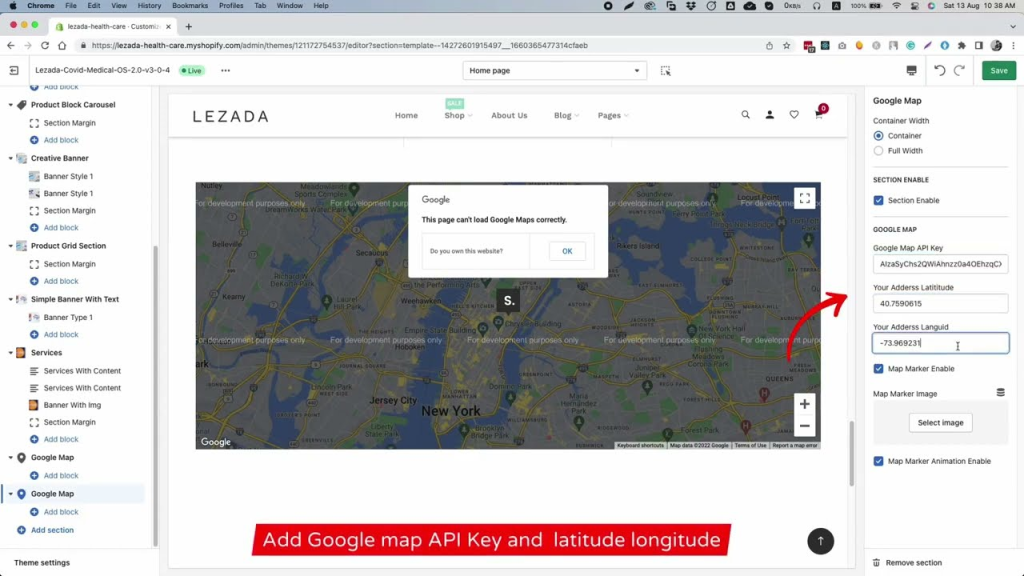
- 1. Access Your Theme Editor:
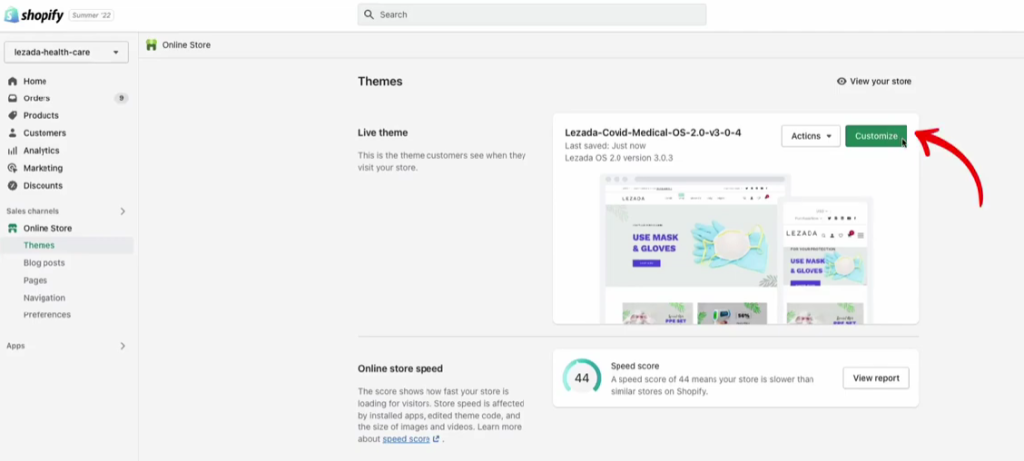
- – From Shopify Admin, go to Online Store → Themes
- – Click “Customize” on your active theme
- – Navigate to the page where you want the map
- 2. Add a Map Block:
- – In the sidebar, click “Add block”
- – Select “Map” from the available blocks
- – Configure your location and settings
Adding a map block in Shopify’s theme customization interface
Configuration Options in Native Blocks
- Basic Settings Available:
- – Address Input: Enter your business location
- – Map Height: Adjust from 200px to 800px
- – Zoom Level: Set default viewing distance
- – Map Style: Choose between standard views
- – API Key Management: Some themes require manual API key entry
- Limitations of Native Blocks:
- – Single location only per block
- – Basic styling with minimal customization
- – No multiple marker support
- – Limited mobile optimization control
- – Theme-dependent functionality
- – No advanced features like directions or filtering
Theme-Specific Considerations
- Popular Themes and Their Map Capabilities:
- – Dawn (2.0): Basic map block with API key requirement
- – Debut: Simple map integration, minimal settings
- – Brooklyn: Enhanced map features with custom markers
- – Narrative: Full-width map options with parallax effects
- – Custom Themes: Vary significantly in map implementation
- API Key Requirements:
- Most modern Shopify themes require you to add your Google Maps API key in theme settings. This involves:
- 1. Creating a Google Cloud project
- 2. Enabling Maps JavaScript API
- 3. Generating and restricting an API key
- 4. Adding it to your theme’s customizer settings
Chapter 2: Shopify App Store Solutions
What You’ll Learn Here
Professional mapping solutions available through Shopify’s App Store, offering advanced features beyond basic theme capabilities.
Types of Mapping Apps Available
- 1. Store Locator Apps:
- – Store Locator by AM – Advanced filtering and search
- – GMap ‑ Store Locator – Multiple location management
- – Locator Search & Filter – Geo-based customer search
- 2. Enhanced Map Display Apps:
- – Google Maps & Location – Custom map styling
- – Maps & Geolocation – Integration with product pages
- – Interactive Map – Visual location displays
- 3. Multi-Purpose Location Apps:
- – Instafeed & Map – Social media integration
- – Multi Location Inventory – Stock level mapping
- – Delivery Area Map – Service zone visualization
Installation and Configuration Process
Standard Implementation Workflow
- 1. App Selection Criteria:
- – Review features against business needs
- – Check reviews and ratings
- – Consider pricing and scalability
- – Verify theme compatibility
- 2. Installation Steps:
- – Browse Shopify App Store
- – Click “Add app” on chosen solution
- – Grant necessary permissions
- – Configure settings through app interface
- 3. Integration with Theme:
- – Add app blocks to theme editor
- – Configure display settings
- – Test across devices and browsers
- – Optimize for mobile experience
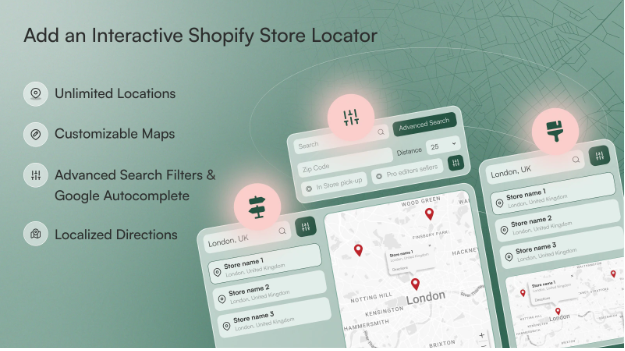
Shopify App Store showing available mapping solutions
Critical Evaluation Factors for Apps
- Performance Considerations:
- – Page load time impact
- – Script optimization
- – Mobile responsiveness
- – Cache compatibility
- Cost-Benefit Analysis:
- – Monthly subscription costs
- – Feature-to-price ratio
- – Scalability for growing businesses
- – Support and update frequency
- User Experience Factors:
- – Customer-facing interface quality
- – Search and filtering capabilities
- – Directions and contact integration
- – Loading states and error handling
Chapter 3: Custom Code Implementation
What You’ll Learn Here
Developer-focused approaches for complete customization and control, suitable for brands with specific requirements.
Direct Theme Code Modification
- Accessing Theme Files
- 1. From Shopify Admin, go to Online Store → Themes
- 2. Click “Actions” → “Edit code”
- 3. Navigate to relevant template files
Adding Map Code to Templates
Option 1: Contact Page Integration
liquid
{% comment %} Add to contact.liquid or page template {% endcomment %}
<div class="store-map" id="map-container"></div>

<style>
.store-map {
    height: 400px;
    width: 100%;
    margin: 30px 0;
}
</style>

<script>
document.addEventListener('DOMContentLoaded', function() {
    function initMap() {
        const storeLocation = { lat: 40.7128, lng: -74.0060 };
        const map = new google.maps.Map(document.getElementById('map-container'), {
            zoom: 14,
            center: storeLocation,
            styles: [] // Add custom styles here
        });

        new google.maps.Marker({
            position: storeLocation,
            map: map,
            title: 'Our Store Location'
        });
    }

    // Load Google Maps API
    const script = document.createElement('script');
    script.src = 'https://maps.googleapis.com/maps/api/js?key=YOUR_API_KEY&callback=initMap';
    script.async = true;
    document.head.appendChild(script);
});
</script>
Code language: HTML, XML (xml)
Option 2: Section Schema Implementation
For editable map sections in theme customizer, create a custom section with schema settings for address, zoom, and styling options.
API Management and Security
Best Practices for Shopify:
- 1. API Key Generation:
- – Create dedicated project for Shopify store
- – Enable Maps JavaScript API and Geocoding API
- – Implement usage quotas and alerts
- 2. Key Security Measures:
- – Restrict to your Shopify domain
- – Use HTTP referrer restrictions
- – Regular key rotation schedule
- – Monitor usage through Google Cloud Console
- 3. Performance Optimization:
- – Implement lazy loading for maps
- – Use marker clustering for multiple locations
- – Optimize custom marker images
- – Implement proper error handling
Advanced Features for Custom Implementation
- Multiple Location Management:
- – Create metafields for store locations
- – Build custom admin interface for location management
- – Implement search and filtering logic
- – Create responsive map grids for location directories
- Interactive Customer Features:
- – Store finder with distance calculation
- – Directions integration with user’s location
- – Inventory availability by location
- – Appointment booking based on location
Example of custom-coded multi-location map in Shopify
Chapter 4: Common Shopify-Specific Challenges
What You’ll Learn Here
Solutions to frequent issues Shopify merchants encounter when implementing maps on their stores.
Theme Compatibility Issues
- Common Problems:
- – Map blocks not available in certain themes
- – Custom code breaking during theme updates
- – App conflicts with theme functionality
- – Responsive design inconsistencies
- Troubleshooting Steps:
- 1. Test with Default Theme: Switch to Dawn or Debut to isolate issues
- 2. Check Console Errors: Use browser developer tools
- 3. Review Theme Documentation: Specific map implementation guides
- 4. Contact Theme Support: Developer assistance for premium themes
Mobile Optimization for E-commerce
- Critical Mobile Considerations:
- – Touch-friendly map controls
- – Fast loading on cellular networks
- – Clear call-to-action placement
- – Simplified location search
- – Integration with device location services
- Optimization Techniques:
- – Implement progressive enhancement
- – Use responsive breakpoints effectively
- – Optimize images and scripts for mobile
- – Test on actual mobile devices
Performance and Speed Optimization
- Shopify-Specific Factors:
- – Theme script loading order
- – App script conflicts
- – Image optimization for map markers
- – Lazy loading implementation
- Tools for Performance Testing:
- – Shopify’s own speed reports
- – Google PageSpeed Insights
- – GTmetrix performance analysis
- – WebPageTest for detailed metrics
International Store Considerations
- Multi-Country Challenges:
- – Different map providers by region
- – Localization of map controls
- – Address format variations
- – Currency and distance unit preferences
- Implementation Strategies:
- – Conditional map displays by country
- – Localized search functionality
- – Multi-language support for maps
- – Region-specific map styling
The Unified Solution: mapsfun.com for Shopify
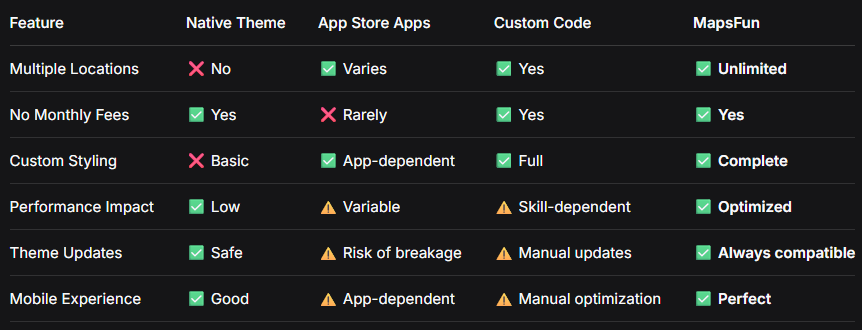
After exploring these diverse approaches, a clear pattern emerges for Shopify merchants: each method involves significant compromises. Native theme options are limited, apps add complexity and recurring costs, and custom development requires technical expertise and ongoing maintenance.
One Platform That Solves Every Shopify Map Challenge
MapsFun provides a comprehensive solution specifically engineered for the Shopify ecosystem, eliminating complexity while delivering enterprise-grade mapping functionality without the traditional drawbacks.
Why MapsFun Is the Ideal Shopify Solution:
- 1. Native Shopify Integration
- – No theme compatibility concerns
- – Seamless installation process
- – Automatic responsive design
- – Direct Shopify admin integration
- 2. Complete Feature Set Without App Bloat
- – Unlimited location management
- – Custom branding and styling
- – Advanced search and filtering
- – Real-time inventory integration
- 3. Streamlined Implementation
- – No API key management required
- – Visual drag-and-drop builder
- – One-click Shopify installation
- – Automatic updates and maintenance
Comparative Analysis: Shopify Methods vs. mapsfun.com
Transforming Your Shopify Store Experience
Consider the typical Shopify merchant journey for implementing a multi-location map:
Traditional Shopify Path:
Research solutions → Choose between limited theme features or expensive apps → Configure API keys → Customize appearance → Discover limitations → Add more apps → Manage conflicts → Handle recurring costs
mapsfun.com Path:
Create account → Design map visually → Install Shopify integration → Add to store → Complete
Strategic Advantages for E-commerce
- Eliminated E-commerce Pain Points:
- – No app conflicts: Cloud-based solution avoids theme/app compatibility issues
- – Reduced costs: One-time solution without recurring subscription fees
- – Consistent performance: Optimized delivery independent of Shopify plan
- – Future-proof: Updates automatically without breaking your store
- Enhanced E-commerce Capabilities:
- – Scale with your business: From one location to hundreds without performance issues
- – Brand consistency: Complete styling control matching your store design
- – Customer experience: Advanced features typically only available in enterprise solutions
- – Analytics integration: Track customer location interactions and behavior
Your Path to Simplified Shopify Mapping
The complexity of Shopify map integration—from theme limitations and app subscriptions to custom development costs—often becomes a barrier to providing excellent customer location experiences. While various methods exist, each comes with significant compromises that affect either functionality, cost, or maintenance requirements.
Mapsfun.com eliminates these barriers entirely. Engineered specifically for the Shopify platform, it provides enterprise-grade mapping capabilities through a simple, intuitive interface that requires no technical expertise. Whether you’re displaying a single store location or creating a sophisticated multi-location finder for a global brand, mapsfun.com handles all the technical complexity while giving you complete creative control
The platform generates perfectly optimized maps that load quickly, work flawlessly across all devices, and integrate naturally with your Shopify theme—without monthly fees, app conflicts, or complex configurations. It’s the mapping solution that grows with your business, adapting to your needs without requiring additional investments in apps or development.
Stop compromising between features, cost, and simplicity. Discover how mapsfun.com can transform your Shopify store’s mapping capabilities at mapsfun.com. Experience the future of e-commerce mapping—where enterprise functionality meets effortless implementation, designed specifically for the Shopify merchant.