How to Embed Google Maps in Squarespace
How to Embed a Custom Google Map in Your Squarespace Website
Want to showcase your business locations, event venues, or service areas with a custom Google Map on your Squarespace site? While Squarespace has a built-in map block, it’s limited to a single location and basic styling. Creating a true multi-location, custom Google Map requires a technical workaround. This guide will walk you through the manual process.
This method offers full customization but requires a Google Cloud account, API key management, and editing your site’s code injection settings. It’s a developer-friendly approach.
Method 1: The Manual Google Maps API & Code Injection Method
This approach gives you complete design control but involves several technical steps.
Step 1: Set Up Your Google Maps API Key
This is the most critical prerequisite
- 1. Go to the Google Cloud Console: Navigate to https://console.cloud.google.com/.
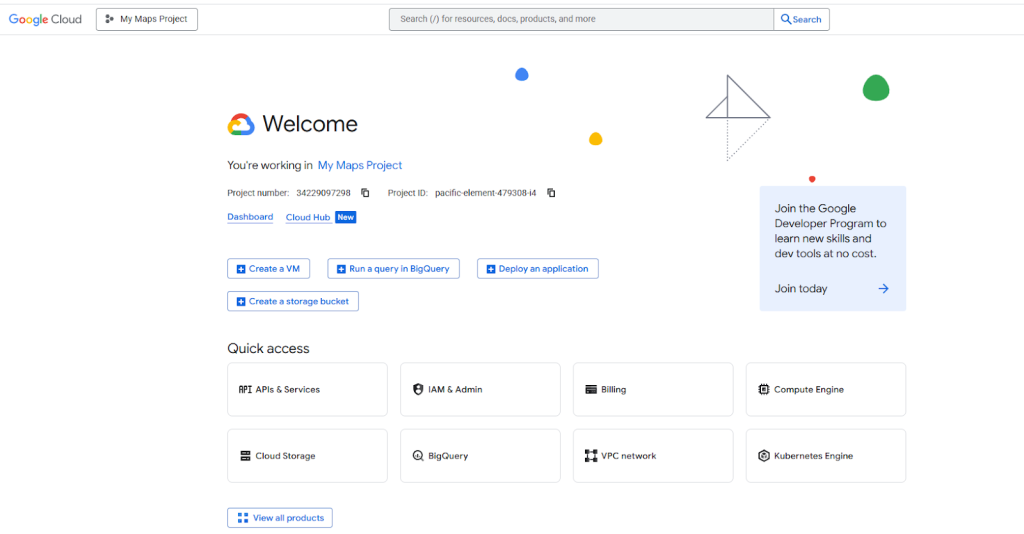
- 2. Create a Project: Click the project dropdown and create a new project (e.g., “My Squarespace Map“).
- 3. Enable Billing: You must enable billing. Google provides a $200 monthly credit, which typically covers all usage for a standard website map.
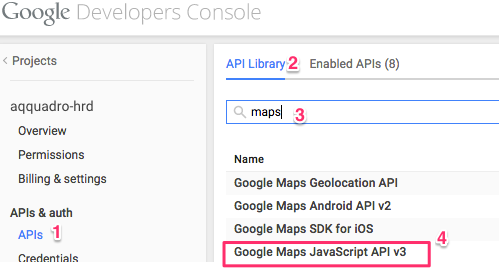
- 4. Enable the Required APIs: Go to “APIs & Services” > “Library”. Search for and enable these two:
- Maps JavaScript API (renders the map)
- Geocoding API (converts addresses to coordinates)
- 5. Create and Restrict Your API Key: Go to “APIs & Services” > “Credentials”. Click “Create Credentials” > “API Key”. Crucially, restrict this key to the “Maps JavaScript API” and add your Squarespace domain under “HTTP referrers” (e.g., `https://your-site.squarespace.com`, `https://www.yourdomain.com`).
Enabling the Maps JavaScript API is a mandatory first step.
Step 2: Add a Map Container to Your Squarespace Page
You’ll need a simple element on your page to hold the map.
- 1. In the Squarespace editor, go to the page where you want the map.
- 2. Click Add Block and search for “Code”.
- 3. Drag the “Code” block onto your page.
- 4. In the code block, paste the following HTML to create the map container:
html
<!-- Custom Google Map Container -->
<div class="custom-map-container">
    <h3>Visit Our Locations</h3>
    <div id="squarespace-custom-map"></div>
</div>Code language: HTML, XML (xml)
Step 3: Inject the JavaScript and CSS via Site Header
This is where you bring the map to life using Squarespace’s Code Injection feature.
- 1. From your Squarespace Home Menu, go to Settings > Developer Tools > Code Injection.
- 2. In the Header field, paste the following code. Replace `YOUR_API_KEY` with your restricted API key from Step 1.
html
<style>
    /* CSS for the map container */
    #squarespace-custom-map {
        height: 500px;
        width: 100%;
        border-radius: 8px;
        margin: 20px 0;
        border: 1px solid #e5e5e5;
    }
</style>

<script>
// Wait for the page to load
window.addEventListener('DOMContentLoaded', (event) => {
    // Only run if our map container exists on the page
    if (document.getElementById('squarespace-custom-map')) {
        function initMap() {
            // Define your locations: [Title, Lat, Lng, Description]
            const locations = [
                ['Main Office', 40.7128, -74.0060, 'Our flagship location in downtown NYC'],
                ['Support Center', 40.7074, -74.0113, 'Customer service and returns'],
                ['Warehouse', 40.7211, -74.0005, 'Distribution and logistics hub']
            ];

            // Create the map
            const map = new google.maps.Map(document.getElementById('squarespace-custom-map'), {
                zoom: 12,
                center: { lat: 40.7128, lng: -74.0060 },
                styles: [
                    {
                        "featureType": "all",
                        "stylers": [{"saturation": -50}]
                    }
                ] // Optional custom styling
            });

            // Create an info window
            const infowindow = new google.maps.InfoWindow();

            // Add markers to the map
            locations.forEach(([title, lat, lng, description]) => {
                const marker = new google.maps.Marker({
                    position: { lat, lng },
                    map: map,
                    title: title,
                    // icon: '/your-custom-marker.png' // Optional custom icon
                });

                // Add click listener for info window
                marker.addListener('click', () => {
                    infowindow.setContent(`
                        <div style="padding: 12px; max-width: 200px;">
                            <h4 style="margin: 0 0 8px 0;">${title}</h4>
                            <p style="margin: 0; color: #666;">${description}</p>
                        </div>
                    `);
                    infowindow.open(map, marker);
                });
            });
        }

        // Load the Google Maps API
        const script = document.createElement('script');
        script.src = `https://maps.googleapis.com/maps/api/js?key=YOUR_API_KEY&callback=initMap`;
        script.async = true;
        script.defer = true;
        document.head.appendChild(script);
    }
});
</script>
Code language: HTML, XML (xml)
This code creates a fully responsive, multi-marker map with custom styling and detailed info windows that appear when clicked.
The Significant Challenges of This Method
While powerful, this DIY approach presents major hurdles for most Squarespace users:
- API Key Security Risk: You are personally responsible for properly restricting your API key. A mistake here can lead to unauthorized use and substantial, unexpected charges on your Google Cloud bill.
- Code Injection Complexity: Using Code Injection requires precision. A single syntax error in the JavaScript or CSS can break your site’s functionality or design.
- Limited Design Flexibility: Making simple changes like adjusting the map height, adding a new location, or changing a marker icon requires going back into the Code Injection settings and modifying the code directly.
- Maintenance Overhead: If you need to update locations or information, you must manually edit the coordinates and descriptions in the code, which is error-prone and time-consuming.
The Simple, Professional Alternative: MapsFun.com
Why navigate the complex landscape of API keys and code injection when you can achieve a superior result in minutes?
MapsFun.com is designed specifically to solve this problem, offering a seamless, codeless experience for Squarespace users.
- 1. Absolutely No Coding Required: Our intuitive visual editor lets you search for locations and add pins with a single click. No APIs, no Code Injection, no technical knowledge needed.
- 2. No API Keys or Billing: We handle all the backend infrastructure and security. There is zero risk of unexpected charges from Google.
- 3. Perfect Squarespace Integration: Once your custom map is designed, you get a clean embed code. Just paste it into a Squarespace Code Block, and your map will appear instantly.
- 4. Superior Customization: Easily apply custom map styles, upload your own marker icons, and design beautiful info windows with text and images—all through a simple point-and-click interface.
Stop risking your site’s stability with complex code injection. Create a stunning, high-performance Google Map for your Squarespace site in just a few clicks with MapsFun.com.