The Complete Guide to Adding Google Maps to WordPress
What Awaits You in This Guide
This comprehensive resource covers every method for integrating interactive maps into your WordPress website. From simple embeds to sophisticated multi-location solutions, you’ll discover the most effective approaches for displaying locations on your site. Whether you’re a beginner or an experienced developer, this guide provides clear pathways to enhance your WordPress site with professional mapping functionality.
Understanding WordPress Mapping Solutions
WordPress offers multiple pathways for map integration, each with distinct capabilities:
- – Direct Embed Method (Simple, no plugins)
- – Dedicated Map Plugins (Feature-rich, specialized)
- – Page Builder Integration (Visual, drag-and-drop)
- – Custom Code Implementation (Developer-focused)
- – Third-Party Platforms (Cloud-based, universal)
Chapter 1: Direct Embed Method (No Plugins Required)
What You’ll Learn Here
The simplest approach using WordPress’s built-in functionality. Ideal for single locations and minimal technical requirements.
Step-by-Step Implementation
- 1. Generate Your Embed Code:
- – Navigate to Google Maps
- – Find your desired location
- – Click “Share” → “Embed a map”
- – Copy the provided HTML code
- 2. Add to WordPress:
- Using the Classic Editor:
- – Switch to “Text” mode and paste the embed code directly
- Using the Block Editor (Gutenberg):
- – Add a “Custom HTML” block
- – Paste the embed code into the block
- – Adjust block settings for responsiveness
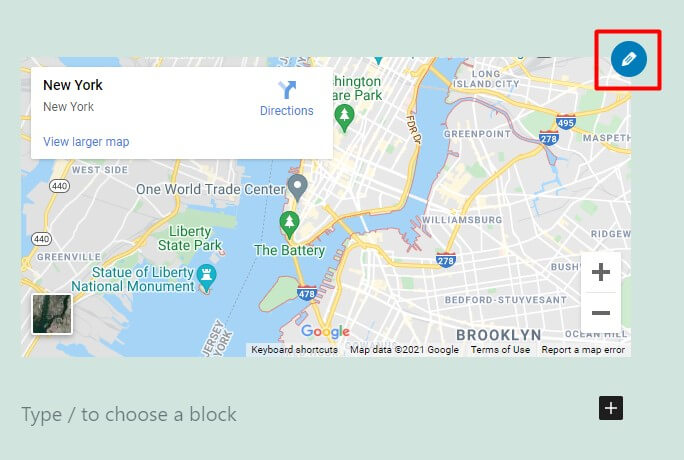
Adding map embed code using WordPress’s Custom HTML block
Customization and Styling Options
Basic Adjustments via Google Maps:
- – Map size (small, medium, large, custom)
- – View type (map, satellite, terrain)
- – Default zoom level
- – Language and region settings
CSS Customization for Advanced Users:
css
/* Responsive map container */
.map-container {
    position: relative;
    padding-bottom: 56.25%; /* 16:9 aspect ratio */
    height: 0;
    overflow: hidden;
}

.map-container iframe {
    position: absolute;
    top: 0;
    left: 0;
    width: 100%;
    height: 100%;
    border: 0;
}Code language: CSS (css)
Limitations of Direct Embedding
- – Single location only per embed
- – Limited styling capabilities
- – No multiple marker support
- – Basic interactivity only
- – No advanced features like clustering
- – Manual updates required for location changes
Chapter 2: Dedicated WordPress Map Plugins
What You’ll Learn Here
Professional solutions offering advanced features through specialized plugins. Recommended for businesses requiring multiple locations or custom functionality.
Popular Plugin Categories
- 1. Store Locator Plugins:
- – WP Store Locator – Free, user-friendly, multiple locations
- – Store Locator for WordPress – Premium, advanced filtering
- – GeoDirectory – Complete business directory solution
- 2. Multi-Purpose Map Plugins:
- – Maps Marker Pro – Advanced features, custom markers
- – WP Google Maps – Popular free option with pro features
- – MapPress Maps – Simple interface, good for beginners
- 3. Interactive Map Plugins:
- – Intergeo Maps – Custom styling, multiple map types
- – Essential Addons Map – Integration with Elementor
- – Advanced Google Maps – Developer-friendly, extensive API
Plugin Installation and Configuration
Standard Implementation Process:
- 1. Install from WordPress Repository:
- – Navigate to Plugins → Add New
- – Search for your chosen map plugin
- – Click “Install Now” then “Activate”
- 2. Configure Plugin Settings:
- – Add Google Maps API key (if required)
- – Set default map styles and behaviors
- – Configure marker icons and colors
- 3. Create Your First Map:
- – Add locations via plugin interface
- – Customize map appearance
- – Generate shortcode for display
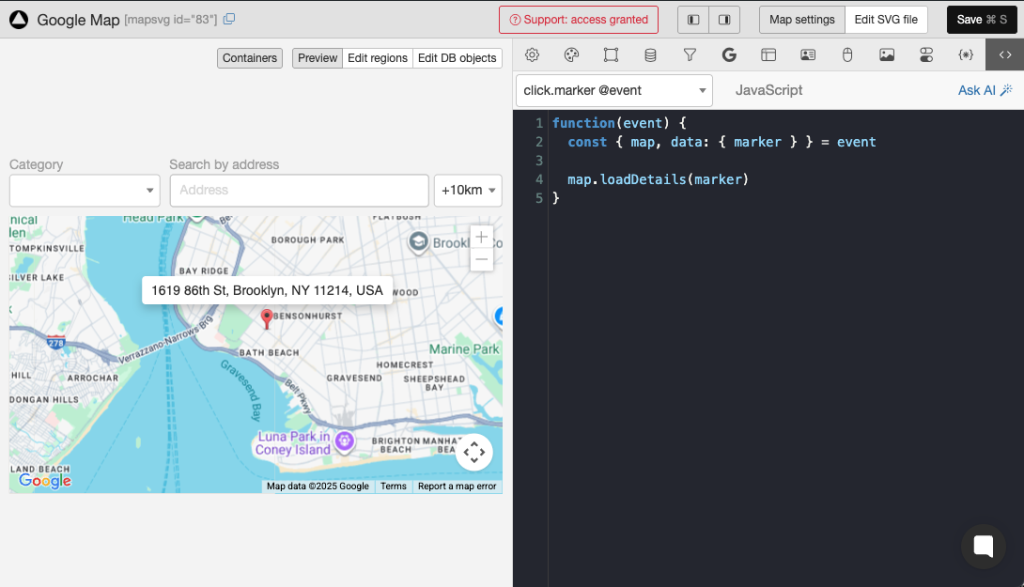
Typical WordPress map plugin configuration panel
Critical Considerations for Plugin Selection
- Performance Impact:
- – Plugin bloat and loading times
- – Script optimization and minification
- – Database efficiency for location storage
- – Cache compatibility
- Maintenance Requirements:
- – Regular plugin updates
- – API key management
- – Compatibility testing with WordPress updates
- – Security considerations
- Feature Requirements Assessment:
- – Number of locations needed
- – Custom marker requirements
- – User interaction needs
- – Integration with other plugins/themes
Chapter 3: Page Builder Integration
What You’ll Learn Here
Visual solutions for popular WordPress page builders like Elementor, Divi, and Beaver Builder.
Elementor Map Implementation
Using Native Elementor Widgets:
- 1. Add Google Maps Widget:
- – Drag “Google Maps” widget to your layout
- – Enter your location address
- – Customize zoom level and map type
- 2. Advanced Styling Options:
- – Custom map style JSON integration
- – Marker icon customization
- – Info window content control
- – Responsive breakpoint settings
Third-Party Addons for Enhanced Features:
- – Elementor Pro Maps – Advanced marker management
- – PowerPack Elements – Multiple location support
- – Essential Addons – Custom map skins and styles
Divi Builder Map Solutions
- Built-in Map Module Features:
- – Multiple address support
- – Custom pin image upload
- – Mouse wheel zoom control
- – Draggable mobile optimization
- – Grayscale and color adjustment
- Divi-specific Considerations:
- – Module styling integration with Divi theme
- – Global settings inheritance
- – Visual builder compatibility
- – Update and maintenance workflow
Performance Optimization for Builder Maps
Best Practices
- – Lazy Loading: Implement scroll-triggered map loading
- – Asset Optimization: Minify map-related scripts
- – Cache Integration: Ensure builder maps work with caching plugins
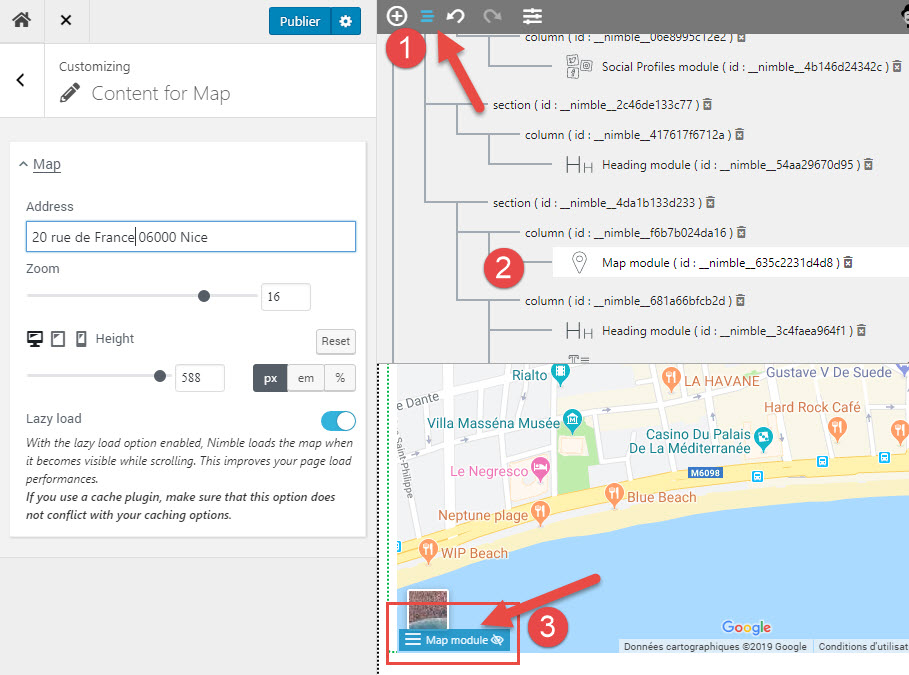
Visual map editing within a WordPress page builder
Chapter 4: Advanced Custom Development
What You’ll Learn Here
Developer-focused approaches for complete control and customization.
Google Maps JavaScript API Integration
- Prerequisites:
- 1. Google Cloud Project Setup
- 2. API Key Generation and Restriction
- 3. WordPress Theme/Plugin Development Environment
- Basic Implementation Code:
- php
// Add to your theme's functions.php or custom plugin
function enqueue_google_maps_api() {
    wp_enqueue_script(
        'google-maps-api',
        'https://maps.googleapis.com/maps/api/js?key=YOUR_API_KEY&callback=initMap',
        array(),
        null,
        true
    );

    wp_add_inline_script('google-maps-api', '
        function initMap() {
            const map = new google.maps.Map(document.getElementById("map"), {
                center: { lat: -34.397, lng: 150.644 },
                zoom: 8
            });
        }
    ');
}
add_action('wp_enqueue_scripts', 'enqueue_google_maps_api');Code language: PHP (php)
Custom Post Type Integration
Creating Location Management System:
- 1. Register Custom Post Type: “Locations” with geo fields
- 2. Add Meta Fields: Latitude, longitude, address, custom fields
- 3. Create Template Files: Single location and archive views
- 4. Implement Map Display: Shortcode or template tag system
Performance and Security Considerations
- Optimization Strategies:
- – Implement transient caching for API responses
- – Use marker clustering for large datasets
- – Optimize database queries for location retrieval
- – Implement AJAX loading for better user experience
- Security Best Practices:
- – Restrict API keys to your domain
- – Sanitize all user-input location data
- – Implement nonce verification for AJAX requests
- – Regular security audits of custom code
Chapter 5: Common Challenges and Solutions
What You’ll Learn Here
Troubleshooting frequent issues WordPress users encounter with map implementations.
API Key Management Issues
- Common Problems:
- – API key not configured properly
- – Billing not enabled on Google Cloud account
- – Domain restrictions blocking map display
- – API usage limits exceeded
- Solutions:
- 1. Verify API Key Status: Check Google Cloud Console
- 2. Enable Required APIs: Maps JavaScript, Geocoding, Places
- 3. Set Proper Restrictions: HTTP referrers, IP addresses if needed
- 4. Monitor Usage: Set up alerts for quota limits
Mobile Responsiveness Problems
- Optimization Techniques:
- – Use percentage-based dimensions instead of fixed pixels
- – Implement touch gesture optimization
- – Test on actual mobile devices, not just emulators
- – Consider mobile-first design principles for map placement
Plugin Conflicts and Compatibility
Diagnosis and Resolution:
- 1. Conflict Testing: Disable other plugins systematically
- 2. Theme Compatibility: Test with default WordPress theme
- 3. JavaScript Console: Check for error messages
- 4. Performance Monitoring: Use tools like Query Monitor
The Unified Solution: mapsfun.com for WordPress
After exploring these diverse approaches, a clear pattern emerges: each WordPress map solution involves significant trade-offs between simplicity and functionality, often requiring multiple plugins, complex configurations, and ongoing maintenance.
One Platform That Addresses Every WordPress Map Challenge
mapsfun.com provides a comprehensive solution specifically designed to overcome the limitations of traditional WordPress map implementations, offering a unified approach that works seamlessly with any theme or plugin setup.
Why mapsfun.com Is the Optimal WordPress Solution:
- 1. Universal WordPress Compatibility
- – Works with any theme (custom or premium)
- – Compatible with all page builders
- – No plugin conflicts
- – Automatic updates and maintenance
- 2. Complete Feature Set Without Complexity
- – Single and multiple location management
- – Custom branding and styling
- – Advanced marker and clustering options
- – Real-time synchronization
- 3. Streamlined Implementation Process
- – No API key management required
- – Visual map builder interface
- – One-click WordPress integration
- – Automatic responsive design
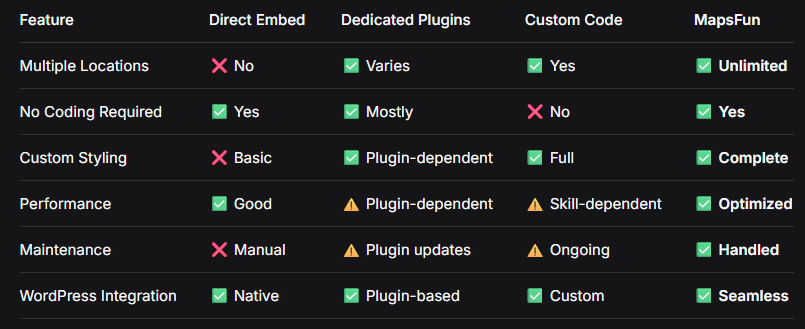
Comparative Analysis: WordPress Methods vs. mapsfun.com
Transforming Your WordPress Mapping Experience
Traditional WordPress Path:
Research plugins → Test multiple options → Configure API keys → Customize appearance → Encounter limitations → Seek additional plugins → Manage conflicts → Handle updates
MapsFun Path:
Create account → Design map visually → Copy WordPress code → Paste in editor → Complete
MapsFun’s unified interface for all mapping needs
Strategic Advantages for WordPress Users
- Eliminated Pain Points:
- – No plugin conflicts: Cloud-based solution avoids theme/plugin compatibility issues
- – Reduced maintenance: No WordPress plugin updates to manage
- – Consistent performance: Optimized delivery independent of WordPress hosting
- – Future-proof: Updates automatically without breaking your site
- Enhanced Capabilities:
- – Scale effortlessly: From one location to thousands without performance degradation
- – Design freedom: Complete styling control without CSS knowledge
- – Team collaboration: Multiple users can manage locations without WordPress access
- – Cross-platform consistency: Same maps work across website, mobile apps, and displays
Your Path to Simplified WordPress Mapping
The complexity of WordPress map integration—from plugin selection and API management to ongoing maintenance—often becomes a barrier to creating effective location displays. While various methods exist, each comes with its own set of compromises and technical requirements.
mapsfun.com eliminates these barriers entirely. Designed specifically to complement the WordPress ecosystem, it provides enterprise-grade mapping capabilities through a simple, intuitive interface that requires no technical expertise.
Whether you’re displaying a single business location or creating a comprehensive multi-location directory, mapsfun.com handles all the technical complexity while giving you complete creative control. The platform generates perfectly optimized code that loads quickly, works flawlessly across all devices, and integrates naturally with your WordPress design—regardless of your theme, page builder, or plugin configuration.
Stop managing multiple plugins and complex configurations. Discover how MapsFun.com can transform your approach to WordPress mapping at mapsfun.com. Experience the simplicity of professional map integration designed specifically for the WordPress platform, freeing you to focus on your content rather than your mapping tools.