Complete Guide to Adding Google Maps on Your Wix Website
What Awaits You in This Guide
This comprehensive guide covers every method available for integrating Google Maps into your Wix website. From basic built-in solutions to advanced implementations, you’ll learn the pros, cons, and step-by-step instructions for each approach. Whether you’re displaying a single location or multiple points, this guide provides clear pathways to enhance your Wix site with interactive maps.
Understanding Your Wix Map Options
Wix offers several pathways for map integration, each with different capabilities and requirements:
- – Built-in Wix Maps App (Simple, single location)
- – Embed Code Method (More control, basic multi-location)
- – Custom Code Implementation (Advanced, full customization)
- – Third-Party Solutions (Balanced, feature-rich)
Chapter 1: Using the Built-in Wix Maps App
What You’ll Learn Here
The simplest method using Wix’s native functionality. Perfect for beginners or single-location businesses.
Step-by-Step Implementation
- 1. Navigate to the Wix Editor
- Access your site dashboard and click “Edit Site”
- 2. Add the Maps Element
- – Click the “+ Add” button in the left panel
- – Select “Apps” from the menu
- – Search for “Wix Maps” and add it to your page
- 3. Configure Your Location
- – Click on the added map element
- – In the settings panel, enter your business address
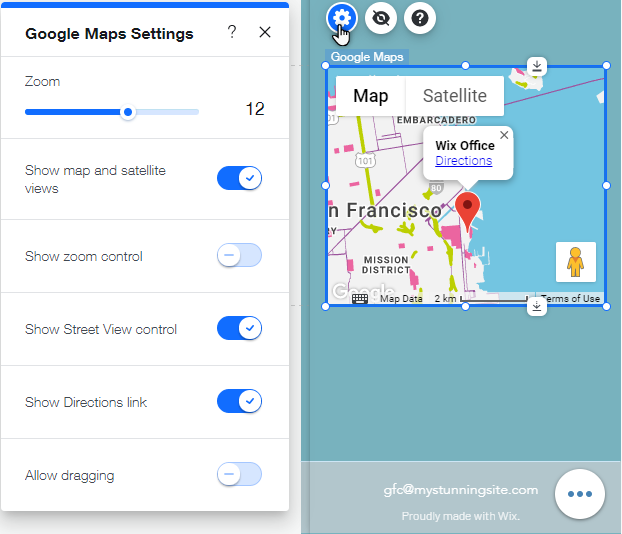
- – Customize map appearance (size, zoom level, style)
Adding the Wix Maps app through the editor interface
- Customization Options Available
- – Map Styles: Choose between standard, light, dark, or custom themes
- – Size Adjustment: Responsive or fixed dimensions
- – Interactive Elements: Toggle street view, zoom controls, and user interaction
- – Branding: Add your business name and logo to the info window
- Limitations to Consider
- – Only one location per map element
- – Limited styling customization
- – Basic marker options only
- – Cannot plot multiple points on single map
- – Dependent on Wix’s map service updates
Chapter 2: Embedding Custom Google Maps
What You’ll Learn Here
How to use Google’s embed code for more control over your map display, including basic multiple location support.
Generating the Embed Code from Google Maps
- 1. Go to Google Maps and find your desired location
- 2. Click the Share Button in the left information panel
- 3. Select “Embed a Map” from the sharing options
- 4. Choose Your Settings:
- – Map size (small, medium, large, custom)
- – Default zoom level
- – Map or satellite view
- 5. Copy the HTML Embed Code
Adding the Embed Code to Wix
- 1. Add an HTML iFrame Element:
- – In Wix Editor, click “+ Add”
- – Select “Embed” from the menu
- – Choose “HTML iFrame”
- 2. Configure the iFrame:
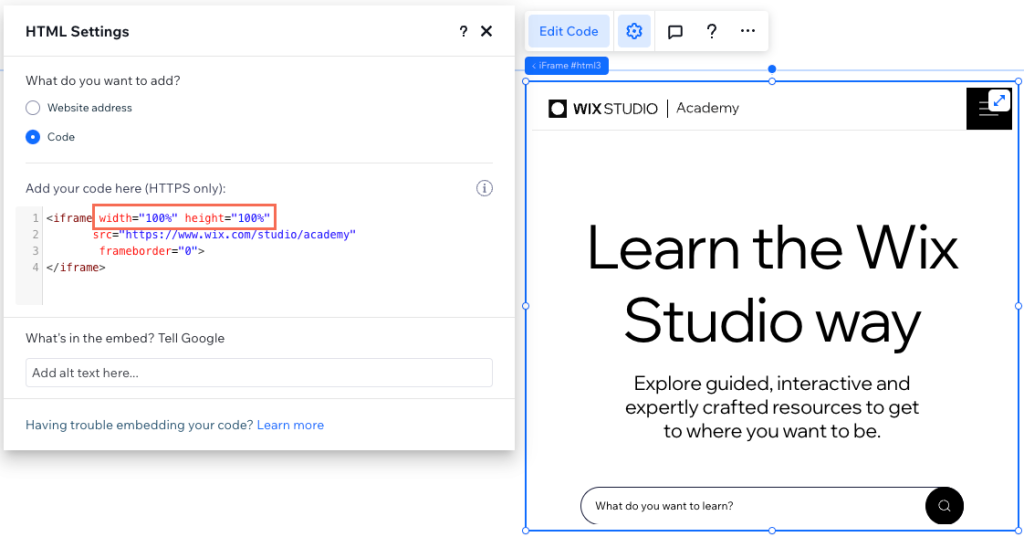
- – Paste your Google Maps embed code
- – Adjust the dimensions to fit your design
- – Enable responsive settings if needed
Configuring the HTML iFrame element in Wix Editor
Multiple Locations with Embedded Maps
For multiple locations, you must first create a custom map in Google My Maps:
- 1. Visit [Google My Maps](https://www.google.com/maps/d/)
- 2. Create a new map with all your locations
- 3. Style markers and add descriptions
- 4. Use the share menu to get the embed code
- 5. Follow the same iFrame process in Wix
Technical Considerations
- – Performance: iFrames can slightly impact page load times
- – Mobile Responsiveness: Test thoroughly on different devices
- – Updates: Changes require regenerating and replacing embed code
- – Limitations: Customization options are constrained by Google’s embed parameters
Chapter 3: Advanced Custom Code Implementation
What You’ll Learn Here
For developers needing complete control, this method uses Wix’s Velo platform (formerly Corvid) with the Google Maps JavaScript API.
Prerequisites and Setup
- 1. Enable Velo Dev Mode:
- – Click “Dev Mode” in the top bar of Wix Editor
- – Enable if not already active
- 2. Obtain Google Maps API Key:
- – Visit Google Cloud Console
- – Create a new project
- – Enable Maps JavaScript API
- – Create and restrict your API key
Implementation Code Structure
Add this to your page’s JavaScript:
javascript
// Initialize Google Maps on page load
$w.onReady(function () {
    // Create map container element
    const mapContainer = $w('#mapContainer');

    // Load Google Maps API
    const script = document.createElement('script');
    script.src = `https://maps.googleapis.com/maps/api/js?key=YOUR_API_KEY&callback=initMap`;
    script.async = true;
    document.head.appendChild(script);

    // Initialize map function
    window.initMap = function() {
        const mapOptions = {
            center: { lat: 40.7128, lng: -74.0060 },
            zoom: 12,
            disableDefaultUI: false,
            styles: [] // Custom style array
        };

        const map = new google.maps.Map(mapContainer, mapOptions);

        // Add multiple markers
        const locations = [
            { lat: 40.7128, lng: -74.0060, title: 'Location 1' },
            { lat: 40.7589, lng: -73.9851, title: 'Location 2' }
        ];

        locations.forEach(location => {
            new google.maps.Marker({
                position: { lat: location.lat, lng: location.lng },
                map: map,
                title: location.title
            });
        });
    };
});
Code language: JavaScript (javascript)
Advanced Features You Can Implement
- – Custom marker icons and animations
- – Info windows with dynamic content
- – Marker clustering for dense locations
- – Custom map styles and themes
- – Drawing tools and interactive layers
- – Integration with Wix databases for dynamic locations
Important Considerations
- – API Costs: Google Maps API has usage-based pricing
- – Complexity: Requires JavaScript knowledge
- – Maintenance: Ongoing code updates needed
- – Performance: Can impact site speed if not optimized
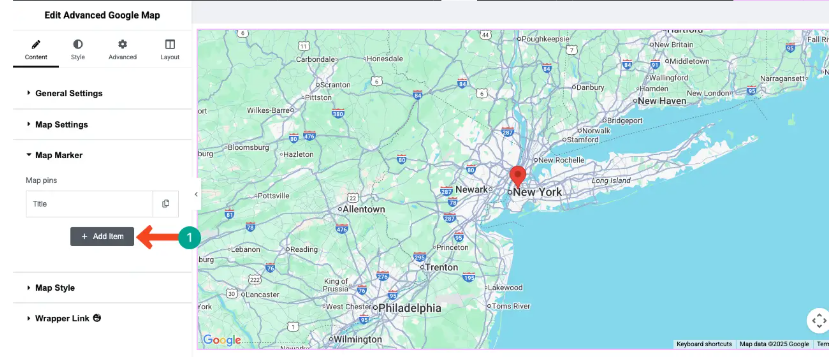
Example of advanced custom map with multiple styled markers
Chapter 4: Common Challenges and Solutions
What You’ll Learn Here
Troubleshooting common issues Wix users face when implementing maps.
Responsive Design Issues
Problem: Map doesn’t resize properly on mobile devices
Solution: Use percentage-based dimensions and Wix’s responsive settings:
- 1. For iFrame Embeds:
- – Set width to 100%
- – Use aspect ratio padding technique
- – Enable “Fit to Container” in iFrame settings
- 2. For Custom Code:
- – Implement resize listeners
- – Use viewport units for dimensions
- – Test across Wix’s breakpoints
Performance Optimization
Best Practices:
- – Lazy Load Maps: Implement Intersection Observer API
- – Optimize Images: Compress custom marker icons
- – Minimize API Calls: Cache location data when possible
- – Clean Code: Remove unused map features and libraries
Cross-Platform Compatibility
Testing Checklist:
- – Mobile touch interactions work correctly
- – Map controls are accessible on all devices
- – Loading states display properly
- – Offline scenarios are handled gracefully
The Streamlined Solution: MapsFun for Wix
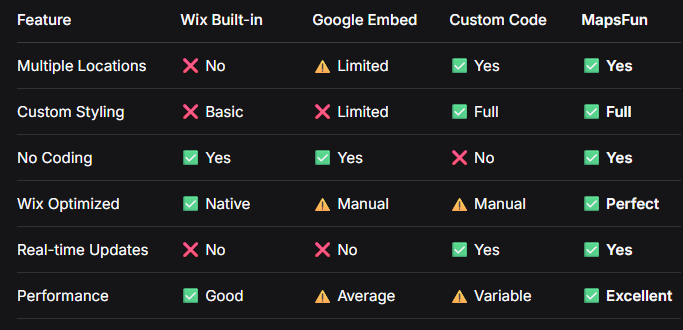
After exploring these approaches, it’s clear that each method involves significant trade-offs. The built-in Wix app is simple but limited. The embed method works but lacks customization. The custom code approach offers control but requires technical expertise and ongoing maintenance.
One Platform That Solves Every Wix Map Challenge
MapsFun provides a streamlined solution specifically optimized for Wix users, eliminating complexity while delivering professional results.
Why MapsFun Is the Ideal Wix Solution:
- 1. Native Wix Integration
- – Drag-and-drop installation
- – No coding required
- – Perfect mobile responsiveness
- – Automatic Wix style matching
- 2. Feature-Rich Implementation
- – Single and multiple location support
- – Custom branding and styling
- – Advanced marker management
- – Real-time location updates
- 3. Simplified Workflow
- – Visual map builder interface
- – Direct connection to Wix Editor
- – One-click updates across your site
- – No API key management
Comparative Analysis: Methods vs. MapsFun.com
Transform Your Wix Mapping Experience
Consider the typical journey of adding a multi-location map to Wix:
Traditional Path
Research methods → Choose approach → Implement → Encounter limitations → Seek workarounds → Compromise on features → Ongoing maintenance
MapsFun Path:
Sign up → Design map visually → Copy embed code → Paste in Wix → Done
Your Path Forward
The complexity of map integration shouldn’t limit your website’s capabilities. While Wix provides basic tools and manual methods exist for advanced users, they all require compromise—either on features, ease of use, or maintenance.
MapsFun eliminates these compromises entirely. It’s specifically designed to work seamlessly within the Wix ecosystem while providing professional-grade mapping features that typically require developer expertise.
Whether you’re displaying a single store location or creating an interactive multi-location directory, MapsFun handles the technical complexity while giving you complete creative control. The platform generates perfectly optimized code that loads quickly, works flawlessly across all devices, and integrates naturally with your Wix design.
Stop juggling multiple solutions and workarounds. Discover how MapsFun can transform your approach to Wix mapping at mapsfun.com. Experience the simplicity of professional map integration designed specifically for the Wix platform.