How to Embed Google Maps in WordPress
How to Embed Google Map in WordPress: Complete Technical Guide
Embedding a Google Map in WordPress seems straightforward, but creating a truly customized, high-performance map requires technical expertise. While there are basic methods, advanced implementations involve API keys, custom code, and ongoing maintenance. This guide covers both approaches.
The advanced method requires WordPress theme editing and Google Cloud Platform knowledge.
Method 1: Basic Google Maps Embed (Limited Functionality)
Step 1: Get Embed Code from Google Maps
- 1. Go to [Google Maps](https://www.google.com/maps) and find your location
- 2. Click “Share” → “Embed a map”
- 3. Copy the iframe code provided
Step 2: Add to WordPress
Option A: Using WordPress Block Editor
- 1. Create a new post/page
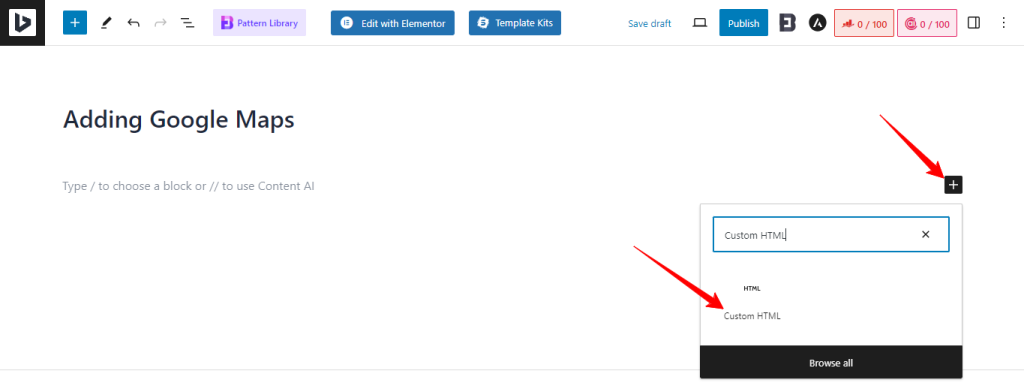
- 2. Add a “Custom HTML” block
- 3. Paste the iframe code
- 4. Update/Publish
Basic iframe embed works but offers limited customization and mobile responsiveness.
Limitations of this method:
- – Fixed size that may not be responsive
- – No custom styling or branding
- – Limited to single location
- – Basic functionality only
Method 2: Advanced Custom Map with Google Maps API
This method provides full control but requires technical implementation.
Step 1: Set Up Google Maps API
- 1.Create Google Cloud Project:
- -Visit https://console.cloud.google.com/
- -Create new project → Enable billing
- -Note: $200 monthly credit covers most usage
- 2.Enable Required APIs:
- – Maps JavaScript API
- – Geocoding API
- – Places API (optional)
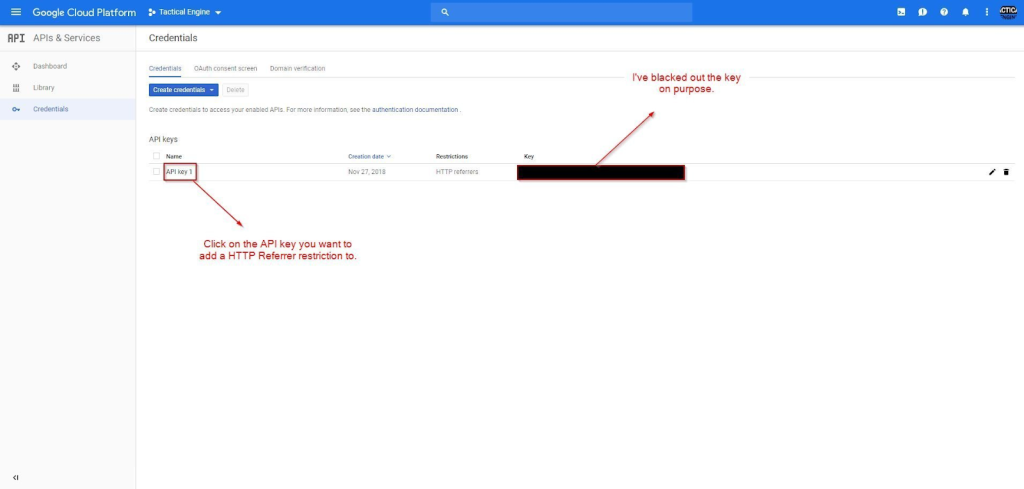
- 3.Create and Restrict API Key:
- – Restrict to your domain (yourwebsite.com)
- – Restrict to Maps JavaScript API
Always restrict your API keys to prevent unauthorized usage.
Step 2: Create Custom Map Plugin
Create a custom WordPress plugin for your advanced map functionality.
Create file: `/wp-content/plugins/custom-google-map/custom-google-map.php`
php
<?php
/**
 * Plugin Name: Custom Google Map
 * Description: Advanced Google Maps integration for WordPress
 * Version: 1.0
 * Author: Your Name
 */

// Prevent direct access
if (!defined('ABSPATH')) {
    exit;
}

class CustomGoogleMap {

    public function __construct() {
        add_action('wp_enqueue_scripts', array($this, 'enqueue_scripts'));
        add_shortcode('custom_map', array($this, 'map_shortcode'));
        add_action('wp_head', array($this, 'add_map_styles'));
    }

    public function enqueue_scripts() {
        $api_key = get_option('google_maps_api_key', '');
        if (!empty($api_key)) {
            wp_enqueue_script(
                'google-maps-api',
                "https://maps.googleapis.com/maps/api/js?key={$api_key}&callback=initMap&libraries=places",
                array(),
                null,
                true
            );
        }

        wp_enqueue_script(
            'custom-map-script',
            plugin_dir_url(__FILE__) . 'map-script.js',
            array('jquery', 'google-maps-api'),
            '1.0',
            true
        );
    }

    public function add_map_styles() {
        ?>
        <style>
            .custom-map-container {
                width: 100%;
                margin: 20px 0;
                border-radius: 10px;
                overflow: hidden;
                box-shadow: 0 4px 12px rgba(0,0,0,0.1);
            }

            .custom-map {
                height: 400px;
                width: 100%;
            }

            .map-controls {
                background: #f8f9fa;
                padding: 15px;
                border-bottom: 1px solid #dee2e6;
            }

            .location-search {
                width: 100%;
                padding: 10px;
                border: 1px solid #ced4da;
                border-radius: 4px;
                margin-bottom: 10px;
            }

            @media (max-width: 768px) {
                .custom-map {
                    height: 300px;
                }
            }
        </style>
        <?php
    }

    public function map_shortcode($atts) {
        $atts = shortcode_atts(array(
            'lat' => '40.7128',
            'lng' => '-74.0060',
            'zoom' => '14',
            'title' => 'Our Location',
            'address' => '123 Main Street, New York, NY'
        ), $atts);

        ob_start();
        ?>
        <div class="custom-map-container">
            <div class="map-controls">
                <input type="text" class="location-search" placeholder="Search locations...">
                <div class="map-info">
                    <h4><?php echo esc_html($atts['title']); ?></h4>
                    <p><?php echo esc_html($atts['address']); ?></p>
                </div>
            </div>
            <div class="custom-map"
                 data-lat="<?php echo esc_attr($atts['lat']); ?>"
                 data-lng="<?php echo esc_attr($atts['lng']); ?>"
                 data-zoom="<?php echo esc_attr($atts['zoom']); ?>">
            </div>
        </div>
        <?php
        return ob_get_clean();
    }
}

new CustomGoogleMap();

// Admin settings page
class MapAdminSettings {

    public function __construct() {
        add_action('admin_menu', array($this, 'add_admin_menu'));
        add_action('admin_init', array($this, 'settings_init'));
    }

    public function add_admin_menu() {
        add_options_page(
            'Google Maps Settings',
            'Google Maps',
            'manage_options',
            'google-maps-settings',
            array($this, 'settings_page')
        );
    }

    public function settings_init() {
        register_setting('googleMaps', 'google_maps_settings');

        add_settings_section(
            'google_maps_section',
            'API Configuration',
            array($this, 'settings_section_callback'),
            'googleMaps'
        );

        add_settings_field(
            'api_key',
            'Google Maps API Key',
            array($this, 'api_key_field_render'),
            'googleMaps',
            'google_maps_section'
        );
    }

    public function api_key_field_render() {
        $options = get_option('google_maps_settings');
        ?>
        <input type='password' name='google_maps_settings[api_key]' value='<?php echo esc_attr($options['api_key']); ?>' style='width: 300px;'>
        <p class="description">Get your API key from <a href="https://console.cloud.google.com/" target="_blank">Google Cloud Console</a></p>
        <?php
    }

    public function settings_section_callback() {
        echo 'Configure your Google Maps API settings below:';
    }

    public function settings_page() {
        ?>
        <div class="wrap">
            <h1>Google Maps Settings</h1>
            <form action='options.php' method='post'>
                <?php
                settings_fields('googleMaps');
                do_settings_sections('googleMaps');
                submit_button();
                ?>
            </form>
        </div>
        <?php
    }
}

new MapAdminSettings();
?>
Code language: HTML, XML (xml)
Step 3: Create JavaScript File
Create file: `/wp-content/plugins/custom-google-map/map-script.js
javascript
let map;
let markers = [];
let geocoder;
let infowindow;

function initMap() {
    // Initialize geocoder and info window
    geocoder = new google.maps.Geocoder();
    infowindow = new google.maps.InfoWindow();

    // Initialize all maps on page
    document.querySelectorAll('.custom-map').forEach(mapElement => {
        initializeSingleMap(mapElement);
    });

    // Initialize search functionality
    initializeSearch();
}

function initializeSingleMap(mapElement) {
    const lat = parseFloat(mapElement.dataset.lat);
    const lng = parseFloat(mapElement.dataset.lng);
    const zoom = parseInt(mapElement.dataset.zoom);

    const mapOptions = {
        center: { lat: lat, lng: lng },
        zoom: zoom,
        styles: [
            {
                "featureType": "poi.business",
                "stylers": [{ "visibility": "on" }]
            },
            {
                "featureType": "transit",
                "elementType": "labels.icon",
                "stylers": [{ "visibility": "off" }]
            }
        ],
        mapTypeControl: true,
        streetViewControl: true,
        fullscreenControl: true
    };

    const map = new google.maps.Map(mapElement, mapOptions);

    // Add marker for main location
    const marker = new google.maps.Marker({
        position: { lat: lat, lng: lng },
        map: map,
        title: 'Main Location',
        animation: google.maps.Animation.DROP
    });

    // Add info window
    const infoContent = `
        <div style="padding: 10px; max-width: 250px;">
            <h4 style="margin: 0 0 8px 0;">Our Location</h4>
            <p style="margin: 0 0 8px 0; color: #666;">Main business address</p>
            <button onclick="getDirections(${lat}, ${lng})" style="background: #007cba; color: white; border: none; padding: 5px 10px; border-radius: 3px; cursor: pointer;">
                Get Directions
            </button>
        </div>
    `;

    marker.addListener('click', () => {
        infowindow.setContent(infoContent);
        infowindow.open(map, marker);
    });

    markers.push(marker);
}

function initializeSearch() {
    const searchInputs = document.querySelectorAll('.location-search');

    searchInputs.forEach(input => {
        const autocomplete = new google.maps.places.Autocomplete(input);

        autocomplete.addListener('place_changed', function() {
            const place = autocomplete.getPlace();
            if (!place.geometry) {
                return;
            }

            // Recenter map on searched location
            if (map && place.geometry.viewport) {
                map.fitBounds(place.geometry.viewport);
            } else {
                map.setCenter(place.geometry.location);
                map.setZoom(15);
            }

            // Add temporary marker for searched location
            addTemporaryMarker(place.geometry.location, place.name);
        });
    });
}

function addTemporaryMarker(position, title) {
    const marker = new google.maps.Marker({
        position: position,
        map: map,
        title: title,
        icon: {
            url: 'https://maps.google.com/mapfiles/ms/icons/blue-dot.png'
        }
    });

    // Remove marker after 5 seconds
    setTimeout(() => {
        marker.setMap(null);
    }, 5000);
}

function getDirections(lat, lng) {
    if (navigator.geolocation) {
        navigator.geolocation.getCurrentPosition(function(position) {
            const userLat = position.coords.latitude;
            const userLng = position.coords.longitude;

            const directionsUrl = `https://www.google.com/maps/dir/?api=1&origin=${userLat},${userLng}&destination=${lat},${lng}`;
            window.open(directionsUrl, '_blank');
        }, function() {
            // Fallback to Google Maps with destination only
            const directionsUrl = `https://www.google.com/maps/dir/?api=1&destination=${lat},${lng}`;
            window.open(directionsUrl, '_blank');
        });
    } else {
        const directionsUrl = `https://www.google.com/maps/dir/?api=1&destination=${lat},${lng}`;
        window.open(directionsUrl, '_blank');
    }
}

// Handle window resize for responsiveness
window.addEventListener('resize', function() {
    if (map) {
        google.maps.event.trigger(map, 'resize');
    }
});

// Initialize map when DOM is loaded
document.addEventListener('DOMContentLoaded', function() {
    if (typeof google !== 'undefined') {
        initMap();
    }
});
Code language: JavaScript (javascript)
Step 4: Use the Custom Map in WordPress
- 1. Activate the plugin in WordPress admin
- 2. Configure API key in Settings → Google Maps
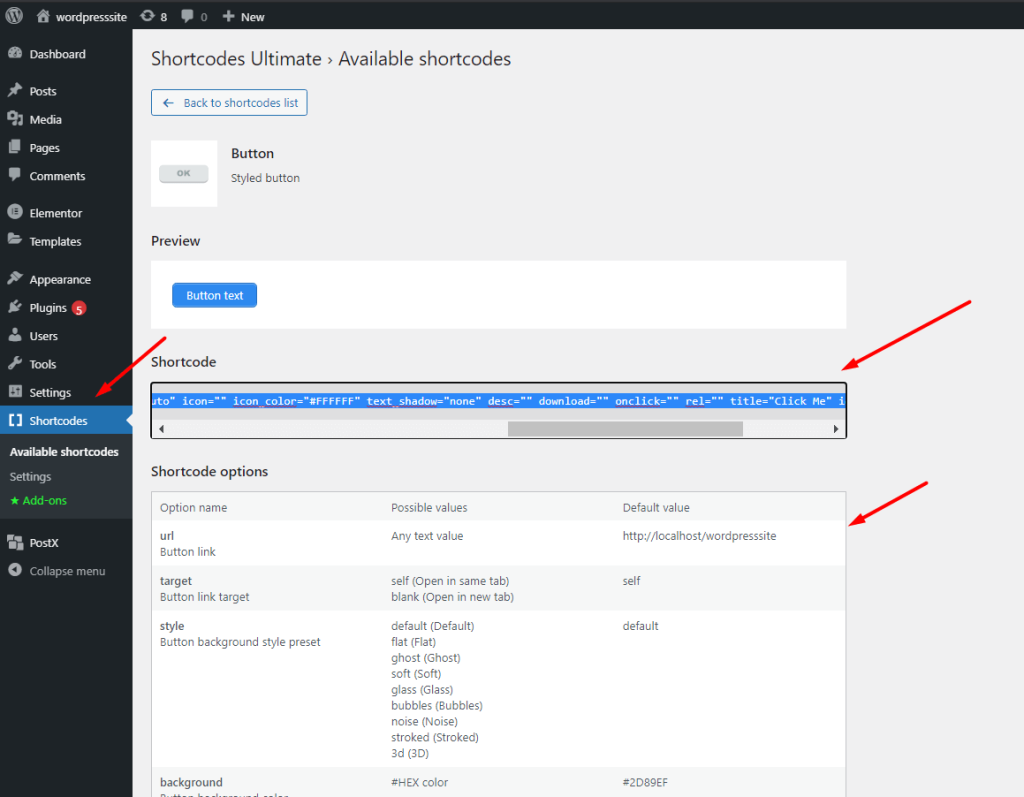
- 3. Use shortcode in any post or page:
- [custom_map lat=”40.7128″ lng=”-74.0060″ zoom=”14″ title=”Our Main Office” address=”123 Broadway, New York, NY”]
Custom shortcode allows easy map placement with customizable parameters.
The Challenges of Manual WordPress Maps Integration
While the custom plugin approach works, it presents significant challenges:
- 1. API Key Management: Securing and rotating API keys requires ongoing attention
- 2. Plugin Maintenance: WordPress updates may break custom plugin functionality
- 3. Performance Impact: Multiple API calls can slow down your site
- 4. Mobile Responsiveness: Ensuring perfect mobile display requires additional CSS
- 5. Security Risks: Improper API key handling can lead to unauthorized usage charges
- 6. Feature Limitations: Advanced features like multiple locations require complex coding
- 7. Update Compatibility: WordPress core updates may require plugin modifications
The Simplified WordPress Solution: MapsFun.com
Why spend hours building and maintaining custom map solutions when you can have professional maps in minutes?
MapsFun.com offers seamless WordPress integration without the technical complexity:
- 1. WordPress-Optimized: Generated maps are perfectly optimized for WordPress performance
- 2. No API Management: We handle all backend API complexity
- 3. One-Click Embed: Simple copy-paste embed code that works with any WordPress theme
- 4. Automatic Updates: Maps stay current with WordPress and browser changes
- 5. Mobile-Perfect: Responsive design that works flawlessly on all devices
- 6. No Coding Required: Create beautiful, functional maps through a visual interface
- 7. Multiple Locations: Easily add multiple points without complex coding
Stop wrestling with API keys and custom plugins. Create beautiful, high-performance Google Maps for your WordPress site in minutes. Visit MapsFun.com to get started today