Universal Embedding Guides: Master Google Maps on Your Website
What You’ll Find in This Guide
Navigating the world of Google Maps embedding can be confusing with different methods, technical requirements, and varying use cases. This universal guide breaks down every approach—from simple iframe embeds to API-driven solutions—helping you choose the right path for your website. We’ll demystify terms like “embed codes,” “API keys,” and “widgets” so you can make informed decisions without getting lost in technical jargon.
Chapter 1: Understanding Your Embedding Options
The Three Main Paths to Add Google Maps
When you search for terms like “google map for website iframe” or “google maps widget for website,” you’re actually encountering three distinct approaches:
- 1. Basic Iframe Embed (The Simple Copy-Paste)
- – What it is: Google’s one-click “Share → Embed” option
- – Best for: Single location display with minimal customization
- – Limitations: Fixed size, basic functionality only
- 2. JavaScript API Implementation (The Developer’s Approach)
- – What it is: Programmatic control using Google Maps Platform
- – Best for: Multiple locations, custom markers, dynamic updates
- – Challenges: Requires API key, billing setup, and coding skills
- 3. Third-Party Widgets & Tools (The Middle Ground)
- – What it is: Pre-built solutions that simplify the process
- – Best for: Users wanting more than basic but less than full development
Visual comparison of different embedding approaches
Chapter 2: The Iframe Method Demystified
Add Google Map to Site – The Basic Way
The iframe method is what most beginners encounter first. When you click “Share → Embed” on Google Maps, you get code that looks like this:
html
<iframe
  src="https://www.google.com/maps/embed?pb=!1m18!1m12!1m3!1d3024.2219901290355!2d-73.98715568459418!3d40.70555197933205!2m3!1f0!2f0!3f0!3m2!1i1024!2i768!4f13.1!3m3!1m2!1s0x89c25a315cdf4c9b%3A0x8b934de5cae6f7a!2sTimes%20Square!2m1!1e1!5e0!3m2!1sen!2sus!4v1620000000000!5m2!1sen!2sus"
  width="600"
  height="450"
  style="border:0;"
  allowfullscreen=""
  loading="lazy">
</iframe>
Code language: HTML, XML (xml)- Pros:
- – No API key required
- – No coding knowledge needed
- – Quick and easy setup
- Cons:
- – Cannot show multiple locations
- – Limited styling options
- – Fixed dimensions
- – No interactive customization
Chapter 3: Beyond Basics – The API Approach
Google Maps Widget for Website – Understanding the Technical Route
When you need more than one location or custom functionality, you enter API territory. Here’s what this involves:
The Technical Requirements Checklist:
- – ✅ Google Cloud account
- – ✅ Billing enabled (with $200 monthly credit)
- – ✅ API keys created and restricted
- – ✅ JavaScript coding skills
- – ✅ Ongoing maintenance
Basic API Implementation Structure
javascript
// This is just PART of what's needed
function initMap() {
  const map = new google.maps.Map(document.getElementById("map"), {
    center: { lat: -34.397, lng: 150.644 },
    zoom: 8,
  });
}
Code language: JavaScript (javascript)
The Hidden Complexities:
- – Geocoding addresses to coordinates
- – Marker management for multiple locations
- – Info window customization
- – Mobile responsiveness
- – API quota management
Chapter 4: Common Challenges Across All Methods
What Nobody Tells You About Embedding Maps
Regardless of which method you choose, several universal challenges await:
- 1. Responsive Design Issues
- – Iframe embeds often break on mobile
- – API implementations require additional CSS/JavaScript
- 2. Performance Concerns
- – Multiple maps can slow down page loading
- – API calls need optimization
- 3. Update & Maintenance
- – Changing locations means regenerating code
- – API changes can break your implementation
- 4. Feature Limitations
- – Want custom marker clusters? More code.
- – Need different map styles? More configuration.
- – Require advanced filtering? Much more development.
Chapter 5: The Universal Solution
Why MapsFun.com Solves Every Embedding Challenge
After exploring all these methods—from simple iframes to complex API implementations—one truth becomes clear: traditional approaches force you to choose between simplicity and functionality.
MapsFun.com eliminates this compromise entirely.
One Platform That Does It All:
- ✅ No API Keys or Billing Setup – We handle all backend complexity
- ✅ Multiple Locations Made Simple – Visual interface, no coding required
- ✅ Full Customization – Styles, markers, and info windows without JavaScript
- ✅ Automatic Responsiveness – Perfect display on all devices
- ✅ Easy Updates – Change locations without touching code
- ✅ Advanced Features – Clustering, filtering, and analytics included
How It Compares
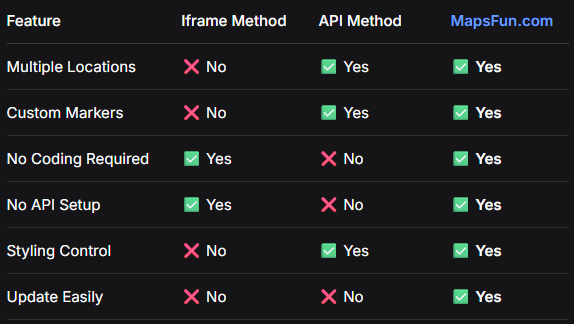
Whether you searched for “google map for website iframe,” “add google map to site,” “embed google maps location in website,” or “google maps widget for website,” the underlying need is the same: to display locations effectively without unnecessary complexity.
The traditional methods present a frustrating choice:
– Too Simple (iframe): Lacks essential features
– Too Complex (API): Requires technical expertise
There is a better way
Instead of wrestling with iframe limitations or diving into API documentation, you can achieve professional, feature-rich maps in minutes. MapsFun.com provides the universal solution that works for every use case—from single business locations to multi-point interactive maps—without the technical headache.
Stop searching for partial solutions. Start creating perfect maps today at MapsFun.com