How to Add Google Maps to Squarespace
How to Create a Custom Google Map in Squarespace (Beyond the Basic Map Block)
Want to display multiple locations, customize your map’s design, or add interactive markers on your Squarespace site? While Squarespace offers a basic Map Block, it’s limited to a single location and offers minimal customization. This guide will show you how to embed a fully custom Google Map with multiple pins and professional styling.
The advanced method requires a Google Cloud account, API setup, and code injection. It’s powerful but technical.
Method 1: The Advanced Google Maps API & Code Injection Method
This approach gives you complete design control but involves several technical steps.
Step 1: Get Your Google Maps API Key
This is the essential first step that requires a Google Cloud account.
1. Go to the Google Cloud Console: Navigate to https://console.cloud.google.com/.
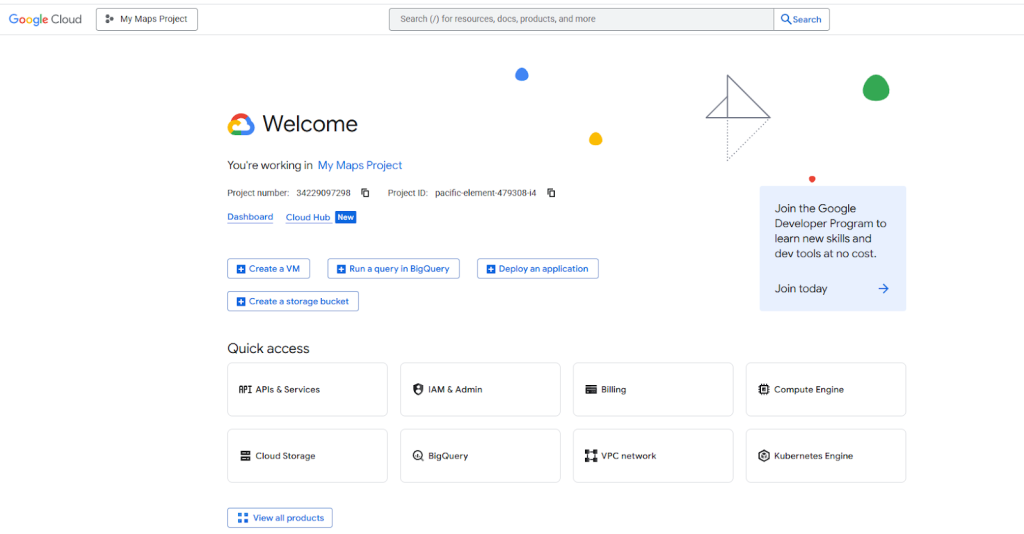
- 2. Create a New Project: Click the project dropdown and create a new project (e.g., “Squarespace Custom Map”).
- 3. Enable Billing: You must enable billing. Google provides a $200 monthly credit that typically covers all usage for a standard website map.
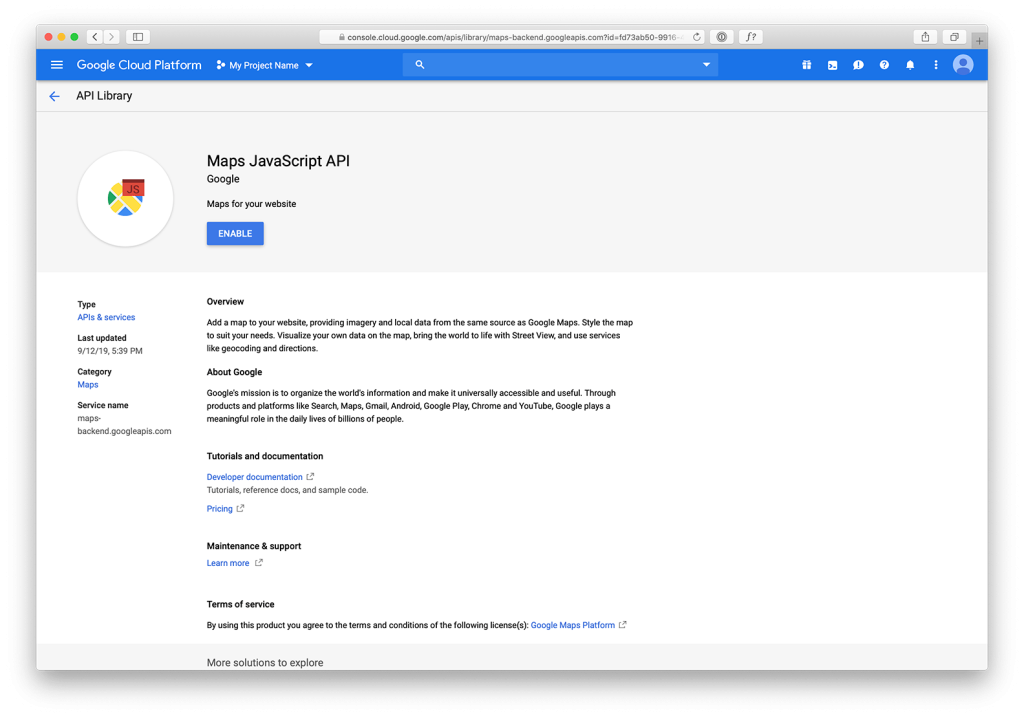
- 4. Enable Required APIs: Go to “APIs & Services” > “Library”. Enable these two APIs:
- Maps JavaScript API (renders the map)
- Geocoding API (converts addresses to coordinates)
- 5. Create and Secure API Key: Go to “APIs & Services” > “Credentials”. Create an API key and restrict it to:
- Maps JavaScript API
- Your Squarespace domain (e.g., `https://yoursite.squarespace.com`)
Proper API key restriction is crucial for security
Step 2: Add Map Container to Your Squarespace Page
Create a placeholder for your custom map.
- 1. Edit your Squarespace page
- 2. Add a Code Block where you want the map to appear
- 3. Paste this HTML to create the map container:
html
<div class="custom-squarespace-map">
    <h2>Our Locations</h2>
    <div id="multi-location-map"></div>
    <p class="map-note">Click on markers for more information</p>
</div>
Code language: HTML, XML (xml)
Step 3: Add Custom Code via Header Injection
Inject the JavaScript and CSS through Squarespace’s code injection.
- 1. Go to Settings > Developer Tools > Code Injection
- 2. In the Header field, paste this code (replace `YOUR_API_KEY`):
html
<style>
    /* Custom map styling */
    #multi-location-map {
        height: 480px;
        width: 100%;
        border-radius: 12px;
        margin: 25px 0;
        box-shadow: 0 4px 12px rgba(0,0,0,0.1);
        border: 1px solid #ddd;
    }
    .custom-squarespace-map h2 {
        text-align: center;
        margin-bottom: 10px;
    }
    .map-note {
        text-align: center;
        color: #666;
        font-size: 14px;
        margin-top: 10px;
    }
</style>

<script>
document.addEventListener('DOMContentLoaded', function() {
    if (document.getElementById('multi-location-map')) {
        function initCustomMap() {
            // Business locations data
            const businessLocations = [
                {
                    name: 'Main Office',
                    lat: 40.7128,
                    lng: -74.0060,
                    address: '123 Business Ave, New York, NY',
                    phone: '(555) 123-4567'
                },
                {
                    name: 'Downtown Store',
                    lat: 40.7074,
                    lng: -74.0113,
                    address: '456 Commerce St, New York, NY',
                    phone: '(555) 123-4568'
                },
                {
                    name: 'Westside Warehouse',
                    lat: 40.7211,
                    lng: -74.0005,
                    address: '789 Industrial Blvd, New York, NY',
                    phone: '(555) 123-4569'
                }
            ];

            // Initialize map
            const map = new google.maps.Map(document.getElementById('multi-location-map'), {
                zoom: 11,
                center: { lat: 40.7128, lng: -74.0060 },
                styles: [
                    {
                        "featureType": "all",
                        "elementType": "geometry",
                        "stylers": [{"color": "#f5f5f5"}]
                    },
                    {
                        "featureType": "water",
                        "elementType": "geometry",
                        "stylers": [{"color": "#c5d6f3"}]
                    }
                ] // Custom color scheme
            });

            // Create info window
            const infoWindow = new google.maps.InfoWindow();

            // Add markers with custom styling
            businessLocations.forEach((location, index) => {
                const marker = new google.maps.Marker({
                    position: { lat: location.lat, lng: location.lng },
                    map: map,
                    title: location.name,
                    animation: google.maps.Animation.DROP
                });

                // Custom info window content
                marker.addListener('click', () => {
                    infoWindow.setContent(`
                        <div class="map-info-window">
                            <h4>${location.name}</h4>
                            <p>${location.address}</p>
                            <p>📞 ${location.phone}</p>
                            <a href="https://maps.google.com/?q=${location.address}"
                               target="_blank"
                               style="color: #2d5be3; text-decoration: none;">
                                Get Directions →
                            </a>
                        </div>
                    `);
                    infoWindow.open(map, marker);
                });
            });

            // Auto-fit map to show all markers
            const bounds = new google.maps.LatLngBounds();
            businessLocations.forEach(location => {
                bounds.extend(new google.maps.LatLng(location.lat, location.lng));
            });
            map.fitBounds(bounds);
        }

        // Load Google Maps API
        const googleMapScript = document.createElement('script');
        googleMapScript.src = `https://maps.googleapis.com/maps/api/js?key=YOUR_API_KEY&callback=initCustomMap`;
        googleMapScript.async = true;
        googleMapScript.defer = true;
        document.head.appendChild(googleMapScript);
    }
});
</script>
Code language: HTML, XML (xml)
This creates a professional-looking map with custom styling, detailed info windows, and automatic bounds adjustment.
The Challenges of This Advanced Method
While this approach works, it presents significant challenges:
- API Key Management: You’re responsible for securing your API key. Improper restrictions can lead to unauthorized use and unexpected charges.
- Code Complexity: Requires understanding of JavaScript, Google Maps API, and CSS. Any error can break your map or affect site performance.
- Maintenance Burden: Adding new locations requires manual coordinate lookup and code editing.
- Theme Compatibility: Custom code may not work perfectly with all Squarespace templates and can break during template updates.
- Mobile Responsiveness: Ensuring the map looks good on all devices requires additional CSS adjustments.
The Simple, Professional Solution: MapsFun.com
Why deal with API keys, code injection, and maintenance headaches when there’s a better way?
MapsFun.com offers a seamless, codeless solution for creating beautiful custom maps in Squarespace:
- 1. No Technical Setup: Create your map in a visual editor—no Google Cloud account or API keys needed
- 2. Easy Customization: Change map styles, marker icons, and info windows with point-and-click simplicity
- 3. Simple Squarespace Integration: Just copy and paste the embed code into a Squarespace Code Block
- 4. Automatic Updates: Add or edit locations anytime without touching code
- 5. Built-in Responsiveness: Maps automatically look perfect on all devices
Stop wrestling with complex code and API configurations. Create stunning, professional Google Maps for your Squarespace site in minutes with MapsFun.com.