Best Map Widgets for WordPress (2025 Top Recommendations)
How to Add a Custom Map Widget to Your WordPress Site: A Developer’s Guide
Adding an interactive map widget to your WordPress “Contact Us” page or sidebar is crucial for helping visitors find your location. While plugin-free solutions offer more control and better performance, they require a technical approach.
This guide will walk you through creating a custom, lightweight Google Maps widget without relying on heavy plugins.
This method requires a Google Cloud account and basic familiarity with editing WordPress files.
Method 1: The Custom Code Method (Plugin-Free)
This approach creates a fast-loading, fully customized map widget by adding code directly to your theme.
Step 1: Set Up the Google Maps Platform
- 1. Go to the Google Cloud Console: Navigate to [Google Cloud Console](https://console.cloud.google.com/) and create a new project.
- 2. Enable Billing: You must enable billing, but the generous $200 monthly credit will cover most website usage.
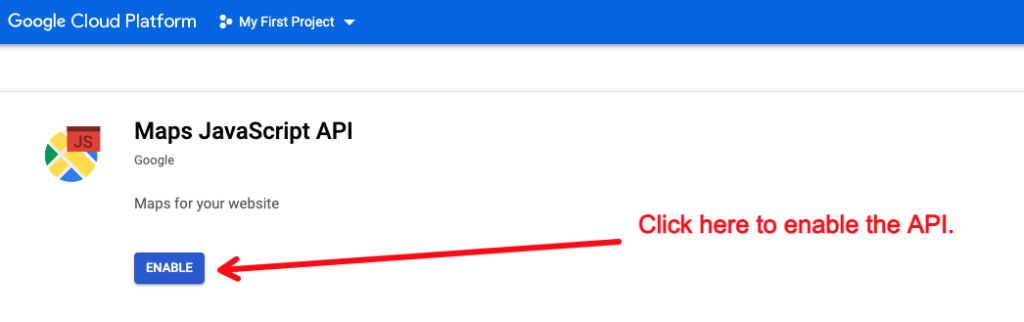
- 3. Enable the Maps JavaScript API: In the “APIs & Services” library, find and enable the **Maps JavaScript API**.
- 4. Create an API Key: Go to “Credentials”, create an API key, and **restrict it** to your domain and the Maps JavaScript API for security.
Enable the Maps JavaScript API in your Google Cloud project.
Step 2: Add the Code to Your WordPress Theme
Here’s the complete, working code for a custom map widget. You’ll need to add this to your theme files.
A. Add the CSS to your theme’s stylesheet
Add this to your `style.css` file or WordPress Customizer > Additional CSS:
css
/* Custom Map Widget Styling */
.custom-map-widget {
    width: 100%;
    height: 300px;
    border-radius: 8px;
    overflow: hidden;
    box-shadow: 0 2px 10px rgba(0,0,0,0.1);
    margin: 15px 0;
    border: 1px solid #e0e0e0;
}
Code language: CSS (css)
B. Add the HTML and JavaScript to your theme files
Create a new file called `custom-map-widget.php` and add this complete code:
php
<?php
/**
* Custom Map Widget for WordPress
*/
class Custom_Map_Widget extends WP_Widget {
public function __construct() {
parent::__construct(
'custom_map_widget',
'Custom Map Widget',
array('description' => 'A custom Google Maps widget for your location')
);
}
public function widget($args, $instance) {
echo $args['before_widget'];
// Widget title
if (!empty($instance['title'])) {
echo $args['before_title'] . apply_filters('widget_title', $instance['title']) . $args['after_title'];
}
// Map container
echo '<div class="custom-map-widget" id="map-' . $this->id . '"></div>';
// JavaScript for the map
?>
<script></script>
<?php
echo $args['after_widget'];
}
public function form($instance) {
$title = !empty($instance['title']) ? $instance['title'] : 'Our Location';
$latitude = !empty($instance['latitude']) ? $instance['latitude'] : '40.7128';
$longitude = !empty($instance['longitude']) ? $instance['longitude'] : '-74.0060';
$location_name = !empty($instance['location_name']) ? $instance['location_name'] : 'Our Office';
?>
<p>
<label for="<?php echo $this->get_field_id('title'); ?>">Widget Title:</label>
<input class="widefat" id="<?php echo $this->get_field_id('title'); ?>"
name="<?php echo $this->get_field_name('title'); ?>" type="text"
value="<?php echo esc_attr($title); ?>">
</p>
<p>
<label for="<?php echo $this->get_field_id('latitude'); ?>">Latitude:</label>
<input class="widefat" id="<?php echo $this->get_field_id('latitude'); ?>"
name="<?php echo $this->get_field_name('latitude'); ?>" type="text"
value="<?php echo esc_attr($latitude); ?>">
</p>
<p>
<label for="<?php echo $this->get_field_id('longitude'); ?>">Longitude:</label>
<input class="widefat" id="<?php echo $this->get_field_id('longitude'); ?>"
name="<?php echo $this->get_field_name('longitude'); ?>" type="text"
value="<?php echo esc_attr($longitude); ?>">
</p>
<p>
<label for="<?php echo $this->get_field_id('location_name'); ?>">Location Name:</label>
<input class="widefat" id="<?php echo $this->get_field_id('location_name'); ?>"
name="<?php echo $this->get_field_name('location_name'); ?>" type="text"
value="<?php echo esc_attr($location_name); ?>">
</p>
<?php
}
public function update($new_instance, $old_instance) {
$instance = array();
$instance['title'] = (!empty($new_instance['title'])) ? strip_tags($new_instance['title']) : '';
$instance['latitude'] = (!empty($new_instance['latitude'])) ? floatval($new_instance['latitude']) : '';
$instance['longitude'] = (!empty($new_instance['longitude'])) ? floatval($new_instance['longitude']) : '';
$instance['location_name'] = (!empty($new_instance['location_name'])) ? strip_tags($new_instance['location_name']) : '';
return $instance;
}
}
// Register the widget
function register_custom_map_widget() {
register_widget('Custom_Map_Widget');
}
add_action('widgets_init', 'register_custom_map_widget');
// Enqueue Google Maps API
function add_google_maps_api() {
if (is_active_widget(false, false, 'custom_map_widget', true)) {
?>
<script async defer src="https://maps.googleapis.com/maps/api/js?key=YOUR_API_KEY_HERE&callback=initAllMaps"></script>
<script>
function initAllMaps() {
// Maps are initialized by their individual widget scripts
}
</script>
<?php
}
}
add_action('wp_footer', 'add_google_maps_api');
?>
Code language: HTML, XML (xml)C. Add the widget file to your theme
- 1. Add the `custom-map-widget.php` file to your theme directory
- 2. Include it in your theme’s `functions.php` file by adding this line at the end:
- `“php
- require_once get_template_directory() . ‘/custom-map-widget.php’;
- “`
D. Configure the API Key
Replace `YOUR_API_KEY_HERE` in the code with your actual restricted Google Maps API key.
Step 3: Use the Widget in WordPress
- 1. Go to Appearance > Widgets in your WordPress admin
- 2. Find the “Custom Map Widget” in the available widgets list
- 3. Drag it to your desired widget area (sidebar, footer, etc.)
- 4. Configure the title, coordinates, and location name
- 5. Save the widget
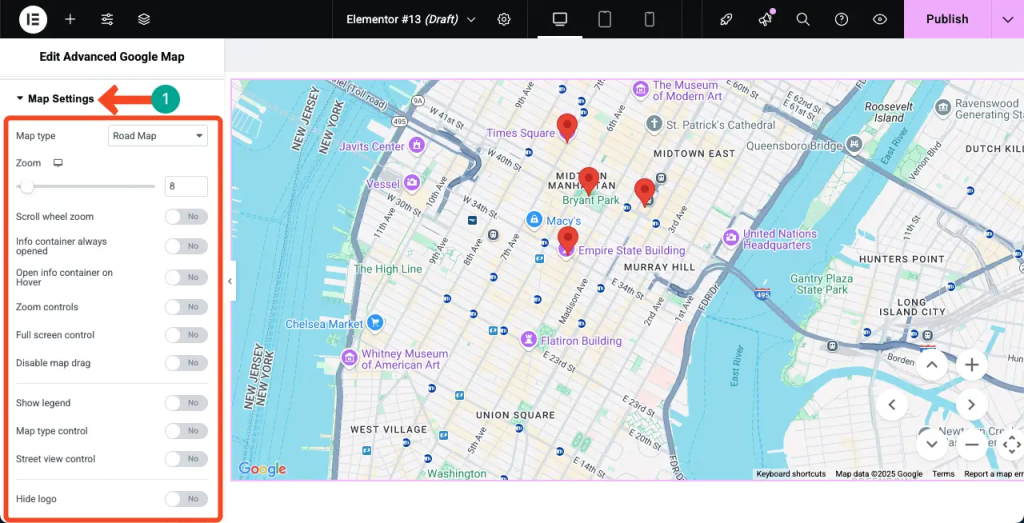
Configure your map widget with coordinates and location name
The Challenges of This Custom Code Method
While this solution is lightweight and avoids plugins, it has significant drawbacks:
- Technical Complexity: Requires editing theme files and understanding PHP/JavaScript
- Theme Dependency: The custom code may break when you update or change your theme
- Security Risks: Incorrect API key configuration can lead to unauthorized usage
- Limited Features: Adding multiple locations or advanced styling requires extensive code modifications
- Maintenance Burden: You’re responsible for keeping the code secure and functional
Get a Professional Map Widget in Minutes with MapsFun.com
Why spend hours coding and troubleshooting when you can have a better solution instantly?
MapsFun.com offers the perfect WordPress map solution without any technical hassle:
- 1. No Coding Required: Create beautiful maps with a simple visual editor
- 2. Automatic WordPress Integration: Get a dedicated plugin or simple embed code that works with any theme
- 3. Advanced Features: Multiple locations, custom markers, contact forms, and pre-designed styles
- 4. Fully Managed: No API keys, no security concerns, no maintenance needed
Stop wrestling with complex code and theme compatibility issues. Create and embed a professional, feature-rich map widget in just a few clicks at MapsFun.com.