How to Embed Google Maps Location on Website
How to Embed a Google Maps Location on Your Website: A Technical Guide
Embedding a specific Google Maps location on your “Contact Us” or “Find Us” page is a fantastic way to help customers visualize your location and get directions. While the basic embed feature is quick, creating a custom, branded map that integrates seamlessly with your site requires a more technical approach.
This guide will walk you through the professional method using the Google Maps Platform API for a fully customized result.
This method requires a Google Cloud account, enabling APIs, and basic knowledge of HTML, CSS, and JavaScript.
Method 1: The Custom Google Maps API Method
This approach gives you complete control over the map’s design, behavior, and functionality.
Step 1: Set Up the Google Maps Platform
- 1. Create a Google Cloud Project: Go to the [Google Cloud Console](https://console.cloud.google.com/), create a new project (e.g., “My Business Map”).
- 2. Enable Billing: You must enable billing on your project. Google offers a recurring $200 monthly credit, which covers most website map usage unless you have millions of page views.
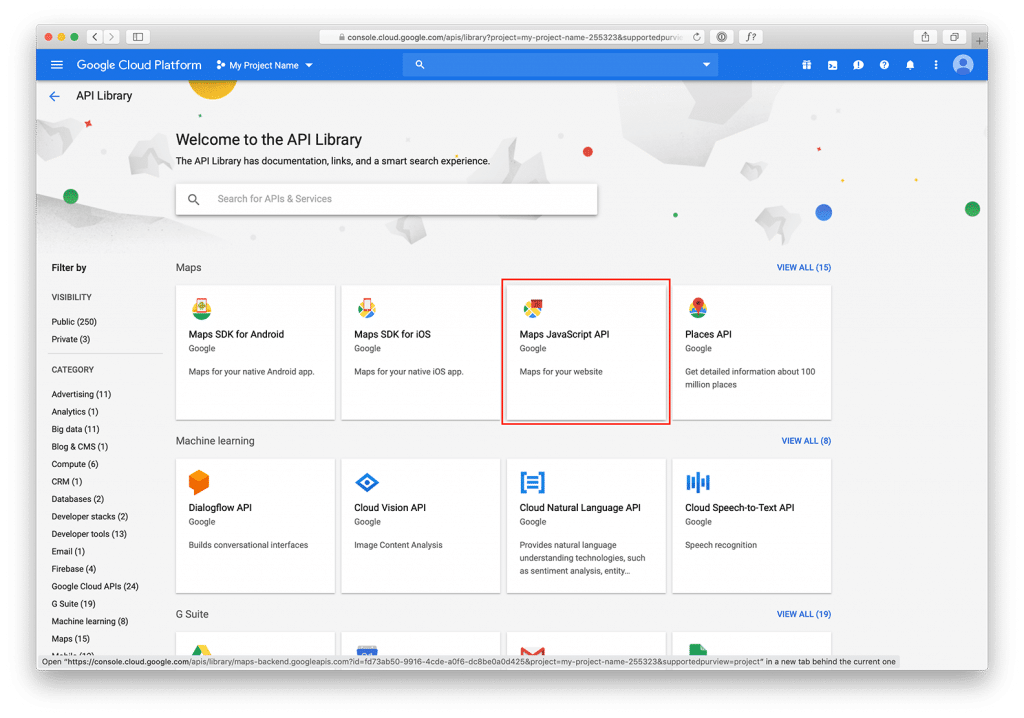
- 3. Enable the Maps JavaScript API: Navigate to “APIs & Services” > “Library”. Search for “Maps JavaScript API” and click **Enable**.
- 4. Create and Secure an API Key: Go to “Credentials”, click “Create Credentials”, and choose “API key”. Immediately restrict this key: Click on it, set “Application restrictions” to “HTTP referrers” (adding your website domain, e.g., `*.yourdomain.com/*`), and set “API restrictions” to “Maps JavaScript API”.
[Google Cloud Console API Library] You must enable the Maps JavaScript API for the custom map to work.
Step 2: Build the Custom Map Code
This code creates a responsive, styled map centered on your exact location with a custom marker and an information window.
Create an HTML file and use the following code:
<!DOCTYPE html>
<html lang="en">
<head>
    <meta charset="UTF-8">
    <meta name="viewport" content="width=device-width, initial-scale=1.0">
    <title>Our Location</title>
    <!-- Load the Google Maps API with your key -->
    <script async defer src="https://maps.googleapis.com/maps/api/js?key=YOUR_API_KEY_HERE&callback=initMap"></script>
    <style>
        /* Container for a polished look */
        .custom-map-container {
            width: 100%;
            max-width: 800px;
            margin: 2rem auto;
            border-radius: 12px;
            overflow: hidden;
            box-shadow: 0 5px 15px rgba(0,0,0,0.1);
            border: 1px solid #e1e5e9;
        }
        /* The map must have a defined height */
        #map {
            height: 450px;
            width: 100%;
        }
    </style>
</head>
<body>

    <h2>Visit Our Store</h2>
    <p>Find us conveniently located in the city center.</p>

    <div class="custom-map-container">
        <div id="map"></div>
    </div>

    <script>
        // The initMap function is called once the API is loaded
        function initMap() {
            // Define your business coordinates (e.g., Paris, France)
            const businessLocation = { lat: 48.8566, lng: 2.3522 };

            // Create a new map instance
            const map = new google.maps.Map(document.getElementById("map"), {
                zoom: 16,
                center: businessLocation,
                mapTypeControl: false, // Cleaner UI
                streetViewControl: true,
                fullscreenControl: true,
                styles: [ // Optional: A custom "silver" style
                    { "elementType": "geometry", "stylers": [{ "color": "#f5f5f5" }] },
                    { "elementType": "labels.icon", "stylers": [{ "visibility": "off" }] },
                    { "elementType": "labels.text.fill", "stylers": [{ "color": "#616161" }] },
                    { "elementType": "labels.text.stroke", "stylers": [{ "color": "#f5f5f5" }] }
                ]
            });

            // Create a custom marker
            const marker = new google.maps.Marker({
                position: businessLocation,
                map: map,
                title: "Le Boutique Paris", // Tooltip on hover
                // icon: 'custom_pin.png' // Uncomment to use a custom marker image
            });

            // Define the content for the info window
            const infoWindowContent = `
                <div style="padding: 12px; max-width: 250px;">
                    <h3 style="margin-top: 0; color: #2c3e50;">Le Boutique Paris</h3>
                    <p style="margin-bottom: 8px;">
                        📍 123 Avenue de la République<br>
                        75011 Paris, France
                    </p>
                    <p style="margin-bottom: 12px;">
                        🕒 Mon-Sat: 9AM-7PM
                    </p>
                    <a href="https://www.google.com/maps/dir/?api=1&destination=48.8566,2.3522"
                       target="_blank"
                       style="background: #4CAF50; color: white; padding: 8px 12px; text-decoration: none; border-radius: 4px; display: inline-block;">
                        Get Directions
                    </a>
                </div>
            `;

            // Create the info window
            const infowindow = new google.maps.InfoWindow({
                content: infoWindowContent
            });

            // Open the info window automatically when the page loads
            infowindow.open(map, marker);

            // Also open it when the marker is clicked
            marker.addListener('click', () => {
                infowindow.open(map, marker);
            });
        }
    </script>
</body>
</html>
Code language: HTML, XML (xml)
Critical: Replace `YOUR_API_KEY_HERE` in the script tag with the restricted API key you created in Step 1.
Step 3: Embed the Map on Your Site
- For HTML Sites: Copy the entire code into your page’s HTML.
- For WordPress: Use a “Custom HTML” block or a plugin like “Code Snippets” to paste the code.
- For Other CMS: Look for an “HTML” or “Embed Code” widget/module.
The Challenges of the DIY API Method
While this method is powerful, it presents significant hurdles:
- Technical Barrier: Managing Google Cloud, API keys, and code is not for everyone.
- Security Concerns: Incorrectly configured API keys can lead to unauthorized usage and unexpected charges.
- Time-Consuming: Writing, testing, and debugging code takes considerable effort.
- Limited Flexibility: Simple changes like updating an address or changing the map color scheme require manual code edits.
Create Stunning, Custom Maps in Minutes with MapsFun.com
Why deal with the complexity of API keys and JavaScript when you can achieve professional results instantly?
MapsFun.com is the ultimate solution for embedding beautiful, customized Google Maps without any technical knowledge.
- 1. No-Code Visual Editor: Design your perfect map with a simple point-and-click interface.
- 2. Zero API Setup: We handle all the backend complexity, security, and billing.
- 3. Advanced Customization: Easily add custom markers, contact forms, multiple locations, and choose from pre-designed map styles.
- 4. Instant Embedding: Get a clean, responsive code snippet ready to paste into any website builder or CMS.