How to Add Multiple Locations to a Map (2025 Guide)
How to Create a Map to Add Multiple Locations: A Complete Technical Guide
Need to build an interactive map where you or your users can add multiple locations? Whether for store locators, event planning, or travel itineraries, creating an “addable” map requires technical implementation. Here’s the working method using Google Maps Platform.
The Technical Implementation: Editable Map with JavaScript
This solution allows users to click on the map to add locations, which you can then save or display.
Step 1: Google Cloud Platform Setup
- 1. Go to [Google Cloud Console](https://console.cloud.google.com/)
- 2. Create a project named “Interactive Locations Map”
- 3. Enable billing (free $200 monthly credit covers substantial usage)
- 4. Enable these APIs:
- – Maps JavaScript API (for the map display)
- – Geocoding API (for address lookup)
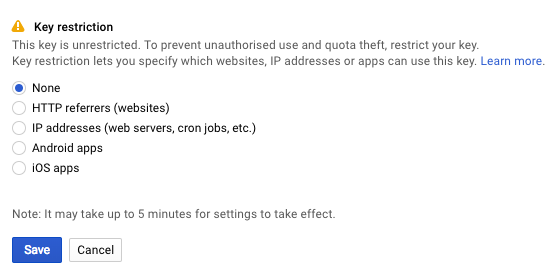
Step 2: Secure Your API Key
- 1. Navigate to Credentials → Create Credentials → API Key
- 2. Restrict immediately for security:
- – Application: HTTP referrers
- – Websites: `*.yourdomain.com/*` or `localhost/*` for testing
- – API: Maps JavaScript API and Geocoding API
Step 3: Build the Interactive Map Interface
Create `add-locations-map.html` with this complete code:
html
<!DOCTYPE html>
<html lang="en">
<head>
<meta charset="UTF-8">
<meta name="viewport" content="width=device-width, initial-scale=1.0">
<title>Interactive Map - Add Multiple Locations</title>
<style>
* {
box-sizing: border-box;
margin: 0;
padding: 0;
}
body {
font-family: -apple-system, BlinkMacSystemFont, 'Segoe UI', Roboto, Oxygen, Ubuntu, sans-serif;
background: #f5f7fa;
color: #333;
line-height: 1.6;
padding: 20px;
}
.container {
max-width: 1200px;
margin: 0 auto;
display: grid;
grid-template-columns: 1fr 350px;
gap: 25px;
}
.header {
grid-column: 1 / -1;
background: linear-gradient(135deg, #667eea 0%, #764ba2 100%);
color: white;
padding: 25px;
border-radius: 12px;
margin-bottom: 20px;
box-shadow: 0 4px 15px rgba(102, 126, 234, 0.2);
}
#map {
height: 650px;
border-radius: 12px;
box-shadow: 0 6px 25px rgba(0, 0, 0, 0.1);
}
.sidebar {
background: white;
border-radius: 12px;
padding: 25px;
box-shadow: 0 6px 25px rgba(0, 0, 0, 0.08);
overflow-y: auto;
max-height: 650px;
}
.controls {
background: #f8f9ff;
padding: 20px;
border-radius: 8px;
margin-bottom: 25px;
border: 2px dashed #d0d7ff;
}
.instructions {
background: #fff9e6;
padding: 15px;
border-radius: 8px;
border-left: 4px solid #ffc107;
margin-bottom: 20px;
}
.btn {
background: #667eea;
color: white;
border: none;
padding: 12px 24px;
border-radius: 6px;
cursor: pointer;
font-weight: 600;
transition: all 0.3s;
width: 100%;
margin-top: 10px;
}
.btn:hover {
background: #5a6fd8;
transform: translateY(-2px);
box-shadow: 0 4px 12px rgba(102, 126, 234, 0.3);
}
.btn-clear {
background: #f56565;
}
.btn-clear:hover {
background: #e53e3e;
}
.location-list {
margin-top: 20px;
}
.location-item {
background: #f8f9ff;
padding: 15px;
margin-bottom: 12px;
border-radius: 8px;
border: 1px solid #e2e8f0;
transition: all 0.2s;
}
.location-item:hover {
border-color: #667eea;
transform: translateX(5px);
}
.location-title {
font-weight: 600;
color: #2d3748;
margin-bottom: 5px;
}
.location-address {
color: #718096;
font-size: 0.9em;
}
.coordinates {
font-family: 'Courier New', monospace;
font-size: 0.85em;
color: #4a5568;
background: #edf2f7;
padding: 4px 8px;
border-radius: 4px;
display: inline-block;
margin-top: 8px;
}
.counter {
display: inline-block;
background: #667eea;
color: white;
width: 24px;
height: 24px;
border-radius: 50%;
text-align: center;
line-height: 24px;
margin-right: 10px;
font-size: 0.9em;
}
</style>
</head>
<body>
<div class="container">
<div class="header">
<h1>📍 Interactive Location Map</h1>
<p>Click anywhere on the map to add locations. Customize each marker with details.</p>
</div>
<div id="map"></div>
<div class="sidebar">
<div class="instructions">
<strong>How to use:</strong>
<ol style="margin-left: 20px; margin-top: 8px;">
<li>Click on the map to place a marker</li>
<li>Enter location details in the popup</li>
<li>Save to add to your list</li>
<li>Export or copy locations when done</li>
</ol>
</div>
<div class="controls">
<h3 style="margin-bottom: 15px;">Controls</h3>
<div style="display: grid; grid-template-columns: 1fr 1fr; gap: 10px;">
<button class="btn" onclick="exportLocations()">📋 Export Locations</button>
<button class="btn btn-clear" onclick="clearAllLocations()">🗑️ Clear All</button>
</div>
<div style="margin-top: 15px;">
<label style="display: block; margin-bottom: 8px; font-weight: 500;">
<input type="checkbox" id="autoGeocode" checked>
Auto-find address for clicks
</label>
<label style="display: block; margin-bottom: 8px; font-weight: 500;">
<input type="checkbox" id="clusterMarkers" checked>
Cluster nearby markers
</label>
</div>
</div>
<div class="location-list">
<h3 style="margin-bottom: 15px;">
Added Locations
<span id="locationCount" style="background: #e2e8f0; padding: 2px 10px; border-radius: 20px; font-size: 0.9em;">0</span>
</h3>
<div id="locationsContainer">
<!-- Location items will be added here dynamically -->
<div style="text-align: center; color: #a0aec0; padding: 30px;">
No locations added yet. Click on the map to start!
</div>
</div>
</div>
</div>
</div>
<!-- Load Google Maps API -->
<script src="https://maps.googleapis.com/maps/api/js?key=YOUR_API_KEY_HERE&libraries=geometry"></script>
<script>
// Replace with your API key
const API_KEY = 'YOUR_API_KEY_HERE';
let map;
let markers = [];
let savedLocations = [];
let geocoder;
// Initialize the map
function initMap() {
// Default center (New York)
const defaultCenter = { lat: 40.7128, lng: -74.0060 };
map = new google.maps.Map(document.getElementById('map'), {
center: defaultCenter,
zoom: 12,
mapTypeControl: true,
streetViewControl: true,
fullscreenControl: true,
styles: [
{
featureType: "poi",
elementType: "labels",
stylers: [{ visibility: "off" }]
},
{
featureType: "transit",
elementType: "labels",
stylers: [{ visibility: "off" }]
}
]
});
geocoder = new google.maps.Geocoder();
// Add click listener to map
map.addListener('click', function(event) {
addMarkerAtPosition(event.latLng);
});
// Load saved locations from localStorage
loadSavedLocations();
}
// Add a new marker at clicked position
function addMarkerAtPosition(latLng) {
// Check if auto-geocode is enabled
const autoGeocode = document.getElementById('autoGeocode').checked;
// Create a temporary marker
const tempMarker = new google.maps.Marker({
position: latLng,
map: map,
draggable: true,
animation: google.maps.Animation.DROP,
icon: {
path: google.maps.SymbolPath.CIRCLE,
fillColor: '#667eea',
fillOpacity: 1,
strokeWeight: 2,
strokeColor: '#ffffff',
scale: 10
}
});
let address = "Getting address...";
// If auto-geocode is enabled, get address
if (autoGeocode) {
geocoder.geocode({ location: latLng }, function(results, status) {
if (status === 'OK' && results[0]) {
address = results[0].formatted_address;
// Show info window for location details
showLocationDialog(latLng, address, tempMarker);
} else {
address = "Address not found";
showLocationDialog(latLng, address, tempMarker);
}
});
} else {
address = "Custom Location";
showLocationDialog(latLng, address, tempMarker);
}
}
// Show dialog for location details
function showLocationDialog(latLng, address, marker) {
const content = `
<div style="padding: 15px; min-width: 280px;">
<h3 style="margin-top: 0; color: #4a5568;">Add Location Details</h3>
<div style="margin-bottom: 15px;">
<strong>Coordinates:</strong><br>
<span style="font-family: monospace;">${latLng.lat().toFixed(6)}, ${latLng.lng().toFixed(6)}</span>
</div>
<div style="margin-bottom: 15px;">
<label style="display: block; margin-bottom: 5px; font-weight: 500;">Location Name:</label>
<input type="text" id="locationName" style="width: 100%; padding: 8px; border: 1px solid #cbd5e0; border-radius: 4px;"
placeholder="e.g., Office, Store, Meeting Point" value="${address.split(',')[0]}">
</div>
<div style="margin-bottom: 15px;">
<label style="display: block; margin-bottom: 5px; font-weight: 500;">Address:</label>
<textarea id="locationAddress" style="width: 100%; padding: 8px; border: 1px solid #cbd5e0; border-radius: 4px; height: 60px;">${address}</textarea>
</div>
<div style="margin-bottom: 15px;">
<label style="display: block; margin-bottom: 5px; font-weight: 500;">Notes (optional):</label>
<textarea id="locationNotes" style="width: 100%; padding: 8px; border: 1px solid #cbd5e0; border-radius: 4px; height: 50px;"
placeholder="Additional information"></textarea>
</div>
<div style="display: grid; grid-template-columns: 1fr 1fr; gap: 10px;">
<button onclick="saveLocation(${latLng.lat()}, ${latLng.lng()}, '${address.replace(/'/g, "\\'")}')"
style="background: #48bb78; color: white; border: none; padding: 10px; border-radius: 4px; cursor: pointer;">
✅ Save
</button>
<button onclick="cancelAddLocation()"
style="background: #a0aec0; color: white; border: none; padding: 10px; border-radius: 4px; cursor: pointer;">
❌ Cancel
</button>
</div>
</div>
`;
const infoWindow = new google.maps.InfoWindow({
content: content,
position: latLng
});
infoWindow.open(map);
marker.infoWindow = infoWindow;
}
// Save location to the list
function saveLocation(lat, lng, address) {
const name = document.getElementById('locationName').value || "Unnamed Location";
const fullAddress = document.getElementById('locationAddress').value || address;
const notes = document.getElementById('locationNotes').value || "";
const location = {
id: Date.now(),
name: name,
address: fullAddress,
lat: lat,
lng: lng,
notes: notes,
timestamp: new Date().toISOString()
};
savedLocations.push(location);
updateLocationList();
saveToLocalStorage();
// Close all info windows
markers.forEach(marker => {
if (marker.infoWindow) {
marker.infoWindow.close();
}
});
}
// Update the location list in sidebar
function updateLocationList() {
const container = document.getElementById('locationsContainer');
const countElement = document.getElementById('locationCount');
countElement.textContent = savedLocations.length;
if (savedLocations.length === 0) {
container.innerHTML = `
<div style="text-align: center; color: #a0aec0; padding: 30px;">
No locations added yet. Click on the map to start!
</div>
`;
return;
}
let html = '';
savedLocations.forEach((loc, index) => {
html += `
<div class="location-item" data-id="${loc.id}">
<div class="counter">${index + 1}</div>
<div>
<div class="location-title">${loc.name}</div>
<div class="location-address">${loc.address}</div>
<div class="coordinates">${loc.lat.toFixed(6)}, ${loc.lng.toFixed(6)}</div>
${loc.notes ? `<div style="margin-top: 8px; font-size: 0.9em; color: #718096;">📝 ${loc.notes}</div>` : ''}
</div>
</div>
`;
});
container.innerHTML = html;
}
// Export locations as JSON
function exportLocations() {
if (savedLocations.length === 0) {
alert("No locations to export!");
return;
}
const dataStr = JSON.stringify(savedLocations, null, 2);
const dataUri = 'data:application/json;charset=utf-8,'+ encodeURIComponent(dataStr);
const exportFileDefaultName = `locations-${new Date().toISOString().slice(0,10)}.json`;
const linkElement = document.createElement('a');
linkElement.setAttribute('href', dataUri);
linkElement.setAttribute('download', exportFileDefaultName);
linkElement.click();
}
// Clear all locations
function clearAllLocations() {
if (confirm("Are you sure you want to delete all locations?")) {
savedLocations = [];
markers.forEach(marker => marker.setMap(null));
markers = [];
updateLocationList();
localStorage.removeItem('savedLocations');
}
}
// Save to browser's localStorage
function saveToLocalStorage() {
localStorage.setItem('savedLocations', JSON.stringify(savedLocations));
}
// Load from localStorage
function loadSavedLocations() {
const saved = localStorage.getItem('savedLocations');
if (saved) {
savedLocations = JSON.parse(saved);
updateLocationList();
}
}
// Cancel adding location
function cancelAddLocation() {
markers.forEach(marker => {
if (marker.infoWindow) {
marker.infoWindow.close();
}
});
}
// Initialize when page loads
window.onload = initMap;
</script>
</body>
</html>
Code language: HTML, XML (xml)Step 4: Testing and Implementation
- 1. Test locally: Open in browser, click map to add locations
- 2. Save locations: Data persists via localStorage
- 3. Export: Download as JSON for database import
- 4. Embed: Use iframe or integrate into your application
The Hidden Complexities of This Approach
While functional, this DIY method has significant challenges:
- 1. Complex State Management: Handling user interactions, data persistence, and UI updates
- 2. Geocoding Limitations: Google’s geocoding API has daily quotas
- 3. No Built-in Database: Requires separate backend for permanent storage
- 4. Mobile Optimization: Touch interactions need additional programming
- 5. Export Complexity: Multiple format support (CSV, Excel, KML) requires more code
- 6. User Management: No built-in user accounts or permission system
The Professional Alternative: MapsFun.com
Why build from scratch when you can have a production-ready solution in minutes?
MapsFun.com provides a complete platform for creating interactive, addable maps:
- ✅ Zero Development – Fully functional map builder, no coding required
- ✅ Built-in Database – Locations automatically saved to cloud storage
- ✅ Advanced Geocoding – Unlimited address searches with autocomplete
- ✅ Multiple Users – Team collaboration with permission controls
- ✅ Rich Export Options – CSV, Excel, JSON, KML with one click
- ✅ Custom Forms – Create custom data fields for each location
- ✅ Embed & Share – Public maps, private links, or website embeds
With MapsFun.com you can:
- 1. Create a map in 2 minutes
- 2. Add locations via click, search, or bulk import
- 3. Customize data fields for your specific needs
- 4. Share with team members or embed on your site
- 5. Manage everything through an intuitive dashboard
Building an interactive “add locations” map from scratch requires weeks of development and ongoing maintenance. For businesses, event planners, real estate agencies, or anyone needing a reliable solution, the DIY approach quickly becomes impractical.
Skip the complexity and get straight to results. Create powerful, interactive maps where you and your users can add multiple locations instantly at MapsFun.com – the complete mapping platform without the development headaches.