How to Embed a Google Map with Multiple Locations (2025 Guide)
How to Embed a Google Map with Multiple Locations on Your Website: A Developer’s Guide
Want to show multiple store locations, event venues, or delivery zones on your site? Embedding a multi-location Google Map requires technical workarounds since there’s no direct “embed” button for custom maps. Here’s the working method that developers use.
The Technical Method: Using Google Maps Platform API
This approach gives you full control but requires programming knowledge. You’ll create a custom map with JavaScript.
Step 1: Create a Google Cloud Project & Enable Billing
- 1. Go to [Google Cloud Console](https://console.cloud.google.com/)
- 2. Create a new project (e.g., “Multi-Location Map”)
- 3. Enable billing – Google offers $200 monthly credit for Maps
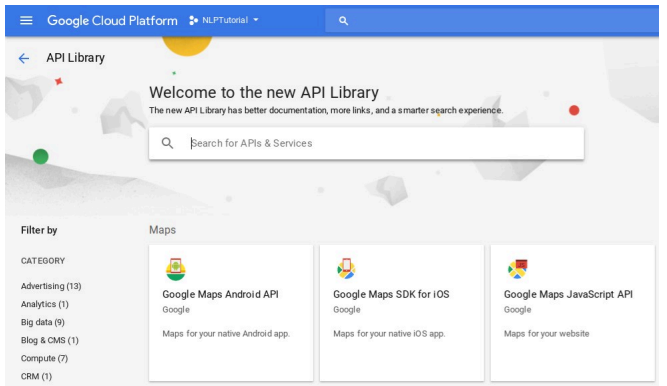
- 4. Enable these APIs in “APIs & Services”:
- – Maps JavaScript API
- – Geocoding API (to convert addresses to coordinates)
Step 2: Generate and Secure Your API Key
- 1. Navigate to Credentials > Create Credentials > API Key
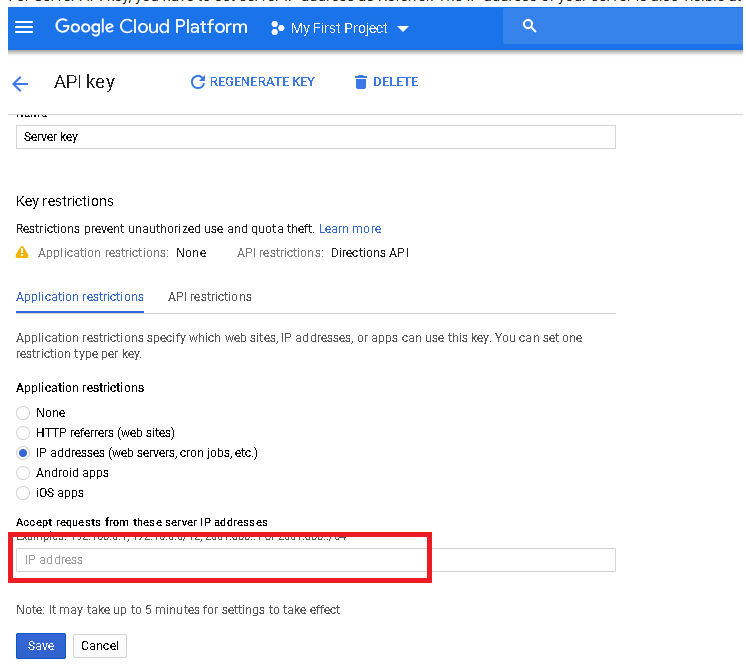
- 2. CRITICAL: Restrict your key immediately:
- – Application: HTTP referrers
- – Websites: `yourdomain.com/*`
- – APIs: Maps JavaScript API only
Step 3: Create the HTML File with JavaScript
Create `multi-location-map.html` with this code:
html
<!DOCTYPE html>
<html>
<head>
    <title>Store Locator Map</title>
    <style>
        #map-container {
            width: 100%;
            max-width: 800px;
            margin: 20px auto;
            border-radius: 10px;
            overflow: hidden;
            box-shadow: 0 4px 12px rgba(0,0,0,0.1);
        }
        #map {
            height: 500px;
            width: 100%;
        }
        .map-title {
            text-align: center;
            font-family: Arial, sans-serif;
            color: #333;
            padding: 15px;
            background: #f8f9fa;
            margin: 0;
        }
    </style>
</head>
<body>
    <div id="map-container">
        <h3 class="map-title">Our Store Locations</h3>
        <div id="map"></div>
    </div>

    <!-- Replace YOUR_API_KEY with your actual key -->
    <script src="https://maps.googleapis.com/maps/api/js?key=YOUR_API_KEY&callback=initMap" async defer></script>

    <script>
        // Store locations data
        const locations = [
            {
                name: "Downtown Store",
                address: "123 Main St, New York, NY",
                lat: 40.7128,
                lng: -74.0060,
                hours: "Mon-Fri: 9AM-8PM"
            },
            {
                name: "Brooklyn Branch",
                address: "456 Park Ave, Brooklyn, NY",
                lat: 40.6782,
                lng: -73.9442,
                hours: "Mon-Sun: 10AM-9PM"
            },
            {
                name: "Queens Warehouse",
                address: "789 Broadway, Queens, NY",
                lat: 40.7282,
                lng: -73.7949,
                hours: "Mon-Fri: 8AM-6PM"
            }
        ];

        function initMap() {
            // Center map on average coordinates
            const center = {
                lat: locations.reduce((sum, loc) => sum + loc.lat, 0) / locations.length,
                lng: locations.reduce((sum, loc) => sum + loc.lng, 0) / locations.length
            };

            const map = new google.maps.Map(document.getElementById("map"), {
                zoom: 11,
                center: center,
                styles: [
                    {
                        featureType: "poi.business",
                        stylers: [{ visibility: "off" }]
                    }
                ]
            });

            // Create markers with info windows
            locations.forEach((location) => {
                const marker = new google.maps.Marker({
                    position: { lat: location.lat, lng: location.lng },
                    map: map,
                    title: location.name,
                    animation: google.maps.Animation.DROP
                });

                const infoWindow = new google.maps.InfoWindow({
                    content: `
                        <div style="padding: 10px; min-width: 200px;">
                            <h4 style="margin-top: 0; color: #1a73e8;">${location.name}</h4>
                            <p style="margin: 5px 0;">📍 ${location.address}</p>
                            <p style="margin: 5px 0; color: #5f6368;">⏰ ${location.hours}</p>
                            <a href="https://maps.google.com/?q=${encodeURIComponent(location.address)}"
                               target="_blank"
                               style="color: #1a73e8; text-decoration: none;">
                               Get Directions →
                            </a>
                        </div>
                    `
                });

                marker.addListener("click", () => {
                    infoWindow.open(map, marker);
                });
            });
        }
    </script>
</body>
</html>
Code language: HTML, XML (xml)
Step 4: Test and Embed
- 1. Open the HTML file in your browser
- 2. If markers appear, your API key works
- 3. To embed on WordPress or other CMS:
- – Use a Custom HTML block
- – Paste the entire code
- – Or host the file and embed via iframe
Why This Method Is Problematic for Most Users
While powerful, this approach has significant drawbacks:
- 1. Technical Barrier: Requires JavaScript knowledge
- 2. Billing Complexity: Even with free credits, you must monitor usage
- 3. API Key Management: Security risks if not properly restricted
- 4. Manual Updates: Need to edit code for every location change
- 5. No Visual Editor: All coordinates must be found and entered manually
- 6. Responsive Issues: May need additional CSS for mobile devices
The Simple Alternative: MapsFun.com
What if you could create the same professional map in 2 minutes without coding?
[MapsFun.com](https://mapsfun.com) solves all these problems:
- ✅ No Code Required – Visual drag-and-drop editor
- ✅ No API Keys – We handle all technical backend
- ✅ Live Search – Type addresses, no coordinate hunting
- ✅ Rich Customization – Choose icons, colors, map styles visually
- ✅ Auto-Responsive – Works perfectly on all devices
- ✅ Easy Updates – Edit locations anytime through simple dashboard
- ✅ Direct Embed – Copy-paste one line of code into any website
Here’s the MapsFun.com workflow:
- 1. Sign up for free
- 2. Click “Add Location” and type addresses
- 3. Customize design with intuitive controls
- 4. Copy your unique embed code
- 5. Paste into your website – done!
While the Google Maps API method works for developers, non-technical users often struggle with its complexity. For business owners, marketers, or anyone needing a reliable multi-location map quickly, MapsFun.com provides the same professional result without the technical headache.
Stop wrestling with code and API configurations. Create, customize, and embed your multi-location map in minutes at MapsFun.com.