Map Tool to Plot Multiple Locations (2025 Guide)
Map Tool to Plot Multiple Locations: Build Your Own vs. The Professional Solution
Need a tool to plot 10, 100, or 1,000 locations on a map for your website? You essentially have two paths: build a basic tool using Google’s free “My Maps” and then hack it onto your site, or use dedicated software. This guide walks you through the first method and shows you why the second is better for professional use.
Method 1: The “DIY Tool” Using Google My Maps & Custom Code
Google My Maps is a great free tool for personal planning. With some technical work, you can attempt to turn it into a public-facing map tool. Here’s how.
Step 1: Create Your Map and Plot Locations
1. Go to [Google My Maps](https://www.google.com/maps/d/)
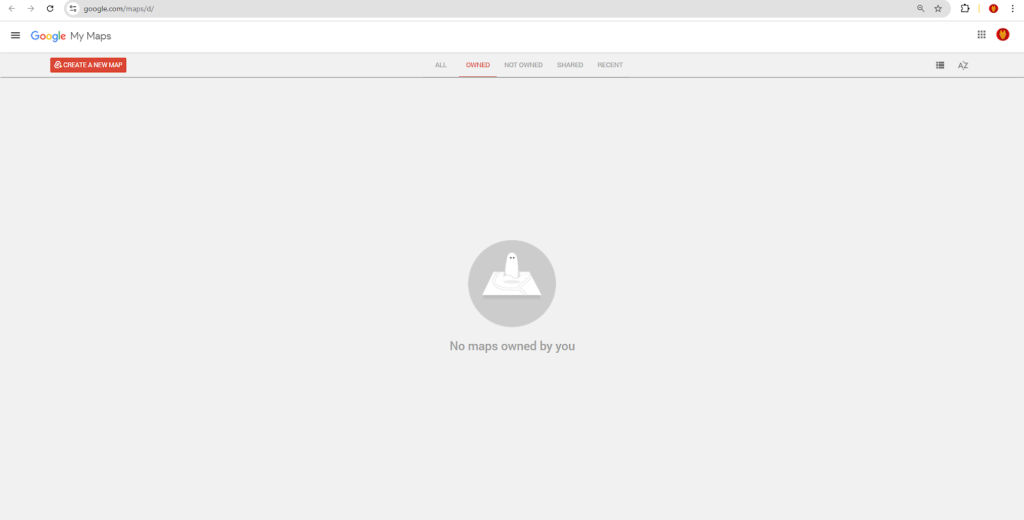
2. Click “Create a New Map.”
3. Use the search bar or the marker tool to plot your first location. Click the pin, then “Add to map.”
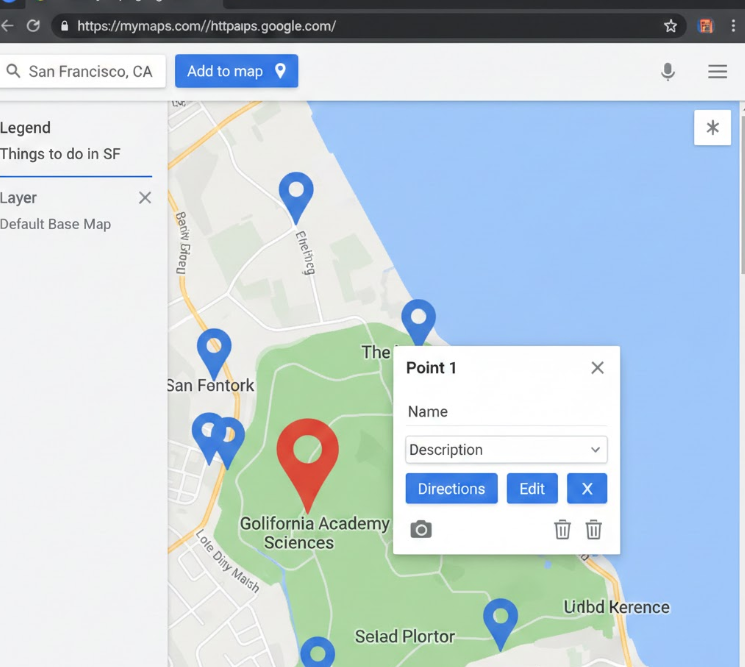
4. For multiple locations, use the import feature: Click “Import” and upload a CSV file with your addresses in one column. My Maps will attempt to geocode them.
csv
Name,Address,Type
Store Central,123 Main St, New York, NY,Retail
Warehouse West,456 Industrial Blvd, Brooklyn, NY,Warehouse
Office Park,789 Business Ave, Jersey City, NJ,Office
Code language: PHP (php)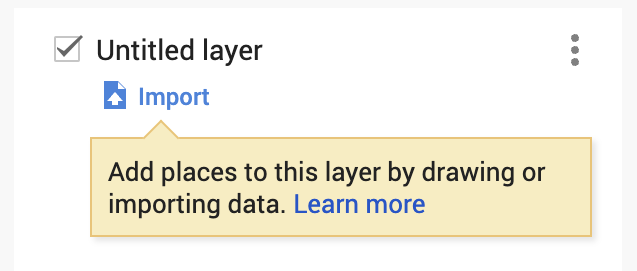
5. Style your layers and markers by color or icon based on the “Type” column.
Step 2: Attempt to Embed It on Your Website
This is where the “free tool” becomes a technical project. The standard embed from My Maps is limited and often visually clunky.
- 1. In My Maps, click “Share” and set the map to “Public on the web.”
- 2. Click the three-dot menu next to the map title, then “Embed on my site.”
- 3. You’ll get an `<iframe>` code snippet.
html
<iframe src="https://www.google.com/maps/d/embed?mid=YOUR_UNIQUE_MAP_ID&ehbc=2E312F" width="640" height="480"></iframe>Code language: HTML, XML (xml)4. Paste this into an HTML block on your website.
The Immediate Problems You’ll Encounter:
- Branding & Clutter: The embedded map shows a large “Google My Maps” title bar, layer toggles, and a default UI that you cannot remove.
- Limited Control: Styling options are minimal. You cannot truly customize the look to match your site.
- Poor Mobile Experience: The iframe often doesn’t resize well, and the interface is not touch-optimized for visitors.
- No Advanced Features: Want visitors to filter locations by type, search within radius, or see a clean list view? Not possible.
Step 3: Trying to “Fix” It with the Google Maps Embed API
To get a cleaner look, developers often turn to the Google Maps Embed API, but this requires manually plotting each location with coordinates.
- Get Coordinates for Each Location: You’d first need to geocode each address to get its Lat/Lng (using another tool or API).
- Construct a Complex URL: The Embed API supports multiple markers via a long, unwieldy URL parameter.
html
<iframe
  width="800"
  height="600"
  frameborder="0"
  src="https://www.google.com/maps/embed/v1/search?key=YOUR_API_KEY&q=40.7128,-74.0060&q=40.6782,-73.9442&q=40.7489,-73.9680&zoom=12" allowfullscreen>
</iframe>
Code language: HTML, XML (xml)
The `q=` parameter with coordinates is a hacky workaround; the official “multiple markers” feature is not straightforward in the basic Embed API.
This method is fragile and scales poorly. Managing 50 locations this way is a nightmare. You have no popups, no custom icons, and no clustering.
The Core Issue: You’re Using a Planning Tool, Not a Presentation Tool
Google My Maps is designed for planning, not for creating elegant, branded, interactive maps for website visitors. To build a true “map tool,” you’d need to move to the full Google Maps Platform and write hundreds of lines of JavaScript to handle data, clustering, styling, and controls—essentially, building your own tool from scratch.
Method 2: A Dedicated Map Tool Built for the Job
What if you could skip all the hacking, coding, and limitations? A professional map tool is designed from the ground up to plot multiple locations and share them beautifully.
MapsFun.com is exactly that kind of tool. It takes the core idea of My Maps—easy plotting—and turns it into a powerful, clean, embeddable solution for businesses.
How a Real Map Tool Simplifies the Process:
- 1. Import & Plot in One Step: Just like My Maps, you upload a CSV or Excel file. Unlike My Maps, the resulting map is automatically styled for public presentation.
- 2. Full Design Control: Remove all unwanted branding. Choose from multiple map styles (not just Google), customize marker icons and colors by category, and design clean info windows.
- 3. Add Powerful Visitor Features with Clicks:
- Live Filters: Let visitors filter your plotted locations by type (e.g., “Show only Warehouses”) using a sleek dropdown you add in the editor.
- List + Map View: Provide a scrollable list of locations alongside the map.
- Advanced Search: Add a search box for addresses or names.
- 4. Get a Clean, Professional Embed: The embed code you get produces a responsive, fast-loading map that looks like a native part of your website, not a bulky iframe from another tool.
Stop using a planning tool for a presentation job. If you need a reliable, elegant, and feature-rich map tool to plot multiple locations for your clients or visitors, MapsFun.com turns a complex coding project into a 5-minute task. Go from a spreadsheet to a professional interactive map, ready to embed, with no technical hurdles.