How to Integrate Google Maps with HubSpot
The Complete Guide to HubSpot Google Maps Integration (The Developer-Intensive Approach)
Want to display dynamic Google Maps in your HubSpot portal—showing store locations, client addresses, or service areas? While HubSpot excels at CRM and marketing automation, it lacks native mapping capabilities. This guide details the technically complex but functional method to integrate Google Maps with HubSpot data.
Understanding the Challenge
HubSpot stores location data in Contact, Company, or Deal properties, but there’s no “Map View” module. To create a map, you must:
- 1. Extract data from HubSpot
- 2. Transform addresses into coordinates
- 3. Build a custom web page with Google Maps API
- 4. Embed this page into HubSpot
Part 1: Extracting HubSpot Data via API
First, you need to programmatically access your HubSpot data.
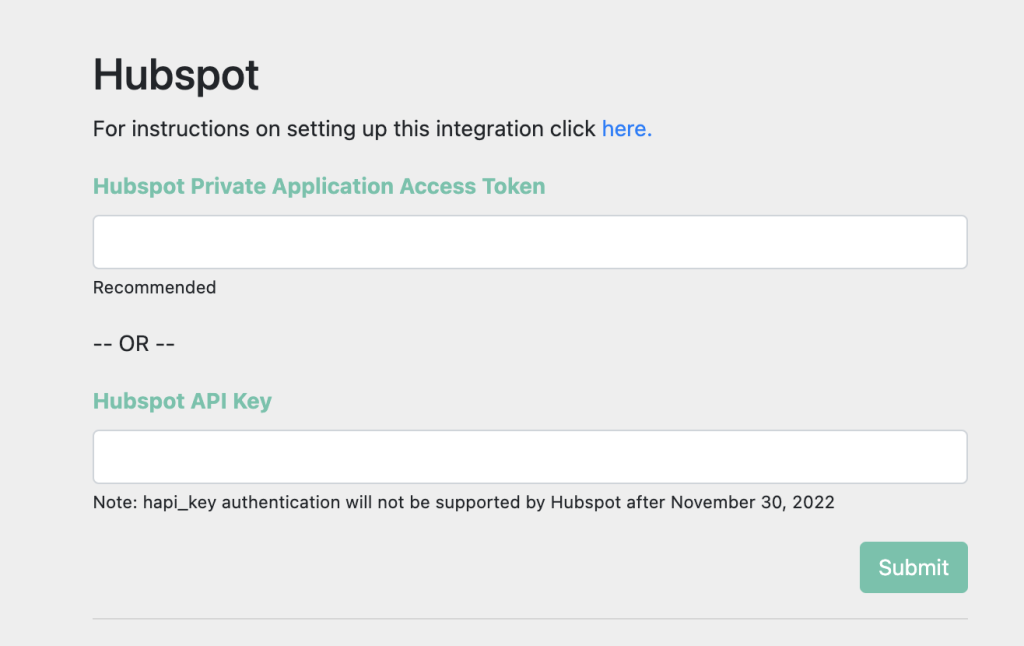
Step 1: Get HubSpot API Key
- 1. In your HubSpot account, go to Settings > Integrations > API Key
- 2. Generate a private app or get your API key with appropriate scopes (`crm.objects.contacts.read`, `crm.objects.companies.read`)
Step 2: Fetch Contacts/Companies with Address Data
You’ll need to write a server-side script (Node.js/Python) to fetch data. Here’s a Node.js example:
javascript
const axios = require('axios');

const HUBSPOT_API_KEY = 'your-hubspot-api-key-here';
const PROPERTIES_TO_FETCH = 'firstname,lastname,address,city,state,zip';

async function fetchHubSpotContacts() {
  try {
    const response = await axios.get(
      `https://api.hubapi.com/crm/v3/objects/contacts`,
      {
        params: {
          limit: 100,
          properties: PROPERTIES_TO_FETCH,
        },
        headers: {
          Authorization: `Bearer ${HUBSPOT_API_KEY}`,
        },
      }
    );

    return response.data.results.filter(contact =>
      contact.properties.address &&
      contact.properties.city
    );
  } catch (error) {
    console.error('Error fetching HubSpot data:', error);
    return [];
  }
}

// This returns data like:
// [
//   {
//     id: "123",
//     properties: {
//       firstname: "John",
//       lastname: "Doe",
//       address: "123 Main St",
//       city: "Boston",
//       state: "MA",
//       zip: "02110"
//     }
//   }
// ]
Code language: JavaScript (javascript)
Part 2: Geocoding Addresses
Google Maps requires latitude/longitude coordinates, not street addresses.
Step 3: Set Up Google Cloud for Geocoding
- 1. Create a Google Cloud project
- 2. Enable the Geocoding API and Maps JavaScript API
- 3. Create and restrict an API key
Step 4: Geocode HubSpot Addresses
Add this geocoding function to your script:
javascript
async function geocodeAddresses(contacts) {
  const GOOGLE_API_KEY = 'your-google-maps-api-key';
  const geocodedContacts = [];

  for (const contact of contacts) {
    const fullAddress = `${contact.properties.address}, ${contact.properties.city}, ${contact.properties.state} ${contact.properties.zip}`;

    try {
      const response = await axios.get(
        `https://maps.googleapis.com/maps/api/geocode/json`,
        {
          params: {
            address: fullAddress,
            key: GOOGLE_API_KEY,
          },
        }
      );

      if (response.data.results.length > 0) {
        const location = response.data.results[0].geometry.location;
        geocodedContacts.push({
          ...contact,
          coordinates: {
            lat: location.lat,
            lng: location.lng,
          },
          formattedAddress: response.data.results[0].formatted_address,
        });
      }
    } catch (error) {
      console.error(`Geocoding failed for ${fullAddress}:`, error);
    }
  }

  return geocodedContacts;
}
Code language: JavaScript (javascript)
This is a batch process you must run periodically. HubSpot address updates won’t automatically reflect on your map.
Part 3: Building the Map Interface
Step 5: Create the Map HTML/JavaScript Page
Create a standalone HTML file that displays your HubSpot data:
html
<!DOCTYPE html>
<html>
<head>
    <title>HubSpot Contacts Map</title>
    <script src="https://maps.googleapis.com/maps/api/js?key=YOUR_GOOGLE_MAPS_KEY"></script>
    <style>
        #hubspot-map {
            height: 700px;
            width: 100%;
            border-radius: 8px;
        }
        .map-sidebar {
            background: white;
            padding: 20px;
            border-right: 1px solid #ddd;
            width: 300px;
            overflow-y: auto;
        }
        .contact-item {
            padding: 10px;
            border-bottom: 1px solid #eee;
            cursor: pointer;
        }
        .contact-item:hover {
            background: #f5f5f5;
        }
    </style>
</head>
<body>
    <div style="display: flex;">
        <div class="map-sidebar" id="contacts-list">
            <h3>HubSpot Contacts</h3>
            <!-- Dynamically populated -->
        </div>
        <div id="hubspot-map"></div>
    </div>

    <script>
        // This data should come from your server/API endpoint
        const hubspotContacts = [
            {
                id: "123",
                name: "John Doe",
                address: "123 Main St, Boston, MA 02110",
                lat: 42.355433,
                lng: -71.060511,
                company: "ABC Corp",
                dealStage: "Closed Won"
            }
            // Add more contacts from your HubSpot data
        ];

        function initMap() {
            const map = new google.maps.Map(document.getElementById('hubspot-map'), {
                zoom: 10,
                center: { lat: 42.360081, lng: -71.058884 }, // Boston center
                styles: [
                    {
                        featureType: "poi.business",
                        stylers: [{ visibility: "off" }]
                    }
                ]
            });

            const sidebar = document.getElementById('contacts-list');
            const infoWindow = new google.maps.InfoWindow();

            // Clear sidebar except title
            sidebar.innerHTML = '<h3>HubSpot Contacts</h3>';

            hubspotContacts.forEach(contact => {
                // Create marker
                const marker = new google.maps.Marker({
                    position: { lat: contact.lat, lng: contact.lng },
                    map: map,
                    title: contact.name
                });

                // Create sidebar item
                const contactElement = document.createElement('div');
                contactElement.className = 'contact-item';
                contactElement.innerHTML = `
                    <strong>${contact.name}</strong><br>
                    <small>${contact.company || ''}</small><br>
                    <small style="color: #666;">${contact.address}</small>
                `;

                sidebar.appendChild(contactElement);

                // Add click events
                marker.addListener('click', () => {
                    infoWindow.setContent(`
                        <div style="padding: 10px; min-width: 200px;">
                            <h4 style="margin: 0 0 5px 0;">${contact.name}</h4>
                            <p style="margin: 0 0 5px 0; color: #666;">${contact.company || ''}</p>
                            <p style="margin: 0 0 5px 0; font-size: 12px;">${contact.address}</p>
                            ${contact.dealStage ? `<span style="background: #4CAF50; color: white; padding: 2px 8px; border-radius: 10px; font-size: 12px;">${contact.dealStage}</span>` : ''}
                        </div>
                    `);
                    infoWindow.open(map, marker);
                });

                contactElement.addEventListener('click', () => {
                    map.panTo(marker.getPosition());
                    map.setZoom(14);
                    infoWindow.setContent(`<div>${contact.name}</div>`);
                    infoWindow.open(map, marker);
                });
            });
        }

        // Initialize map when page loads
        window.onload = initMap;
    </script>
</body>
</html>
Code language: HTML, XML (xml)
Part 4: Integrating with HubSpot
Step 6: Embed in HubSpot
- 1. Host your map page on a web server or static hosting service
- 2. In HubSpot, create a Landing Page or Website Page
- 3. Add an Embed module (if using CMS Hub) or HTML module
- 4. Insert an iframe pointing to your hosted map:
html
<iframe
  src="https://your-domain.com/hubspot-map.html"
  width="100%"
  height="750"
  frameborder="0"
  style="border: 1px solid #ddd; border-radius: 8px;"
  allowfullscreen>
</iframe>Code language: HTML, XML (xml)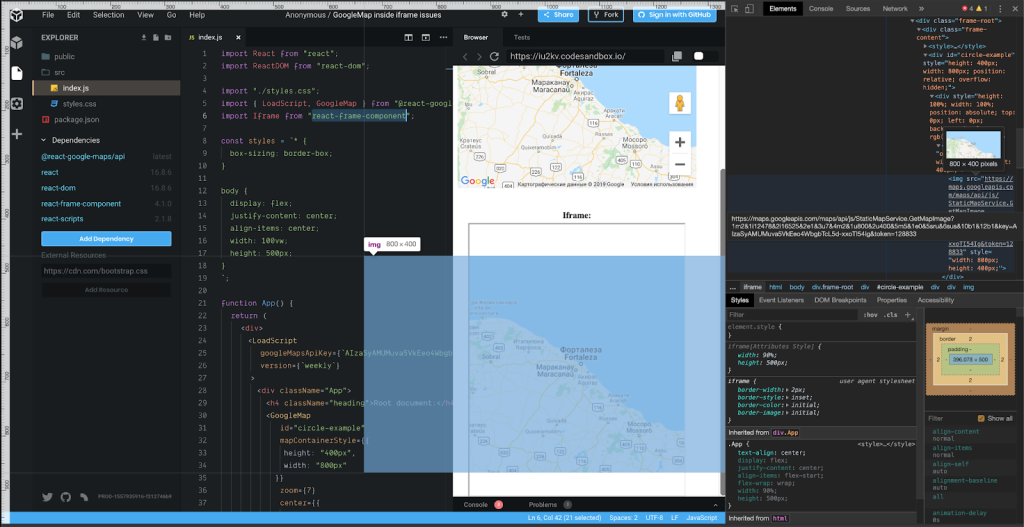
The Six Major Challenges with This Approach
- 1. Dual API Management: Maintaining both HubSpot and Google Cloud APIs
- 2. Data Sync Issues: Map doesn’t update in real-time with HubSpot changes
- 3. Geocoding Costs: Google charges $5-7 per 1000 geocoded addresses
- 4. Performance Overhead: Multiple API calls slow down page load
- 5. Security Risks: Exposing API keys in client-side code
- 6. Maintenance Burden: Any HubSpot property changes require code updates
The Complex Data Flow Diagram
[HubSpot CRM Data]
       ↓ (API Calls with OAuth)
[Custom Server Script]
       ↓ (Geocoding API - $ Cost)
[Coordinate Database]
       ↓ (Static HTML Generation)
[Hosted Map Page]
       ↓ (Iframe Embed)
[HubSpot Page]
       ↓ (Browser Rendering)
[Final Displayed Map]
Code language: JavaScript (javascript)
Each step introduces latency, cost, and potential failure points.
The HubSpot-Native Alternative: MapsFun.com
What if you could create dynamic, interactive maps directly from your HubSpot data without writing a single line of code or managing APIs?
MapsFun.com offers seamless HubSpot integration with a visual, no-code approach:
- -Direct HubSpot Connection: Connect your portal in one click—no API keys to manage
- -Automatic Data Sync: Map updates instantly when contacts/companies change in HubSpot
- -Smart Geocoding: Addresses automatically convert to coordinates (no per-request fees)
- -Visual HubSpot Filtering: Use HubSpot lists and properties to filter map displays
- -Native HubSpot Styling: Maps match your brand’s look and feel
- -Embed Anywhere: Use in HubSpot pages, emails, or external websites
Stop building and maintaining complex integration pipelines. With MapsFun.com, you can create stunning, real-time maps from your HubSpot data in under 5 minutes—no development team required. Focus on leveraging your CRM data, not building the plumbing to display it.