How Local Businesses Can Leverage Google Maps
How to Add Your Local Business to Google Maps and Embed It on Your Website
For any local business, being visible on Google Maps is crucial for attracting customers. But did you know you can also embed an interactive map directly on your website? While Google provides the tools to do this manually, the process involves several technical steps. This guide will show you both the manual method and a much simpler alternative.
The manual approach requires technical knowledge of Google Cloud Platform and basic coding.
Part 1: Getting Your Business on Google Maps
Step 1: Claim Your Business on Google Business Profile
- 1. Go to [Google Business Profile](https://www.google.com/business/) and click “Manage now”
- 2. Enter your business name and address
- 3. Verify your business through postcard, phone, or email
- 4. Complete your profile with photos, hours, and services
Complete your Google Business Profile to appear in local searches and maps.
Part 2: Embedding an Interactive Map on Your Website
Method 1: The Technical Approach with Google Maps API
This method gives you full control but requires coding and API management.
Step 1: Set Up Google Cloud Project & API Keys
- 1. Create a Google Cloud Project: Visit the [Google Cloud Console](https://console.cloud.google.com/), create a new project, and enable billing (the $200 monthly credit covers most small business usage)
- 2. Enable Required APIs: Go to “APIs & Services > Library” and enable:
- Maps JavaScript API
- Geocoding API
- Places API
- 3. Generate API Key: Create credentials and restrict your API key to the three APIs above and your website domain
Always restrict your API keys to prevent unauthorized usage and charges.
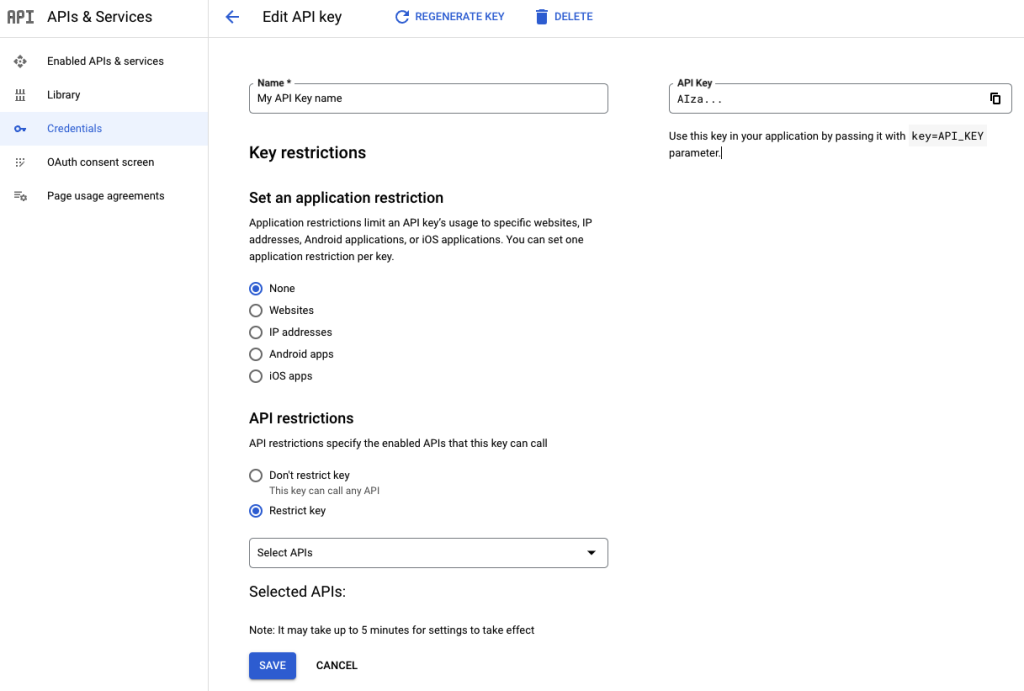
Step 2: Create the Interactive Business Map
Here’s code for a professional business map with directions functionality and business information.
Create a file named `business-map.html`:
html
<!DOCTYPE html>
<html lang="en">
<head>
    <meta charset="UTF-8">
    <meta name="viewport" content="width=device-width, initial-scale=1.0">
    <title>Visit Our Location | Your Business Name</title>
    <script async defer src="https://maps.googleapis.com/maps/api/js?key=YOUR_API_KEY_HERE&callback=initMap&libraries=places"></script>
    <style>
        .business-map-container {
            display: grid;
            grid-template-columns: 1fr 1fr;
            gap: 2rem;
            max-width: 1200px;
            margin: 2rem auto;
            padding: 0 1rem;
        }

        .map-info-card {
            background: #f8f9fa;
            padding: 2rem;
            border-radius: 8px;
        }

        .business-hours {
            margin: 1.5rem 0;
        }

        .hours-list {
            list-style: none;
            padding: 0;
        }

        .hours-list li {
            display: flex;
            justify-content: space-between;
            padding: 0.5rem 0;
            border-bottom: 1px solid #dee2e6;
        }

        .directions-form {
            margin-top: 1.5rem;
        }

        .form-group {
            margin-bottom: 1rem;
        }

        .form-input {
            width: 100%;
            padding: 0.75rem;
            border: 1px solid #ced4da;
            border-radius: 4px;
            font-size: 1rem;
        }

        .get-directions-btn {
            background: #007bff;
            color: white;
            padding: 0.75rem 1.5rem;
            border: none;
            border-radius: 4px;
            cursor: pointer;
            font-size: 1rem;
        }

        #map {
            height: 500px;
            border-radius: 8px;
            box-shadow: 0 2px 10px rgba(0,0,0,0.1);
        }

        .contact-info {
            margin: 1rem 0;
        }

        @media (max-width: 768px) {
            .business-map-container {
                grid-template-columns: 1fr;
            }
        }
    </style>
</head>
<body>
    <div class="business-map-container">
        <div class="map-info-card">
            <h1>Visit Our Store</h1>
            <div class="contact-info">
                <p><strong>Address:</strong><br>123 Main Street<br>Your City, State 12345</p>
                <p><strong>Phone:</strong> (555) 123-4567</p>
                <p><strong>Email:</strong> info@yourbusiness.com</p>
            </div>

            <div class="business-hours">
                <h3>Business Hours</h3>
                <ul class="hours-list">
                    <li><span>Monday - Friday:</span> <span>9:00 AM - 6:00 PM</span></li>
                    <li><span>Saturday:</span> <span>10:00 AM - 4:00 PM</span></li>
                    <li><span>Sunday:</span> <span>Closed</span></li>
                </ul>
            </div>

            <div class="directions-form">
                <h3>Get Directions</h3>
                <div class="form-group">
                    <input type="text" id="start-address" class="form-input" placeholder="Enter your starting address">
                </div>
                <button class="get-directions-btn" onclick="calculateRoute()">Get Directions</button>
            </div>
        </div>

        <div id="map"></div>
    </div>

    <script>
        let map;
        let directionsService;
        let directionsRenderer;
        let businessMarker;

        // Your business coordinates (replace with your actual coordinates)
        const businessLocation = { lat: 40.7128, lng: -74.0060 }; // New York coordinates

        function initMap() {
            // Initialize the map
            map = new google.maps.Map(document.getElementById('map'), {
                center: businessLocation,
                zoom: 15,
                styles: [
                    {
                        "featureType": "poi.business",
                        "stylers": [{ "visibility": "on" }]
                    }
                ]
            });

            // Initialize directions service
            directionsService = new google.maps.DirectionsService();
            directionsRenderer = new google.maps.DirectionsRenderer();
            directionsRenderer.setMap(map);

            // Add your business marker
            businessMarker = new google.maps.Marker({
                position: businessLocation,
                map: map,
                title: 'Your Business Name',
                icon: {
                    url: 'https://maps.google.com/mapfiles/ms/icons/blue-dot.png',
                    scaledSize: new google.maps.Size(40, 40)
                }
            });

            // Add info window for your business
            const infoWindow = new google.maps.InfoWindow({
                content: `
                    <div style="padding: 1rem;">
                        <h3 style="margin: 0 0 0.5rem 0;">Your Business Name</h3>
                        <p style="margin: 0 0 0.5rem 0;">123 Main Street<br>Your City, State 12345</p>
                        <p style="margin: 0 0 0.5rem 0;"><strong>Hours:</strong> Mon-Fri 9AM-6PM</p>
                        <a href="tel:555-123-4567" style="color: #007bff;">(555) 123-4567</a>
                    </div>
                `
            });

            businessMarker.addListener('click', () => {
                infoWindow.open(map, businessMarker);
            });

            // Add nearby businesses or points of interest
            addNearbyLocations();
        }

        function addNearbyLocations() {
            // Example nearby locations (parking, public transport, etc.)
            const nearbyLocations = [
                {
                    position: { lat: 40.7138, lng: -74.0065 },
                    title: 'Public Parking',
                    type: 'parking'
                },
                {
                    position: { lat: 40.7120, lng: -74.0055 },
                    title: 'Subway Station',
                    type: 'transport'
                }
            ];

            nearbyLocations.forEach(location => {
                new google.maps.Marker({
                    position: location.position,
                    map: map,
                    title: location.title,
                    icon: {
                        url: getLocationIcon(location.type),
                        scaledSize: new google.maps.Size(25, 25)
                    }
                });
            });
        }

        function getLocationIcon(type) {
            const icons = {
                'parking': 'https://maps.google.com/mapfiles/ms/icons/green-dot.png',
                'transport': 'https://maps.google.com/mapfiles/ms/icons/yellow-dot.png'
            };
            return icons[type] || 'https://maps.google.com/mapfiles/ms/icons/red-dot.png';
        }

        function calculateRoute() {
            const startAddress = document.getElementById('start-address').value;

            if (!startAddress) {
                alert('Please enter your starting address');
                return;
            }

            const request = {
                origin: startAddress,
                destination: businessLocation,
                travelMode: 'DRIVING'
            };

            directionsService.route(request, function(result, status) {
                if (status == 'OK') {
                    directionsRenderer.setDirections(result);

                    // Show route summary
                    const route = result.routes[0].legs[0];
                    const summary = `
                        <div style="margin-top: 1rem; padding: 1rem; background: #e9ecef; border-radius: 4px;">
                            <strong>Route Summary:</strong><br>
                            Distance: ${route.distance.text}<br>
                            Duration: ${route.duration.text}
                        </div>
                    `;

                    const existingSummary = document.querySelector('.route-summary');
                    if (existingSummary) {
                        existingSummary.remove();
                    }

                    const directionsForm = document.querySelector('.directions-form');
                    const summaryDiv = document.createElement('div');
                    summaryDiv.className = 'route-summary';
                    summaryDiv.innerHTML = summary;
                    directionsForm.appendChild(summaryDiv);
                } else {
                    alert('Could not calculate directions. Please check the address and try again.');
                }
            });
        }

        // Add autocomplete to start address input
        function initAutocomplete() {
            const startInput = document.getElementById('start-address');
            const autocomplete = new google.maps.places.Autocomplete(startInput);
            autocomplete.bindTo('bounds', map);
        }

        // Initialize autocomplete when the API loads
        if (typeof google !== 'undefined') {
            initAutocomplete();
        }
    </script>
</body>
</html>
Code language: HTML, XML (xml)
Critical Step: Replace `YOUR_API_KEY_HERE` with your actual Google Maps API key.
Step 3: Embed on Your Business Website
Add this HTML file to your website using your platform’s embed functionality or by uploading it to your web server.
The Challenges of Manual Google Maps Integration
While the technical approach works, local business owners face several hurdles:
- – API Key Management: Securing and maintaining API keys requires technical knowledge
- – Geocoding Complexity: Converting addresses to coordinates accurately can be challenging
- – Mobile Optimization: Ensuring the map works perfectly on all devices requires additional coding
- – Style Customization: Matching the map’s appearance to your brand requires CSS expertise
- – Maintenance Overhead: API changes and browser updates require ongoing attention
- – Cost Uncertainty: High traffic could lead to unexpected Google Maps API charges
The Simple Solution for Local Businesses: MapsFun.com
Why struggle with complex code and API management when you can have a professional map in minutes?
MapsFun.com is designed specifically for local businesses that need beautiful, functional maps without the technical complexity:
- No Coding Required: Create and customize your map through a simple visual interface
- Automatic Geocoding: Just enter your address – we handle the coordinates automatically
- Built-in Directions: Get turn-by-turn directions functionality without any setup
- Brand Matching: Easily customize colors and styles to match your business branding
- Zero Maintenance: We handle all updates, security, and performance optimization
- Cost-Effective: Predictable pricing with no surprise API charges
Stop wrestling with code and focus on your business. Create a professional Google Maps integration that drives customers to your door. Get started today at MapsFun.com.