How to Embed Google Maps in Drupal
How to Add Google Maps with Multiple Locations to Your Drupal Website
Integrating Google Maps into Drupal for displaying multiple locations is a common requirement for businesses, event sites, and organizations. While Drupal offers robust mapping solutions, the setup process involves multiple modules, API configurations, and technical steps. This guide walks you through the complete process and introduces a simpler alternative.
Understanding Drupal’s Mapping Ecosystem
Drupal has two main mapping approaches:
- 1. Geofield + Geolocation modules (Modern, recommended for Drupal 9/10)
- 2. Google Maps Field module (Simpler but less flexible)
- 3. Custom integration (Full control but complex)
Method 1: Using Geofield & Geolocation Modules (Drupal 9/10)
This is the most powerful but complex method, recommended for serious mapping needs
Step 1: Install Required Modules
bash
# Using Composer (recommended)
composer require drupal/geofield
composer require drupal/geolocation
composer require drupal/geolocation_googlemaps
Code language: PHP (php)
Or via Drupal UI:
Admin → Extend → Install new module
Required modules:
- – Geofield (Stores geographic data)
- – Geolocation (Provides mapping capabilities)
- – Geolocation Google Maps (Google Maps integration)
- – Address (Optional, for address management)
Step 2: Configure Google Maps API Key
Critical: You must have a Google Cloud account with billing enabled.
- 1. Create API Key:
- javascript
- javascript
 // Google Cloud Console → APIs & Services → Credentials
   // Create API Key and restrict it to:
   // - Maps JavaScript API
   // - Geocoding API
// - Places API (if using search)Code language: JSON / JSON with Comments (json)- 2. Configure in Drupal:
- – Go to `/admin/config/system/geolocation`
- – Enter your Google Maps API key
- – Set map default settings:
Step 3: Create Location Content Type
- 1. Create new content type: `/admin/structure/types/add`
- – Name: “Location” or “Branch”
- – Add fields as described below
- 2. Add Address field:
- – Field type: Address
- – Storage: Default
- 3. Add Geofield for coordinates:
- yaml
- Field type: Geofield
- Widget: Geolocation Google Maps API
- Storage: Backend Default
- 4. Configure Geofield widget:
- php
- In field configuration:
- Google Maps API Key: [Your key]
- Default zoom: 12
- Enable marker dragging: Yes
Step 4: Create Map Display for Multiple Locations
- 1. Create a View:
- `/admin/structure/views/add`
- 2. Configure View:
- yaml
- Show: Content of type Location
- Format: Geolocation Google Map
- Fields: Title, Address, Geofield
- 3. Map format settings:
- php
- In View format settings:
- Google Maps API Key: [Your key]
- Map Type: Roadmap
- Height: 500px
- Enable Clustering: Yes (for many locations)
- 4. Add exposed filter for categories (optional):
- twig
- {# Allows filtering locations by type #}
- Filter criteria: Location Type
- Expose filter to visitors: Yes
Step 5: Embed the Map in a Page
- 1. Create a Block display in your View
- 2. Place block in region:
- php
- Admin → Structure → Block layout
- Add “Locations Map” block to content region
- 3. Or embed via PHP in node template:
- twig
   {# In your node template #}
   {{ drupal_view('locations_map', 'block_1') }}Code language: PHP (php)
Method 2: Google Maps Field Module (Simpler Alternative)
For basic mapping needs, this module is easier to set up.
Step 1: Install Module
bash
composer require drupal/google_map_field
Step 2: Add Google Map Field to Content Type
- 1. Edit content type: `/admin/structure/types/manage/[your_type]/fields`
- 2. Add field: Field type → Google Map
- 3. Configure field settings:
- yaml
- API Key: [Your Google Maps API Key]
- Default Zoom: 10
- Map Type: Roadmap
- Enable Marker: Yes
Step 3: Display Multiple Locations
- 1.Create a View with Google Map formatter
- 2. Add multiple location fields:
twig
 {% for location in locations %}
     {{ google_map_field_render(location) }}
{% endfor %}Code language: PHP (php)- 3. Customize with CSS:
css
/* In your theme's CSS file */
   .google-map-field-container {
     width: 100%;
     height: 400px;
     margin: 20px 0;
   }

   .gm-style img {
     max-width: none !important; /* Fix Drupal image constraints */
   }
Code language: CSS (css)
Method 3: Custom Integration with Twig & JavaScript
For complete control without module dependencies.
Step 1: Create Location Data Structure
In your custom module or theme:
php
// mymodule/src/Plugin/Block/LocationsMapBlock.php
namespace Drupal\mymodule\Plugin\Block;

use Drupal\Core\Block\BlockBase;

class LocationsMapBlock extends BlockBase {
  public function build() {
    $locations = [
      [
        'lat' => 40.7128,
        'lng' => -74.0060,
        'title' => 'New York Office',
        'description' => 'Our headquarters',
      ],
      // Add more locations...
    ];

    return [
      '#theme' => 'locations_map',
      '#locations' => $locations,
      '#attached' => [
        'library' => ['mymodule/google_maps'],
        'drupalSettings' => [
          'googleMapsApiKey' => 'YOUR_API_KEY',
          'locations' => $locations,
        ],
      ],
    ];
  }
}
Code language: PHP (php)
Step 2: Create Twig Template
twig
{# templates/locations-map.html.twig #}
<div id="drupal-google-map" class="custom-map-container"></div>

<script>
// API key from drupalSettings
const apiKey = drupalSettings.googleMapsApiKey;

function initMap() {
  const locations = drupalSettings.locations;
  const map = new google.maps.Map(document.getElementById('drupal-google-map'), {
    zoom: 10,
    center: {lat: locations[0].lat, lng: locations[0].lng},
  });

  locations.forEach(location => {
    new google.maps.Marker({
      position: {lat: location.lat, lng: location.lng},
      map: map,
      title: location.title,
    });
  });
}
</script>Code language: HTML, XML (xml)
Step 3: Define Library
yaml
# mymodule.libraries.yml
google_maps:
  version: 1.0
  js:
    https://maps.googleapis.com/maps/api/js?key=YOUR_API_KEY&callback=initMap:
      type: external
      async: true
      defer: true
  dependencies:
    - core/drupalSettings
Code language: PHP (php)
Common Drupal Mapping Problems & Solutions
- ❌ Problem 1: “This page didn’t load Google Maps correctly”
- Solution: Check API key restrictions and ensure billing is enabled on Google Cloud.
- ❌ Problem 2: Map Doesn’t Appear in View
- Solution: Clear Drupal cache and check field formatters:
- bash
- drush cr # Clear cache
- ❌ Problem 3: Performance Issues with Many Markers
- Solution: Enable marker clustering in Geolocation module:
- php
- In View format settings
- Clustering: Enabled
- Cluster minimum size: 5
- ❌ Problem 4: Address Not Geocoding
- Solution: Ensure Geocoding API is enabled in Google Cloud and quota is not exceeded.
- ❌ Problem 5: Mobile Responsiveness Issues
- Solution: Add CSS to your theme:
css
/* Ensure map containers are responsive */
.geolocation-map-container {
  width: 100% !important;
  max-width: 100% !important;
}

@media (max-width: 768px) {
  .geolocation-map-widget,
  .google-map-field {
    height: 300px !important;
  }
}
Code language: CSS (css)
Performance Optimization for Drupal Maps
- 1. Lazy Load Maps:
javascript
// Add to your theme JS
if ('IntersectionObserver' in window) {
  const mapObserver = new IntersectionObserver((entries) => {
    entries.forEach(entry => {
      if (entry.isIntersecting) {
        loadGoogleMaps();
        mapObserver.unobserve(entry.target);
      }
    });
  });
  mapObserver.observe(document.querySelector('.map-container'));
}
Code language: JavaScript (javascript)- 2. Use Drupal Caching:
php
// In your block plugin
public function getCacheMaxAge() {
  return 3600; // Cache for 1 hour
}
Code language: PHP (php)- 3. Optimize Marker Data: Use lightweight JSON instead of full entity loads.
The Complexity of Drupal Mapping Solutions
Consider what you’re managing with traditional Drupal approaches:
- 1. Module Management: 4+ interdependent modules
- 2. API Configuration: Google Cloud console management
- 3. Content Architecture: Complex field structures
- 4. View Configuration: Multiple displays and formatters
- 5. Performance Tuning: Caching and optimization
- 6. Security Maintenance: API key security and updates
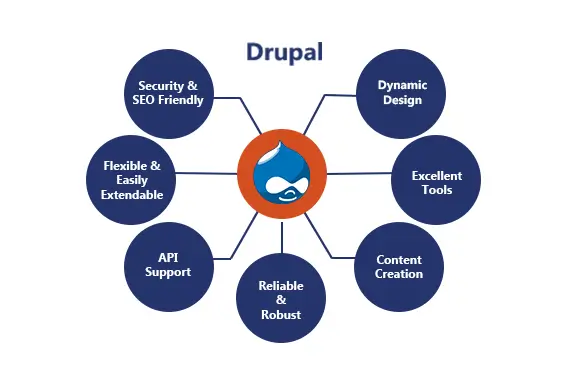
The Simplified Alternative: MapsFun.com for Drupal
What if you could bypass all this complexity and get a beautiful, functional map in minutes? MapsFun.com eliminates every technical hurdle mentioned above.
How MapsFun.com Integrates with Drupal:
1. No Module Installation: Simple embed code works immediately
2. No API Key Management: We handle Google Maps integration
3. Visual Editor: Create maps without configuring fields or views
5-Minute Drupal Integration:
- Step 1: Create your map at [MapsFun.com](https://mapsfun.com)
- – Add locations via search or CSV upload
- – Customize design to match your Drupal theme
- – Configure interactive features
- Step 2: Copy your embed code from MapsFun
- Step 3: In Drupal:
- 1. Create Custom Block (`/admin/structure/block/block-content/add`)
- 2. Choose Basic type
- 3. Paste MapsFun code in Body field
- 4. Place block in any region
html
<!-- MapsFun Drupal Embed Example -->
<div class="mapsfun-embed">
  <iframe src="https://app.mapsfun.com/embed/map/YOUR_UNIQUE_ID"
          style="border: none; width: 100%; height: 500px;"
          title="Our Locations">
  </iframe>
</div>Code language: HTML, XML (xml)
For Programmatic Integration (Advanced):
php
 In your Drupal theme template
$markup = '<div class="mapsfun-container">';
$markup .= '<iframe src="https://app.mapsfun.com/embed/map/YOUR_ID" ';
$markup .= 'style="width:100%;height:500px;border:none;"></iframe>';
$markup .= '</div>';

return [
  '#type' => 'markup',
  '#markup' => $markup,
];Code language: PHP (php)
Why Drupal Developers Choose MapsFun.com
- ✅ Bypass Module Complexity – No Geofield/Geolocation configuration
- ✅ Eliminate API Key Headaches – No Google Cloud management
- ✅ Rapid Deployment – Maps in minutes, not hours
- ✅ Better Performance – Optimized loading out of the box
- ✅ Easy Maintenance – Update maps without touching Drupal
- ✅ Cost Predictable – No surprise Google API bills
- ✅ Professional Features – Clustering, custom markers, directions
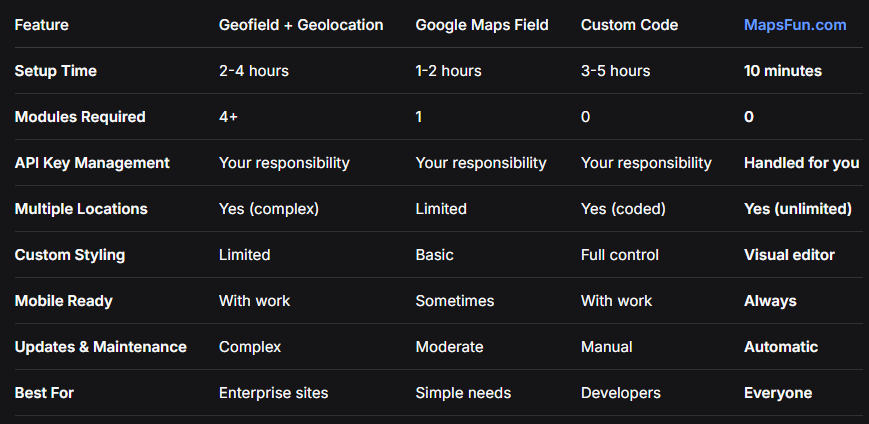
Feature Comparison: Drupal Mapping Solutions
Conclusion: Streamline Your Drupal Mapping Strategy
While Drupal offers powerful mapping capabilities through modules like Geofield and Geolocation, the implementation requires significant technical expertise—from module configuration and API management to complex view setups and performance optimization. For many Drupal site owners, this overhead outweighs the benefits.
For Drupal administrators and developers who want professional mapping results without the technical complexity,MapsFun.com provides an elegant solution. Instead of wrestling with module dependencies, field configurations, and API quotas, you can create stunning, interactive maps through an intuitive interface and embed them in Drupal with simple copy-paste.
Stop spending hours on map configuration and start delivering value to your visitors. Whether you need to display store locations, event venues, or service areas, MapsFun.com delivers enterprise-quality mapping without the enterprise-level complexity. Visit MapsFun.com to create your first map in minutes—no modules, no API keys, and no complex Drupal configuration required.